Connect with us
WhatsApp Web Scan: Complete Login & QR Scan Tutorial
The WhatsApp Web Page has transformed the way people communicate by bringing mobile messaging directly to desktops and laptops through a simple QR code scan. Instead of constantly switching between devices, users can manage chats, share files, send documents, and continue conversations seamlessly from a larger screen with better speed and convenience.
In this complete guide, you’ll discover everything about the WhatsApp Web Page, including how WhatsApp Web Scan works, how to link devices correctly, important features, productivity benefits, security tips, common login issues and fixes, and the best ways to use WhatsApp Web for personal and professional communication.
The article also explains how businesses use WhatsApp Web for customer interactions, remote collaboration, and faster workflow management while combining advanced communication platforms like Troop Messenger for secure and efficient team collaboration.
What is WhatsApp Web Scan?
WhatsApp Web Scan is a feature that allows users to connect their WhatsApp mobile account to a desktop browser by scanning a QR code. Once connected, users can access their chats, contacts, files, and conversations from a computer screen.
The feature is available through the official WhatsApp Web platform and works with most modern browsers, including:
- Google Chrome
- Microsoft Edge
- Mozilla Firefox
- Safari
- Opera
The QR scanning system acts as a secure authentication method. Instead of using usernames or passwords, WhatsApp verifies the connection through the linked mobile device.
WhatsApp Web is commonly used for:
- Office communication
- Customer conversations
- Remote work collaboration
- Educational purposes
- Faster desktop typing
- File sharing and document management
Millions of users rely on WhatsApp Web daily because it improves productivity and simplifies communication across devices.
How Does WhatsApp Web Scan Work?
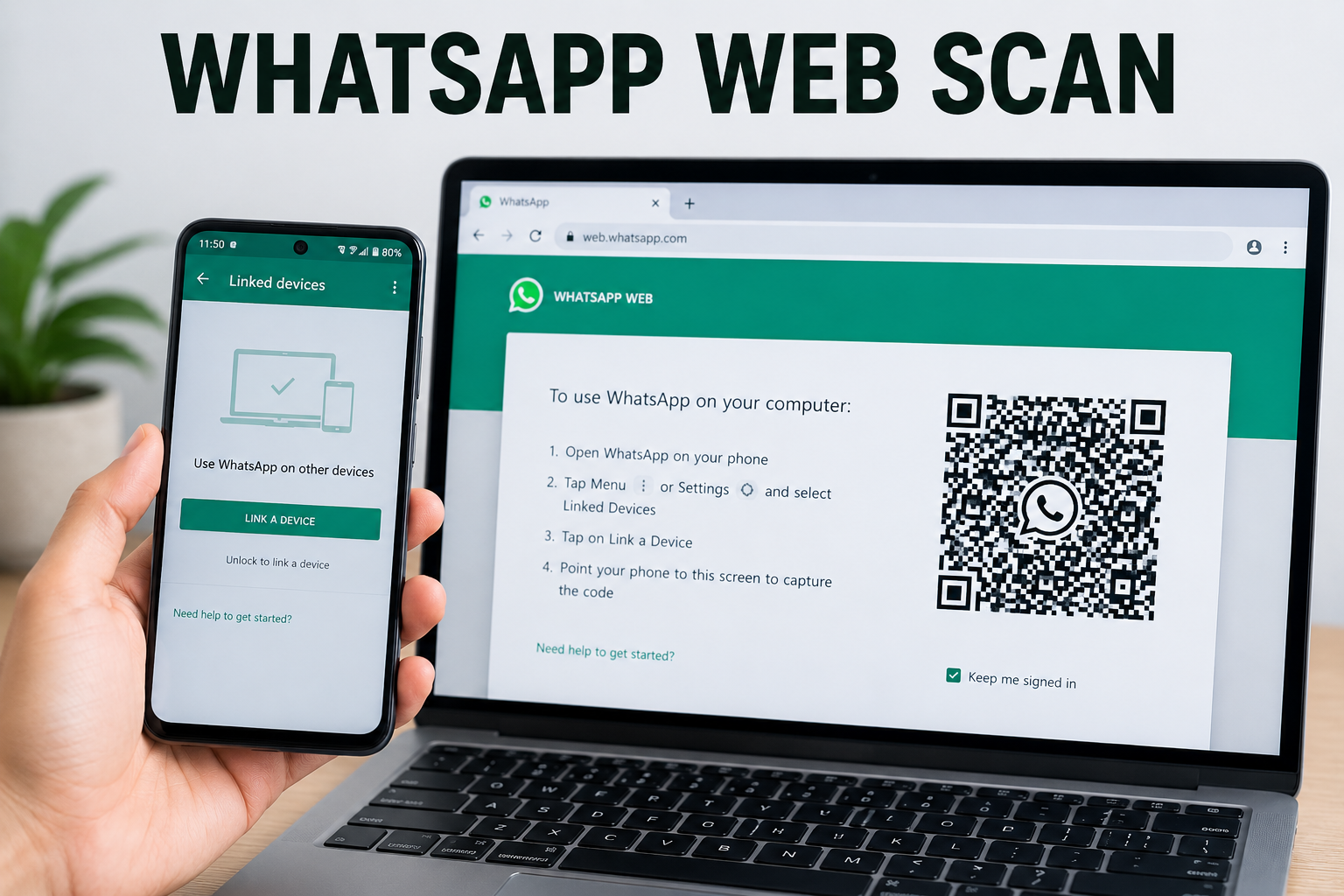
WhatsApp Web Scan works by linking your mobile WhatsApp account with a browser session. When you open WhatsApp Web on a computer, the website displays a unique QR code. Your phone scans this code and securely authenticates the connection.
Once linked, your chats sync instantly between your phone and the desktop browser. Messages sent or received on one device appear on the other almost immediately.
The connection process includes:
- Opening WhatsApp Web
- Generating a QR code
- Scanning the QR code using the mobile app
- Verifying the session securely
- Synchronizing chats and media
The linked devices feature introduced by WhatsApp has made the platform even more reliable because users can continue using WhatsApp Web even when the phone is temporarily offline. For additional setup instructions and troubleshooting guidance, users can refer to the official WhatsApp Linked Devices Help Center.
How to Use WhatsApp Web Scan
Setting up WhatsApp Web Scan is simple and beginner-friendly. Follow these steps carefully.
Step 1: Open WhatsApp Web
Open your preferred browser on a desktop or laptop and visit the official WhatsApp Web website.You will immediately see a QR code on the screen.
Step 2: Open WhatsApp on Your Smartphone
Launch the WhatsApp application on your Android or iPhone device.
Step 3: Access Linked Devices
For Android:
Tap the three-dot menu in the top-right corner
Select “Linked Devices”
For iPhone:
Open WhatsApp Settings
Tap “Linked Devices”
Step 4: Tap “Link a Device”
Select the “Link a Device” option to activate the camera scanner.
Step 5: Scan the QR Code
Point your phone camera at the QR code displayed on your desktop screen.
Make sure:
The QR code is fully visible
Your camera lens is clean
The desktop screen brightness is adequate
Step 6: Start Using WhatsApp Web
Once the QR code is scanned successfully, your chats will load automatically on the browser.
You can now:
- Send and receive messages
- Share documents
- Download images
- Reply faster using the keyboard
- Manage conversations easily
Features of WhatsApp Web Scan
WhatsApp Web includes several useful features that improve the overall messaging experience.
Real-Time Chat Synchronization
Messages sync instantly between your phone and desktop browser.
File Sharing
Users can drag and drop:
- Documents
- Images
- Videos
- PDFs
- Audio files
Keyboard Typing
Typing long messages becomes faster and more comfortable with a physical keyboard.
Desktop Notifications
Users receive instant browser notifications for incoming messages.
Multi-Device Support
WhatsApp now supports linked devices, allowing better flexibility.
Media Downloads
Images, videos, and files can be downloaded directly to the computer.
Chat Search
Quickly search messages, contacts, and conversations from the desktop interface.
Benefits of Using WhatsApp Web Scan
WhatsApp Web provides several advantages for both personal and professional users.
Improved Productivity
Users can communicate while working on desktops without constantly checking their phones.
Faster Communication
Typing on a keyboard saves time and increases messaging speed.
Better File Management
Sharing business documents and media becomes easier from desktop systems.
Comfortable User Experience
Large screens provide better readability compared to small mobile displays.
Useful for Remote Work
Remote employees and distributed teams can communicate more efficiently.
Easy Multi-Tasking
Users can manage emails, spreadsheets, and WhatsApp chats simultaneously.
Professional Communication
Customer support teams and businesses often use WhatsApp Web to handle multiple conversations quickly.
WhatsApp Web Scan for Businesses
Businesses increasingly rely on desktop messaging platforms for communication efficiency. WhatsApp Web Scan plays an important role in helping organizations manage conversations with clients, customers, and teams. Effective customer engagement and internal coordination often depend on well-established communication models in business, which help teams exchange information clearly and efficiently.
Common business uses include:
- Customer support
- Sales communication
- Order management
- Internal coordination
- Marketing conversations
- Team collaboration
For sales and support teams, however, chatting through WhatsApp Web often means juggling dozens of conversations with no way to track who said what or when to follow up. This is where pairing WhatsApp with a dedicated crm for whatsapp becomes useful - it turns WhatsApp chats into trackable deals, logs customer history automatically, and lets teams set follow-up reminders without leaving the conversation.
However, businesses with advanced communication requirements often use dedicated collaboration platforms alongside WhatsApp.
Professional communication tools like Troop Messenger provide:
- Team channels
- Video conferencing
- Secure messaging
- Admin controls
- Screen sharing
- File collaboration
- Enterprise-grade security
These features are especially important for organizations handling sensitive information or large-scale communication operations.
Why Businesses Use Troop Messenger Alongside WhatsApp Web
While WhatsApp Web Scan is excellent for quick messaging and personal communication, many organizations require more advanced collaboration features for professional workflows. This is where platforms like Troop Messenger become highly valuable for businesses and remote teams.
Troop Messenger is designed specifically for workplace communication, helping teams manage conversations, share files, conduct meetings, and collaborate securely from a centralized platform. Businesses often use WhatsApp Web for customer interactions while relying on Troop Messenger for internal communication and productivity management.
Benefits of Using Troop Messenger for Teams
- Secure business messaging
- Team collaboration channels
- Screen sharing features
- Audio and video calling
- File sharing and management
- Admin controls and user permissions
- Better workplace productivity
For organizations handling sensitive information, enterprise collaboration platforms provide stronger security and workflow management compared to regular messaging applications. Combining WhatsApp Web for external communication and Troop Messenger for internal coordination helps businesses create a faster and more organized communication environment.
Common WhatsApp Web Scan Problems and Solutions
Although WhatsApp Web is reliable, users sometimes experience technical issues. Below are the most common problems and their solutions.
QR Code Not Loading
Causes
- Slow internet connection
- Browser cache problems
- Server issues
Solutions
- Refresh the page
- Restart the browser
- Clear browser cache
- Check internet connectivity
QR Code Cannot Be Scanned
Causes
- Poor camera quality
- Dirty camera lens
- Low screen brightness
Solutions
- Clean the phone camera lens
- Increase laptop brightness
- Hold the phone steady
- Adjust scanning distance
WhatsApp Web Disconnecting Frequently
Causes
- Weak internet connection
- Browser instability
- Device syncing issues
Solutions
- Use stable Wi-Fi
- Update the browser
- Reconnect the linked device
Chats Not Syncing Properly
Causes
- Outdated WhatsApp app
- Temporary server problems
Solutions
- Update WhatsApp
- Restart the phone
- Reconnect WhatsApp Web
Browser Compatibility Issues
Older browsers may not support WhatsApp Web correctly.
Recommended Browsers
- Chrome
- Firefox
- Edge
- Safari
Always keep browsers updated for better compatibility.
Is WhatsApp Web Scan Safe?
Yes, WhatsApp Web Scan is generally secure because WhatsApp uses end-to-end encryption. Messages remain encrypted during transmission, which helps protect user privacy. WhatsApp provides detailed information about its encryption model and privacy protections in its official Security Documentation
However, users should still follow important security practices.
Security Tips for WhatsApp Web Users:
Avoid Public Computers
Never leave your WhatsApp account logged in on shared systems.
Log Out After Use
Always sign out after completing your session.
Enable Screen Lock
Use phone lock protection for additional security.
Monitor Linked Devices
Check linked devices regularly and remove unknown sessions.
Avoid Suspicious Links
Do not click unknown links received through chats.
Keep WhatsApp Updated
Updates include security improvements and bug fixes.
WhatsApp Web Scan vs WhatsApp Desktop App
Many users wonder whether they should use WhatsApp Web or install the desktop application.
Feature | WhatsApp Web | Desktop App |
Installation Needed | No | Yes |
Browser Required | Yes | No |
Notifications | Browser-based | Native notifications |
Performance | Good | Better |
Ease of Access | High | Moderate |
Resource Usage | Lower | Higher |
Which One is Better?
WhatsApp Web is better for casual users who want quick browser access.
The desktop app is better for heavy users who prefer improved performance and native desktop support.
How WhatsApp Web Improves Productivity
Productivity is one of the biggest reasons people use WhatsApp Web Scan daily.
Faster Typing
Typing on desktop keyboards significantly reduces response time.
Easier Document Sharing
Users can instantly upload documents stored on computers.
Simultaneous Workflows
Employees can manage work applications and chats together.
Reduced Mobile Dependency
Users avoid constant phone handling during office hours.
Better Customer Response Management
Businesses can reply to customers faster using desktop systems.
Best Practices for Using WhatsApp Web Scan
To get the best experience from WhatsApp Web, users should follow several optimization practices.
Use Stable Internet
A strong internet connection prevents syncing issues.
Keep Devices Updated
Update both:
- WhatsApp application
- Web browser
Clear Browser Cache Regularly
This helps improve loading speed and performance.
Enable Notifications
Desktop alerts ensure users never miss messages.
Organize Chats
Archive unnecessary chats for a cleaner workspace.
WhatsApp Web Scan for Remote Teams
Remote work has increased the demand for communication platforms that support collaboration and flexibility. WhatsApp Web helps remote teams communicate quickly across locations.
However, businesses often need additional features such as:
- Task management
- Group collaboration
- Video meetings
- File storage
- Administrative control
Dedicated workplace communication platforms like Troop Messenger are designed specifically for professional environments and provide better workflow management than standard messaging apps.
Alternatives to WhatsApp Web Scan
Although WhatsApp Web is popular, several alternatives offer more advanced features. Organizations evaluating collaboration tools frequently compare WhatsApp Web with other best business communication apps to find solutions that better support team productivity and business workflows.
Troop Messenger
Troop Messenger is a business-focused communication platform with secure messaging, collaboration tools, and enterprise-grade controls.
Slack
Slack provides organized team communication through channels and integrations.
Microsoft Teams
Microsoft Teams combines messaging, meetings, and document collaboration.
Google Chat
Google Chat integrates with Google Workspace productivity tools.
Zoom Team Chat
Zoom also offers messaging capabilities alongside video conferencing.
Why Businesses Need Secure Communication Platforms
Modern organizations require secure communication systems that support collaboration, productivity, and data protection.
Business communication platforms offer:
- Better access control
- Centralized communication
- Secure file sharing
- Employee collaboration
- Enterprise security compliance
Many companies use WhatsApp for quick communication but depend on professional collaboration platforms for long-term operational efficiency.
Future of WhatsApp Web Scan
WhatsApp continues improving its multi-device technology and desktop experience. Future enhancements may include:
- Better independent device support
- Faster syncing
- Improved desktop features
- Enhanced business communication tools
- Better security integrations
As workplace communication evolves, browser-based messaging platforms will continue becoming more important.
Simple Tips to Resolve WhatsApp Web Errors
If WhatsApp Web stops working unexpectedly, try these quick fixes:
- Refresh the browser
- Restart the device
- Check internet connectivity
- Re-scan the QR code
- Update the browser
- Disable browser extensions temporarily
- Clear cookies and cache
Most WhatsApp Web issues can be resolved within minutes using these methods.
Conclusion
WhatsApp Web Scan is a fast, simple, and efficient way to access WhatsApp directly from a desktop browser. By scanning a QR code, users can synchronize conversations, send messages, share files, and improve productivity without relying entirely on mobile devices.
The feature is especially useful for professionals, students, remote workers, and businesses that require faster communication workflows. While WhatsApp Web is excellent for everyday messaging, organizations with advanced communication needs often benefit from dedicated workplace collaboration platforms like Troop Messenger.
Whether you want better multitasking, easier file sharing, or more convenient desktop communication, WhatsApp Web Scan remains one of the most practical tools for modern messaging.
Frequently Asked Questions
1. How do I use WhatsApp Web Scan?
Using WhatsApp Web Scan is simple and takes only a few steps. First, open WhatsApp Web in your preferred desktop browser. On your smartphone, open WhatsApp and navigate to the Linked Devices section in the settings menu. Tap “Link a Device” and use your phone’s camera to scan the QR code displayed on the computer screen. Once the code is scanned successfully, your chats will instantly sync, allowing you to send messages, share files, and manage conversations directly from your desktop browser.
2. Can I use WhatsApp Web without a phone?
A phone is still required when setting up WhatsApp Web for the first time. During the initial process, WhatsApp needs your mobile device to verify your account and link it to the desktop session. However, after the connection is established, WhatsApp’s multi-device feature allows you to continue using WhatsApp Web even when your phone is offline for a limited period. While you cannot create or verify an account without a phone, day-to-day use becomes much more flexible once the devices are linked successful
3. Is WhatsApp Web free?
Yes, WhatsApp Web is completely free to use and does not require any subscription or additional payment. Anyone with a WhatsApp account can access the service through a compatible web browser. All the core features, including messaging, file sharing, viewing media, and syncing conversations, are available without extra charges. The only costs you may incur are related to your internet connection, whether through mobile data or Wi-Fi. This makes WhatsApp Web a convenient and cost-effective solution for staying connected while working on a computer.
4. Why is my WhatsApp Web QR code not scanning?
If your WhatsApp Web QR code is not scanning, several factors could be causing the issue. A weak internet connection on either your phone or computer can prevent successful linking. Low screen brightness, a damaged phone camera, or an outdated version of WhatsApp may also interfere with the scanning process. Make sure the QR code is fully visible and not zoomed in or distorted. Restarting the browser, refreshing the QR code, updating the app, or cleaning your camera lens can often resolve the problem quickly.
5. Does WhatsApp Web support multiple devices?
Yes, WhatsApp Web supports multiple devices through WhatsApp’s multi-device feature. This functionality allows you to connect your account to several devices, including computers and tablets, while maintaining access to your messages and media. Once linked, each device can function independently without requiring your phone to remain constantly connected to the internet. This improves convenience and productivity, especially for users who frequently switch between devices. The feature also maintains synchronization across connected devices, ensuring your conversations remain up to date wherever you access them.