Connect with us
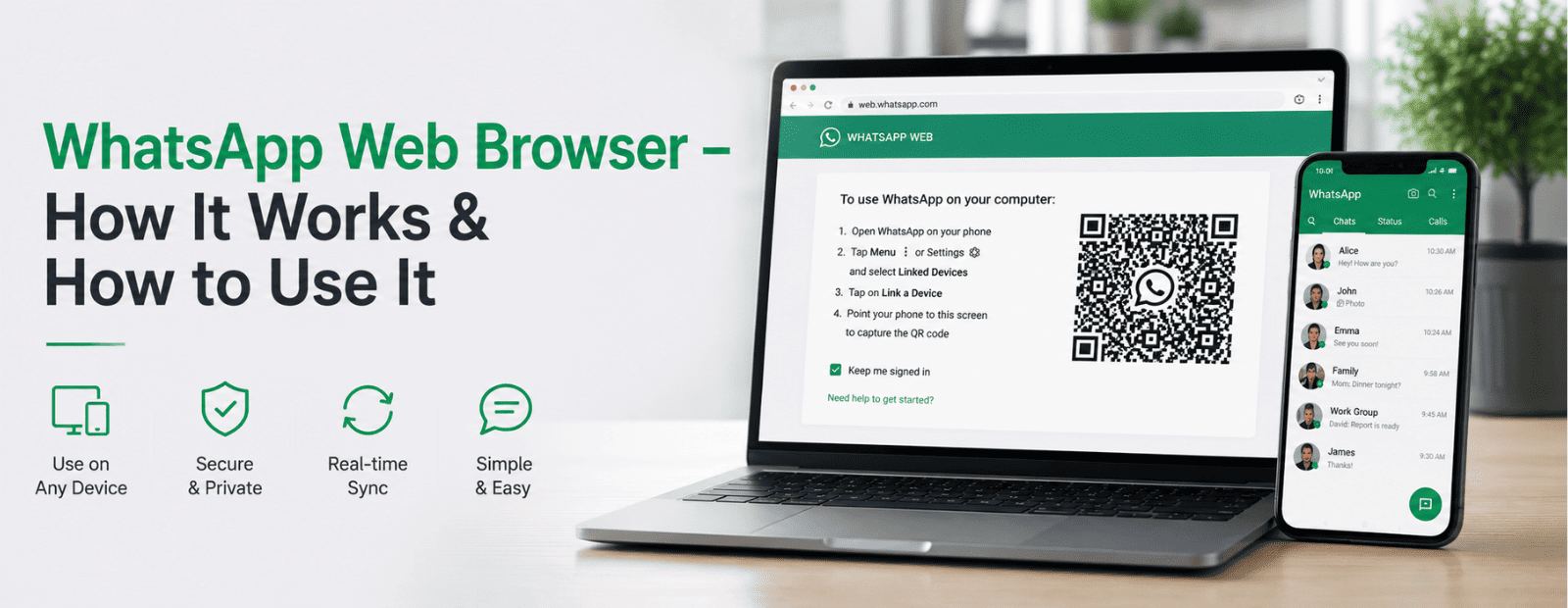
WhatsApp Web Browser: Everything You Need to Know
The following article gives a complete overview on WhatsApp Web Browser by elaborating on all its aspects such as the process of using it, logging in, features, compatible browsers, etc. WhatsApp Web enables people to use WhatsApp on their laptops or desktops via browsers and helps them have instant chats without switching to the mobile phone.
Be you an individual wanting faster messaging, a professional working with business communication or a company utilizing WhatsApp Business for your customer service needs, WhatsApp Web browser offers you a quick means of enjoying your instant messaging application on a bigger display screen. Within this guide, we shall be discussing how to set up and use WhatsApp web, as well as other important facts about WhatsApp Web, 2026-style.
What Is WhatsApp Web Browser?
WhatsApp Web is the official browser-based version of WhatsApp that allows you to access your conversations directly from a desktop or laptop browser. Instead of downloading a desktop application, you simply visit web.whatsapp.com, scan the QR code using the WhatsApp app on your smartphone, and your chats appear instantly in the browser.
Unlike a separate messaging application, WhatsApp Web securely syncs your messages, contacts, media files, and conversations using WhatsApp's multi-device technology. After linking your device, you can continue using WhatsApp Web even when your phone is temporarily offline in many situations.
Today, WhatsApp Web supports messaging, document sharing, voice notes, status viewing, and voice and video calling (on supported browsers), making it one of the easiest ways to use WhatsApp from a computer.
Web on WhatsApp: What It Means and How It Works
When people search for "web on WhatsApp," they're usually looking for one thing, a way to use WhatsApp directly from their computer browser without constantly reaching for their phone.
Web on WhatsApp is simply WhatsApp's browser-based experience, accessible at web.whatsapp.com. It mirrors everything on your mobile app, your chats, contacts, media, and even calls, all inside a regular browser tab. No app download. No installation. Just open, scan, and start messaging.
Here's what makes web on WhatsApp different from the mobile app:
- Your keyboard does the heavy lifting. Long messages, links, documents, all faster to handle at a desk.
- Your screen shows more context. Chat list on the left, conversation on the right. No toggling between screens.
- Your files transfer in seconds. Drag and drop documents or photos directly from your computer.
Web on WhatsApp works best when your phone stays connected to the internet in the background. Once linked, the browser session stays active across multiple visits, you won't need to scan the QR code every single time.
For anyone spending hours at a desk, web on WhatsApp quickly becomes the default way to chat.
Why Use WhatsApp on a Web Browser?
Let me be honest, if you're someone who types fast, using WhatsApp on your phone can feel a little painful. Autocorrect changing words, tiny keyboard, squinting at a small screen. WhatsApp on a web browser just removes all of that.
Here's what makes it worth using:
Typing is faster. An actual keyboard makes a real difference for longer conversations or sharing links. No autocorrect drama.
You see more at once. The desktop layout shows your chat list on the left and the conversation on the right. You can see context without scrolling endlessly.
File sharing is easier. Uploading a document or image from your computer takes two seconds. No emailing files to yourself first.
Notifications work in the browser. If you allow it, Chrome or Firefox will pop up a desktop notification when a new message arrives. You don't have to keep checking.
It works for WhatsApp Business too. If you're managing a WhatsApp Business web browser setup for customer communication, this is genuinely more practical than handling everything on a phone.
Which Browsers Support WhatsApp Web?
While WhatsApp Web is excellent for daily communication, many organizations also explore other best business communication apps to improve team collaboration, productivity, and customer interactions.
WhatsApp Web works in most modern browsers. Here's what actually performs well:
Google Chrome — the most tested, most stable experience. If something isn't working in another browser, Chrome almost always fixes it.
Mozilla Firefox — works well. Occasionally a feature lags slightly behind Chrome but day-to-day it's fine.
Microsoft Edge — runs on Chromium now so it behaves almost identically to Chrome.
Safari — works on Mac. Some users report occasional QR code loading issues but nothing that doesn't resolve with a refresh.
Opera — works, though it's less commonly used.
Browsers that won't work: Internet Explorer (it's been discontinued anyway), and very old versions of any browser. WhatsApp requires browser updates from roughly 2019 onward.
Browser Compatibility for WhatsApp Web
| Browser | Supported | Best For |
| Google Chrome | Yes | Best overall performance and latest features |
| Microsoft Edge | Yes | Windows users with Chromium-based browsing |
| Mozilla Firefox | Yes | Privacy-focused users and everyday messaging |
| Safari | Yes | macOS users |
| Opera | Yes | Alternative Chromium-based browser |
| Internet Explorer | No | Not supported |
How to Open WhatsApp Web in Any Browser — Step by Step
This is the part most people actually need. The whatsapp web browser login process is simple, but only if you know what you're looking for.
On Desktop (Chrome, Firefox, Edge, Safari):
Step 1 - Open your browser and go to web.whatsapp.com. You'll see a page with a QR code on the right side.
Step 2 - Pick up your phone and open WhatsApp.
Step 3 - On iPhone: Tap Settings (bottom right) → Linked Devices → Link a Device. On Android: Tap the three dots (top right) → Linked Devices → Link a Device.
Step 4 - Your phone's camera opens. Point it at the QR code on your screen.
Step 5 - WhatsApp loads on your browser within a few seconds. That's it. You're logged in. Your chats appear automatically.
How to Open WhatsApp Web in Mobile Browser
This one trips people up. If you're on your phone and try to open web.whatsapp.com in Chrome or Safari, you'll usually get redirected to the app download page instead.
To actually use WhatsApp web in a mobile browser, you need to switch to desktop mode:
On Chrome mobile: Tap the three dots → check Desktop site. On Safari mobile: Tap the "aA" button in the address bar → Request Desktop Website.
Once you're in desktop mode, the QR code page loads. Then you scan it from a second phone or tablet. It's a slightly odd use case but it works.
How to Use WhatsApp Web on iPhone Browser
The how to use WhatsApp web on iPhone browser question gets asked a lot. iPhones default to mobile view in Safari, which causes the redirect issue mentioned above.
Here's the clean path:
- Open Safari on your iPhone.
- Go to web.whatsapp.com.
- Tap the aA icon in the address bar.
- Select Request Desktop Website.
- The QR code page loads.
- Open WhatsApp on another phone to scan the new phone.
Or else, for those who intend to use WhatsApp on their iPhone alone, using the application will be the better choice. This way will make much more sense to do in devices where there is no WhatsApp installed.
WhatsApp Web QR Code — What It Is and Why It Matters
Every time you do a WhatsApp web browser login, you'll see the QR code first. It's how WhatsApp connects your browser session to your phone account without making you type a password into a website.
The code refreshes every 20–30 seconds. If you take too long, it expires and you just refresh the page to get a new one.
One thing worth knowing: the QR code contains a session token, not your actual account password. So scanning it doesn't expose your login credentials. It just creates a temporary link between the browser and your phone.
After logging in, you can stay logged in across sessions. WhatsApp keeps you connected as long as your phone has an internet connection and you haven't logged out manually.
WhatsApp Web Login Requirements
Before using WhatsApp Web, make sure you have:
- An active WhatsApp account
- The latest version of WhatsApp installed on your smartphone
- A supported web browser
- Internet access
- Camera permission to scan the QR code
Once these requirements are met, linking your device takes less than a minute.
What Is WhatsApp Web Browser — Features You Should Know
People often ask what is the use of WhatsApp web browser beyond basic chatting. It does quite a lot:
- Send and receive messages: Exchange text messages, emojis, stickers, GIFs, and voice messages just like you do on the mobile app.
- Share files and media: Upload and download documents, photos, videos, and other files (up to WhatsApp's supported file size limit) directly from your computer.
- Make voice and video calls: Use your computer's microphone and camera to make voice and video calls on supported browsers and devices.
- View status updates: Check your contacts' WhatsApp Status updates without switching to your phone.
- Star important messages: Save important messages for quick access later, just as you can on the mobile app.
- Use keyboard shortcuts: Improve productivity with shortcuts such as Ctrl + N (New Chat), Ctrl + Shift + M (Mute Chat), and Ctrl + E (Archive Chat) on Windows.
- Manage WhatsApp Business conversations: If you use WhatsApp Business, you can reply to customers, use quick replies, organize chats with labels, and manage conversations more efficiently from your browser.
WhatsApp Web Login — Common Problems and Fixes
A few things go wrong regularly. Here are the actual fixes, not the generic "try restarting" advice.
QR code not loading. Usually a browser extension is blocking it, ad blockers are the main culprit. Try disabling your ad blocker on web.whatsapp.com, or open an incognito window.
QR code keeps expiring before you can scan. Your phone camera might be slow to open. Tap Linked Devices first, then go to your computer. The QR code will already be waiting.
WhatsApp Web stuck on "Connecting." Your phone's internet connection dropped. Check that your phone has Wi-Fi or mobile data. WhatsApp Web needs the phone to be online even after the initial scan.
Messages not syncing. This usually means the phone connection broke. Refresh the browser tab. If that doesn't work, log out and scan the QR code again.
Notifications not showing up. Go to your browser settings and make sure web.whatsapp.com has notification permissions enabled. Each browser handles this slightly differently but it's always in the site permissions section.
WhatsApp Web on Laptop — Desktop App vs Browser
There's actually a WhatsApp desktop app you can download separately. So the question becomes: browser version or desktop app?
For most people, the browser version is fine. It works without installing anything, works on any OS, and doesn't take up space on your hard drive.
The desktop app has a minor advantage in startup speed and notifications. It also works if your browser is closed. But if you already have Chrome open all day, there's no real reason to switch.
The WhatsApp web on browser approach wins on flexibility. You can use it on a work computer where you can't install software, on a shared computer, or anywhere else without leaving a permanent footprint.
Is WhatsApp Web Browser Safe?
This is worth addressing because people worry about it. Short answer: yes, if you use it on your own device.
WhatsApp uses end-to-end encryption. Messages are encrypted between your phone and the recipient. The browser session connects to your phone, so the encryption chain stays intact. Companies handling sensitive information often compare WhatsApp with other secure team messaging platforms to better understand their options for privacy, compliance, and data protection. The risks are more about physical security. Users who want to learn more about how their messages are protected can review WhatsApp's Security and Encryption documentation, which explains the platform's privacy and security measures.If you use WhatsApp Web on a shared or public computer and forget to log out, whoever uses the computer next can access your chats. Always log out from linked devices when you're done. You can do this from your phone: Settings → Linked Devices → tap the session → Log Out.
If someone scans your QR code (by taking a photo of your screen), they can link their browser to your account. Don't leave the QR code screen visible to people around you.
WhatsApp Web Browser vs WhatsApp App — When to Use Which
These two versions of WhatsApp cater to different requirements.
Use WhatsApp Web browser when you are on a computer and typing is easier, file sharing is effortless, and handling chats is convenient because of the large screen space available.
Use WhatsApp app when you are on the go, need camera access for sending pictures, or would like to make voice calls without a headpiece. The WhatsApp app also does not require the phone to be around you at all times since WhatsApp no longer mandates the phone being connected all the time.
For WhatsApp Business web browser users, small business owners, support teams, freelancers, the browser version often becomes the primary interface during work hours. It's just more practical at a desk.
Can You Use WhatsApp Web Without a Phone?
Technically no. You will need a mobile device with the app on it to scan the QR code once initially.
However, WhatsApp has recently been working on multi-device support, which enables you to use the web interface even if the phone is offline or lacks battery power. Once synced, your web session becomes an independent entity. But the initial connection will require the use of a mobile phone.
If you require a messaging platform without the necessity to have another device involved, this is not your search. Troop Messenger functions purely in the browser environment without the need for any additional devices, a factor that might be relevant to your needs.
Final Thoughts
The WhatsApp web browser setup is genuinely one of those things that takes two minutes to configure and then you wonder why you didn't do it sooner. Faster typing, easier file sharing, bigger screen, the daily friction just drops.
It's not perfect. It still leans on your phone for the connection in many scenarios. Notifications can be finicky depending on browser settings. And the QR code login feels a bit clunky the first time you do it.
But for most people sitting at a desk who also use WhatsApp regularly, it's worth having open in a tab. Whether that's for personal chats or WhatsApp Business web browser use, the browser version holds up well.
Whether it fully replaces the app on your phone is a different question. Probably not. But as a companion to it, yeah, it does the job.
FAQs
1. How do I use WhatsApp Web on mobile?
WhatsApp Web is primarily designed for desktop browsers, but you can also access it from a mobile browser. To do this, open your preferred browser and visit the WhatsApp Web website. Next, enable the “Desktop Site” option from the browser settings so the desktop version of the page loads. A QR code will appear on the screen. You can then use another phone with WhatsApp installed to scan the QR code through the “Linked Devices” feature. Once connected, you can send messages, view chats, and manage conversations directly from your mobile browser.
2. How Can I Login to WhatsApp on My Laptop?
Logging into WhatsApp on a laptop is quick and simple. Open your preferred browser and visit the official WhatsApp Web page. On your smartphone, open WhatsApp and navigate to “Linked Devices” from the settings menu. Tap “Link a Device” and scan the QR code displayed on your laptop screen. Once verified, your chats, contacts, and recent conversations will automatically sync with the laptop. You can then send messages, share files, and manage conversations from your computer, making it easier to work or communicate without constantly switching to your phone.
3. Can I Use WhatsApp on a Laptop Without My Phone Nearby?
Yes, WhatsApp now supports multi-device functionality, which allows you to continue using WhatsApp Web or the desktop app even when your phone is not nearby. After the initial linking process is completed, your laptop maintains a secure connection with your WhatsApp account independently. This means you can send and receive messages even if your phone is switched off or temporarily disconnected from the internet. However, your account must first be linked using your phone, and prolonged inactivity may eventually require you to reconnect your device for security reasons.
4. How Can I Access WhatsApp If My Phone Is Lost?
If your phone is lost or stolen, you may still be able to access WhatsApp on a linked laptop or desktop device for a short period. However, your first priority should be securing your account. Contact your mobile carrier immediately to block your SIM card and prevent unauthorized access. Then obtain a replacement SIM card with the same phone number and activate WhatsApp on a new device. Once you log in to WhatsApp on the new phone, previous sessions will be updated, helping you regain access while keeping your messages and account secure.
5. Is WhatsApp Web Free to Use?
Yes, WhatsApp Web is completely free to use and does not require any additional subscription or payment. It works as an extension of your existing WhatsApp account, allowing you to access chats, send messages, share documents, and view media directly from a browser. The only requirement is an active WhatsApp account and an internet connection on your linked device. Standard data charges from your internet service provider may still apply, but WhatsApp itself does not charge users for accessing WhatsApp Web or linking multiple devices.
6. Which Browsers Support WhatsApp Web?
WhatsApp Web is compatible with most modern web browsers, making it accessible on a wide range of devices. Supported browsers include Google Chrome, Microsoft Edge, Mozilla Firefox, Safari, and Opera. To ensure the best performance and security, it is recommended to use the latest version of your browser. Older browser versions may experience issues such as slower performance, missing features, or connection errors. Regular browser updates help maintain compatibility with WhatsApp Web and provide important security improvements that protect your account and browsing experience.
7. Why Is WhatsApp Web Not Connecting?
There are several reasons why WhatsApp Web may fail to connect properly. Common causes include a weak internet connection, an outdated browser, browser extensions interfering with the page, or an expired linked-device session. Sometimes the QR code may not scan correctly if the camera lens is dirty or the screen brightness is too low. To resolve the issue, refresh the WhatsApp Web page, check your internet connection, update your browser, and relink your device if necessary. Restarting both your phone and computer can also help fix temporary connection problems.
8. Can I Make Calls Using WhatsApp Web?
Voice and video calling support on WhatsApp Web is limited compared to the desktop application. While browser-based WhatsApp Web focuses mainly on messaging, file sharing, and media viewing, the dedicated WhatsApp Desktop app offers a more complete communication experience, including voice and video calls. If making calls is important to you, installing the official desktop application is the better option. It provides improved performance, better device integration, and access to features that may not be available through a standard web browser.
9. Is WhatsApp Web Safe to Use?
Yes, WhatsApp Web is generally safe because it uses the same end-to-end encryption technology as the mobile app. This means your messages, photos, videos, and shared files remain protected and can only be read by the intended recipients. However, security also depends on how you use the service. Avoid logging in on public or shared computers whenever possible, and always log out after finishing your session. Enabling two-step verification on your WhatsApp account adds an extra layer of protection and helps prevent unauthorized access.
10. How Do I Log Out from WhatsApp Web?
Logging out of WhatsApp Web is simple and recommended when using a shared or public computer. Open WhatsApp on your phone and go to the “Linked Devices” section in the settings menu. You will see a list of all active sessions connected to your account. Select the session you want to remove and tap “Log Out.” This immediately disconnects that device from your account. You can also log out directly from the WhatsApp Web interface on your computer by clicking the menu icon and selecting “Log Out” from the available options.