Connect with us
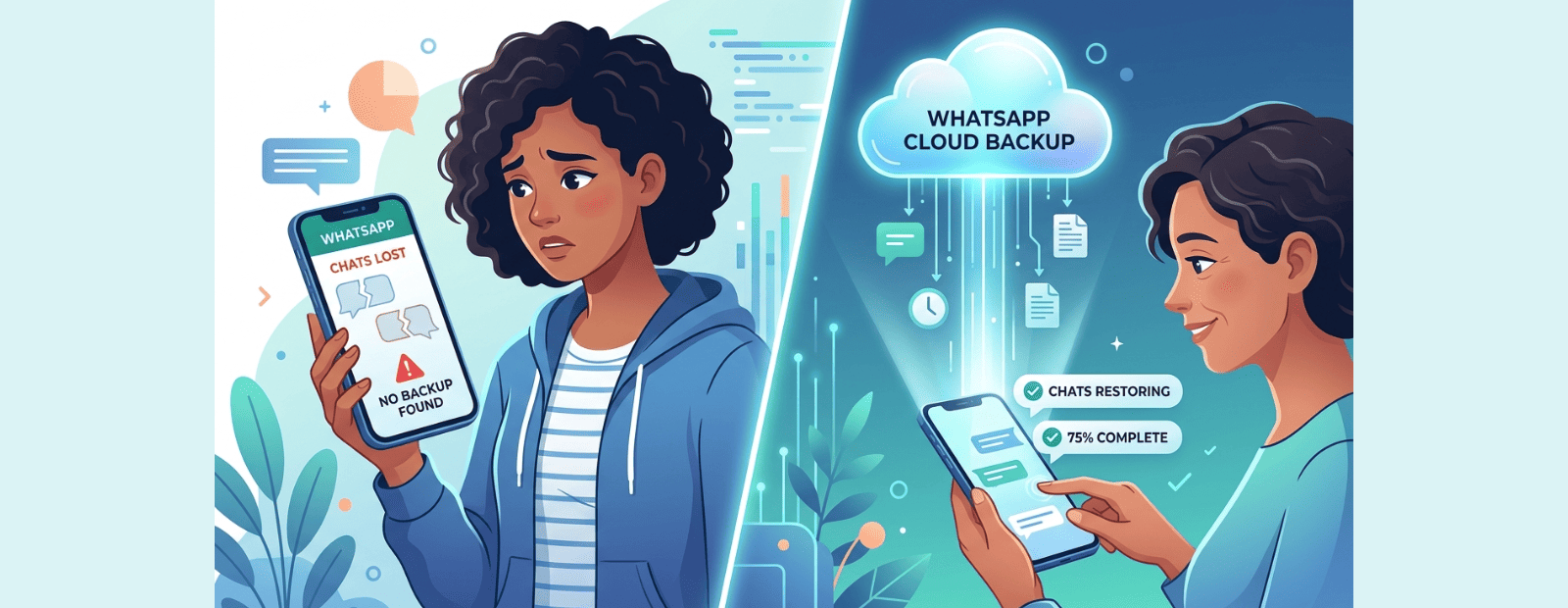
WhatsApp Backup: How to Backup WhatsApp Chats Step-by-Step
WhatsApp backup allows you to securely save your chats, photos, videos, documents, and voice messages to Google Drive (Android) or iCloud (iPhone), making it easy to restore your data when switching devices, recovering from data loss, or reinstalling the app. In this guide, you'll learn how to backup WhatsApp chats on Android and iPhone, enable encrypted backups, restore chats on a new phone, transfer chats between devices, troubleshoot backup issues, and keep your WhatsApp data secure in 2026.
A cracked screen, a stolen phone, a failed update, and suddenly years of conversations, shared photos, voice notes, and important documents vanish without warning. The good news is that protecting everything takes less than five minutes.
What Does a WhatsApp Backup Include?
A WhatsApp backup typically stores:
- Personal and group chat messages
- Photos and videos (if enabled)
- Voice notes
- Documents and files
- WhatsApp settings and preferences
A backup helps users restore their conversations when changing phones, reinstalling WhatsApp, or recovering from accidental data loss. Depending on the device, backups are stored in Google Drive (Android) or iCloud (iPhone).
Why Backing Up Your WhatsApp Chats Actually Matters
The truth is, most people believe their messages are automatically saved somewhere in the cloud. They are not, at least not by default.
Without a backup system in place, your WhatsApp data lives on your physical device alone. When this device is lost or damaged, so is your data. But what exactly is in these chats?
- Personal photos and videos from family events, trips, and everyday moments
- Work files, invoices, contracts, PDFs, and project notes shared casually over chat
- Voice messages from people you love, often ones that can never be recreated
- Business conversations that function as an informal record of leads and agreements
- Useful links, addresses, and event details that were never saved anywhere else
For most people, their chat history is a genuine digital archive, one worth protecting properly.
WhatsApp Usage and Data Backup Statistics
According to WhatsApp, the platform serves more than 2 billion users worldwide, making it one of the most widely used messaging applications globally. With billions of messages, photos, videos, and documents shared every day, losing chat history can result in the loss of valuable personal and business information.
Recent mobile usage studies also show that device damage, accidental deletion, phone upgrades, and software failures remain among the leading causes of data loss. Regular WhatsApp backups help users recover conversations quickly and reduce the risk of permanent data loss.
Saving Your Chats on Android (Google Drive)
If you are using the Android version of WhatsApp, the backup is saved using Google Drive. One thing to be aware of is that, from the end of 2024, the backup will be taken out of your 15 GB of free Google Drive storage. Therefore, if your Google Drive is already full, you need to sort this out first.
How to Set It Up – Step by Step
Step 1: First, open WhatsApp. Tap the three vertical dots in the top right corner. Then, go to "Settings."
Step 2: Tap "Chats" and then "Chat Backup." All the options are available here.
Step 3: Ensure that your device is logged into a Google account. If not, tap "Account" and then log in using your Gmail account.
Note: Google Drive backups are linked to your Google account and phone number. To restore a backup successfully, you must use the same Google account and phone number used during backup creation.
Step 4: Tap "Back up to Google Drive" and choose the backup frequency:
Daily – This is the best option for most people.
Weekly – Works well if your chats don't change much
Monthly – Fine for very light users
Manual only – not recommended unless you are disciplined about doing it yourself
Step 5: Decide whether to include videos. They make your backup significantly larger, so only switch this on if you regularly save important video clips in your chats.
Step 6: Select "Back up over Wi-Fi only." This prevents the process from running on mobile data, which matters especially if your backup includes media.
Step 7: Tap the green Back Up button to run your first save immediately and confirm everything is working.
Useful habit: Plug your phone in to charge overnight and let the backup run at a fixed time each morning — say, 3 AM. It happens silently while you sleep and you never have to think about it again.
Saving Your Chats on iPhone (iCloud)
iPhone users save their WhatsApp data through iCloud. Apple's free tier gives you 5 GB, which is not a lot, especially if you have photos and app data competing for the same space. Check your available iCloud storage before getting started.
How to Set It Up — Step by Step
Ensure that iCloud Drive is enabled on your iPhone before creating a WhatsApp backup. Without iCloud Drive access, backup and restore operations may fail.
Step 1: Open WhatsApp and tap the Settings icon (the gear symbol) at the bottom-right of the screen.
Step 2: Tap Chats → Chat Backup.
Step 3: Tap Back Up Now to run an immediate save and confirm the feature is working.
Step 4: Tap Auto Backup and set your preferred schedule, Daily, Weekly, or Monthly.
Step 5: Double-check your iCloud settings. Go to iPhone Settings → Your Name → iCloud → Show All Apps and make sure WhatsApp is toggled on.
Quick storage fix: If iCloud space is tight, go back into Chat Backup and turn off video backup. That single change can reduce the size of your backup by more than half, sometimes much more.
Android vs iPhone — Quick Comparison
| Feature | Android (Google Drive) | iPhone (iCloud) |
| Free storage | 15 GB | 5 GB |
| Automatic scheduling | Yes | Yes |
| Video backup option | Yes | Yes |
| Encrypted backup | Yes | Yes |
| Wi-Fi only option | Yes | Yes |
| Cross-platform restore | Limited | Limited |
WhatsApp Backup Methods Comparison
| Backup Type | Storage Location | Security Level | Automatic Backup | Best For |
| Google Drive Backup | Google Drive | High | Yes | Android Users |
| iCloud Backup | iCloud | High | Yes | iPhone Users |
| End-to-End Encrypted Backup | Google Drive / iCloud | Very High | Yes | Privacy-Focused Users |
| Local Device Backup | Device Storage | Medium | Manual | Offline Backup Users |
Keeping Your Backup Private with Encryption
Here is something worth knowing: a standard cloud backup of your Whatsapp Chats is not end-to-end encrypted by default. This means the cloud provider, Google or Apple, could technically access the contents of your backup.
WhatsApp's End-to-End Encrypted Backup feature fixes this. Once enabled, your backup is locked behind a password or a 64-digit encryption key that only you hold. Even WhatsApp itself cannot access it.
How to Turn It On
Step 1: Go to WhatsApp → Settings → Chats → Chat Backup.
Step 2: Tap End-to-End Encrypted Backup, then tap Turn On.
Step 3: Choose your protection method:
- A custom password — easier to remember, recommended for most users
- A 64-digit encryption key — stronger protection, better for highly sensitive accounts
Step 4: Confirm and allow the backup to complete.
Do not skip this step: If you lose your password or key, WhatsApp cannot recover your data. There is no reset option, no support workaround, no exception. Store it in a password manager, write it down somewhere safe, or both. Treat it like a PIN for your bank account.
This is especially worth doing in 2026. Data breaches are increasingly common, and having your chat history sitting in an unencrypted cloud file is an unnecessary risk.
Restoring Your Messages on a New Phone
Whether you are upgrading to a new device or recovering from a broken one, restoring your saved chats is straightforward, as long as you are using the same phone number and the same cloud account that created the original backup.
Before restoring a backup, make sure the backup exists in Google Drive or iCloud and that you are signed into the same account used to create it.
Restoring on Android
- Install WhatsApp from the Google Play Store on your new device.
- Enter your phone number and complete SMS verification.
- Sign in to the same Google account that was linked to your backup.
- WhatsApp will detect the backup automatically and display a Restore prompt - tap Restore.
- Your messages will appear right away. Photos and videos will continue downloading in the background.
Restoring on iPhone
- Install WhatsApp from the App Store.
- Enter your phone number and verify it via SMS.
- Confirm you are signed into the same Apple ID used for your iCloud backup.
- When prompted, tap Restore Chat History and wait for it to finish.
On timing: Text messages restore almost instantly. If your backup includes a large amount of media, the full process can take 15 to 45 minutes depending on your connection speed. Keep the app open and stay on Wi-Fi until it completes.
Moving Chats Between Android and iPhone
Switching from Android to iPhone or the other way around used to mean losing all your chat history. That is no longer the case. Both directions are supported in 2026, though the process works slightly differently depending on which way you are going.
Android to iPhone
Download Apple's free Move to iOS app from the Google Play Store. During the initial setup of your new iPhone, select "Move Data from Android" when prompted and choose WhatsApp from the list of data to transfer. The app handles everything automatically.
iPhone to Android
Using the USB-C to Lightning cable (or USB-C to USB-C cable if using newer models of the iPhone). While going through the setup process of the Android phone, follow the "Copy apps and data" process and scan the displayed QR code using the camera of the iPhone.
One thing to remember is that both methods are available only during the initial setup process.Once your new phone is fully configured, these options are no longer available. Do not skip past this step during setup, it cannot be undone.
Keeping Your Backup Small and Manageable
Over time, your saved chat data can grow surprisingly large, sometimes reaching 10, 20, or even 30 GB if you back up videos and have been using WhatsApp for several years. Here is how to keep things under control.
Find Out What Is Taking Up Space
Go to WhatsApp → Settings → Storage and Data → Manage Storage. This screen shows every chat ranked by how much storage it is consuming. You can delete large media files from individual conversations without touching the messages themselves.
Simple Ways to Keep the Size Down
- Turn off video backup in Chat Backup settings, this is the most impactful single change you can make
- Enable Disappearing Messages in group chats that don't need to be archived long-term
- Regularly go through Manage Storage and delete old forwarded videos or images
- Clear out inactive group chats that accumulate media without holding useful conversations
- Save important photos to your phone's camera roll directly, then delete them from WhatsApp to avoid duplication
Fixing Common Backup Problems
Even with everything set up correctly, things occasionally go wrong. Here are the most frequent issues and straightforward ways to resolve them.
Not Enough Storage
Your cloud storage is full. On Android, check your Google One usage and either delete older files or upgrade to the 100 GB plan. On iPhone, check iCloud storage under Settings and free up space or consider upgrading to iCloud+.
Backup Stuck at 0%
Almost always a connectivity issue. Toggle your Wi-Fi off, wait 15 seconds, and reconnect. If it continues, try a different network. Also check that WhatsApp is not being restricted by your phone's battery optimization settings, which can prevent background processes from running.
No Backup Found" During Restore
This usually means one of three things: you are signed into a different cloud account than the one used for the original backup, you are using a different phone number, or your backup has expired. Google Drive removes WhatsApp backups that have not been updated in over 12 months.
Messages Missing After Restore
Media files download progressively in the background after a restore. Wait 20 to 30 minutes on a strong Wi-Fi connection before concluding that content is missing. If specific messages genuinely aren't there, check when your last backup was created it may simply not have captured those conversations.
Backup Failing on a Schedule
Verify that your phone's date and time are set to automatic. An incorrect system clock can cause authentication failures when WhatsApp tries to connect to Google or Apple's servers during the scheduled backup window.
Final Thoughts
The uncomfortable truth is that most people only think about this after something goes wrong. A five-minute setup today is all that stands between you and losing years of conversations.
Open your Chat Backup settings, set your schedule to Daily, turn on encrypted backup for privacy, and run one manual save to get started. That is genuinely all it takes.
Your messages are worth more than the effort it takes to protect them.
FAQs
1. What is WhatsApp backup and why is it important?
WhatsApp backup is a feature that saves your chats, photos, videos, documents, and voice messages to cloud storage such as Google Drive on Android or iCloud on iPhone. It is important because it protects your data from accidental deletion, device damage, software failures, or phone loss. A backup also allows you to restore your chat history when switching to a new device. Regular WhatsApp backups ensure that important personal conversations, business messages, and shared files remain safe and accessible whenever you need them.
2. How do I backup WhatsApp chats on Android?
To backup WhatsApp chats on Android, open WhatsApp and go to Settings → Chats → Chat Backup. Select your Google account, choose a backup frequency such as Daily, Weekly, or Monthly, and tap "Back Up." Your chats, photos, videos, and documents will be securely stored in Google Drive. For added security, you can also enable end-to-end encrypted backups. Regular WhatsApp backups help prevent data loss and make it easier to restore your conversations when upgrading your phone or reinstalling the application.
3. How do I backup WhatsApp chats on iPhone?
To backup WhatsApp chats on iPhone, open WhatsApp and navigate to Settings → Chats → Chat Backup, then tap "Back Up Now." Make sure iCloud Drive is enabled and that you are signed in with the correct Apple ID. You can also configure automatic daily, weekly, or monthly backups. Backing up your WhatsApp chats to iCloud protects your messages, photos, videos, and files from unexpected loss and ensures a smooth transfer of chat history when switching to a new iPhone.
4. How can I restore WhatsApp backup on a new phone?
To restore a WhatsApp backup on a new phone, install WhatsApp, verify your phone number, and sign in to the same Google account or Apple ID used to create the backup. WhatsApp will automatically detect the available backup and prompt you to restore it. Once restored, your messages will appear immediately, while media files continue downloading in the background. Restoring a WhatsApp backup is the easiest way to transfer chat history, photos, videos, and documents to a new device without losing important information.
5. Can I recover deleted WhatsApp messages?
Yes, deleted WhatsApp messages can be recovered if you have a recent backup stored in Google Drive or iCloud. To recover them, uninstall and reinstall WhatsApp, verify your phone number, and restore the latest backup during setup. The restored backup will include messages, media files, and documents saved before deletion. However, messages deleted after the most recent backup may not be recoverable. Enabling automatic backups is the best way to reduce the risk of permanently losing important conversations and files.
6. Can WhatsApp backup work without Google Drive or iCloud?
WhatsApp can create local backups on some Android devices without using Google Drive, but cloud backups remain the most reliable option. Google Drive and iCloud backups allow users to restore chats when changing phones, recovering from device failures, or reinstalling WhatsApp. Local backups are stored only on the device and may be lost if the phone is damaged, stolen, or reset. For long-term protection and easier recovery, cloud-based WhatsApp backups are strongly recommended.
7. Is WhatsApp backup secure?
WhatsApp backups can be highly secure when end-to-end encrypted backup is enabled. This feature protects your backup using a password or a 64-digit encryption key that only you can access. Without encryption, backups stored in Google Drive or iCloud may not have the same level of protection as messages inside WhatsApp. Enabling encrypted backups helps safeguard personal conversations, sensitive files, and business communications from unauthorized access, making it one of the most important WhatsApp security features available today.