Connect with us
Screen Mirroring for Beginners — What It Is, How It Works, and the Best Tools to Use
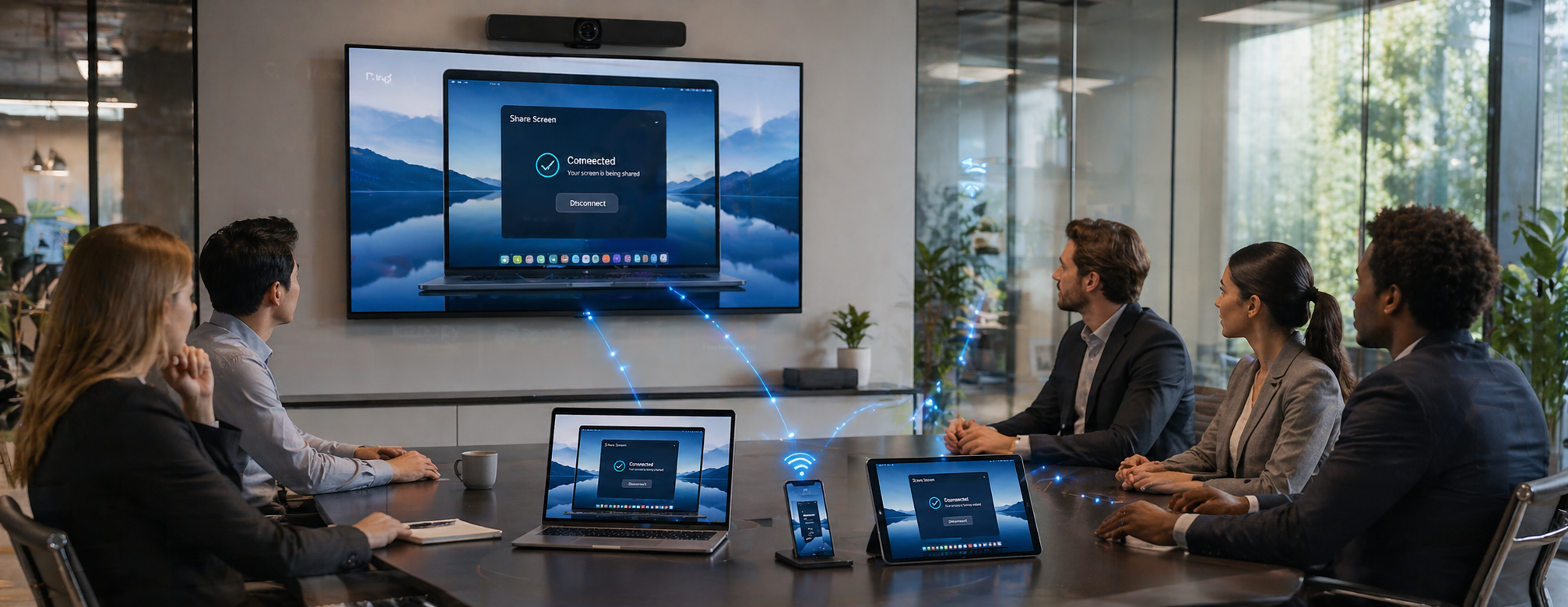
You are in a meeting, you want to show something on your phone or laptop to the rest of the room and instead of passing the device around or emailing a file, you simply project your screen wirelessly onto a bigger display for everyone to see instantly. That is screen mirroring in its simplest form.
For beginners, screen mirroring can sound like a technical feature reserved for IT professionals. In reality, it is one of the most practical and accessible tools available on almost every modern device and once you understand how it works, it changes the way you present, collaborate, and communicate with your team.
This guide covers everything you need to know about screen mirroring what it means, how it works, how to set it up on different devices, and the best tools available for business teams in 2026.
What Is Screen Mirroring
Screen mirroring is a technology that lets you wirelessly display the content of one device's screen your smartphone, tablet, or laptop onto another screen such as a TV, projector, or monitor in real time.
Think of it as holding up a mirror to your screen. Everything you see on your device apps, documents, videos, presentations, notifications appears simultaneously on the larger display. The two screens show identical content at the same time.
Unlike casting, which only sends specific media like a YouTube video to another screen, screen mirroring duplicates your entire screen including everything currently open and running on your device.
Key Characteristics of Screen Mirroring
- Real time the second screen updates instantly as you interact with your device
- Full screen duplication everything on your screen appears on the other display
- Wireless no cables required in most modern implementations
- Interactive whatever you do on your device is immediately reflected on the mirrored display
- Cross device works between phones, tablets, laptops, TVs, monitors, and projectors
Screen Mirroring vs Screen Sharing — What Is the Difference
These two terms are often used interchangeably but they refer to slightly different things especially in a business context.
Screen mirroring duplicates your entire screen onto another physical display in the same location. Your phone mirroring to a TV in a conference room is screen mirroring. Everything on your device appears on the TV including your home screen, notifications, and all open apps.
Screen sharing typically refers to sharing your screen with remote participants during an online meeting. When you share your screen on Zoom or Google Meet, participants in different locations see your screen through the internet. You control what they see and can choose to share your full screen or just a specific window.
In simple terms screen mirroring is about physical displays in the same space, while screen sharing is about remote collaboration over the internet. Both are essential tools for modern business teams and most platforms now support both capabilities.
How Screen Mirroring Works — The Technology Behind It
Screen mirroring works by establishing a wireless connection between your source device and the receiving display. The source device continuously captures and compresses its screen content and transmits it to the receiving screen which decodes and displays it in real time.
The main wireless technologies that power screen mirroring are:
- AirPlay Apple's proprietary screen mirroring protocol used on iPhones, iPads, and Macs. Requires both devices to be on the same Wi-Fi network. Works with Apple TV, AirPlay-compatible smart TVs, and Mac computers
- Miracast A universal standard based on Wi-Fi Direct, allowing Android and Windows devices to mirror without needing an internet connection. Works device-to-device without a shared network
- Google Cast Powers Chromecast and compatible devices. Primarily designed for streaming media but supports full screen mirroring on Android devices and Chrome browsers
- Smart View Samsung's screen mirroring technology built into Galaxy devices and Samsung smart TVs. Works seamlessly within the Samsung ecosystem
- DLNA An older standard focused on media sharing between devices on the same local network
The quality of screen mirroring how smooth and responsive it feels depends on three factors: the speed of your Wi-Fi connection, the processing power of your source device, and the distance between the two devices.
How to Set Up Screen Mirroring on Different Devices
Setting up screen mirroring is straightforward on most modern devices. Here is a simple step-by-step guide for each major platform:
Screen Mirroring on iPhone
Apple uses AirPlay for screen mirroring on iPhone and iPad. Here is how to use it:
- Make sure your iPhone and the receiving display Apple TV or AirPlay-compatible TV are connected to the same Wi-Fi network
- Swipe down from the top right corner of your iPhone to open Control Center
- Tap the Screen Mirroring button it looks like two overlapping rectangles
- Select your TV or display from the list of available devices
- Your iPhone screen will immediately appear on the selected display
- To stop mirroring, open Control Center again and tap Stop Mirroring
Screen Mirroring on Android
Android devices use Miracast or Google Cast depending on the manufacturer:
- Go to Settings on your Android device
- Look for Connected Devices, Display, or Cast the location varies by manufacturer
- Tap Cast or Smart View and enable it
- Select your TV or Chromecast device from the available list
- Your Android screen will appear on the selected display
- To stop, tap the Cast icon again and select Disconnect
- Screen Mirroring on Windows
Windows uses Miracast for wireless screen mirroring:
- Press Windows key + K to open the Connect panel
- Select your TV or wireless display from the available devices
- Choose your display mode duplicate, extend, or second screen only
- Your Windows screen will appear on the selected display
- To disconnect, press Windows key + K again and click Disconnect
Screen Mirroring on Mac
Mac computers use AirPlay for screen mirroring:
- Click the Control Center icon in the top right of your menu bar
- Click Screen Mirroring
- Select your Apple TV or AirPlay-compatible display from the list
- Your Mac screen will appear on the selected display
- To stop, click the Screen Mirroring icon and select Stop Mirroring
Screen Mirroring for Business Teams — Why It Matters
Screen mirroring has moved well beyond personal use. For business teams in 2026 it is an essential tool for presentations, collaboration, training, and remote work. Here is where it makes the biggest difference:
Client presentations mirror your laptop or tablet to a conference room display and present without connecting cables, setting up adapters, or asking IT for help every time
Team meetings and brainstorming show documents, dashboards, and designs on a large shared screen so everyone in the room sees the same thing clearly
Remote onboarding and training share your screen with new team members during onboarding sessions and walk them through systems and processes step by step
Technical support IT teams use screen mirroring to see exactly what a colleague or client is experiencing on their device reducing the time needed to diagnose and resolve issues
Sales demos sales teams mirror product demonstrations directly from their devices to a large display during client meetings no projectors, no setup delays
Field team coordination teams working across locations use screen sharing in communication platforms to collaborate on documents and plans in real time without being in the same room
Best Screen Mirroring and Screen Sharing Tools for Business Teams
Choosing the right tool for screen mirroring and screen sharing depends on your team's size, working environment, and security requirements. Here are the best options available in 2026:
1. Troop Messenger — Best for Secure Business Screen Sharing
For business teams that need screen sharing built directly into their daily communication platform rather than as a separate tool that requires switching apps mid-meeting Troop Messenger delivers exactly that. Its built-in screen sharing capability works alongside messaging, audio calls, and video calls in a single secure platform.
What makes Troop Messenger particularly strong for business screen sharing is its security architecture. Unlike consumer screen sharing tools that route your screen content through third-party servers, Troop Messenger supports on-premise and self-hosted deployment meaning sensitive presentations and confidential documents shared during screen sharing sessions never leave your organization's own infrastructure.
For regulated industries where compliance matters healthcare, finance, government, and defence this distinction is critical. A platform that gives you screen sharing without compromising your data sovereignty is a genuinely rare combination.
Key Features:
- Built-in screen sharing alongside messaging and video calls
- No need to switch tools screen sharing happens within your daily communication platform
- Available as SaaS or on-premise deployment for complete data control
- End-to-end encryption across all communication including screen sharing sessions
- One-on-one and group screen sharing for both internal and external collaboration
- Works on Windows, Mac, Linux, iOS, and Android
- Role-based access controls so admins manage who can initiate screen sharing sessions
- Burnout Messaging and Forkout features for broader team communication needs
Best for: Business teams, enterprises, and regulated industries that need secure built-in screen sharing without relying on a separate consumer tool.
2. Zoom — Best for Video Meetings With Screen Sharing
Zoom remains the most widely used video conferencing platform for remote screen sharing. Its screen sharing feature is reliable, easy to use, and supports sharing your full screen, a specific application window, or a whiteboard making it flexible for different presentation styles.
Key Features:
- Share full screen or specific application window
- Annotation tools let participants draw and highlight on your shared screen
- Remote control allow another participant to control your shared screen
- Screen sharing with audio share video content with sound
- Supports up to 1,000 participants on enterprise plans
- Works on all major platforms and devices
Best for: Teams that primarily use Zoom for remote meetings and need reliable screen sharing with annotation and remote control capabilities. If you are evaluating video conferencing options, the guide on zoom alternatives covers the full landscape.
Pricing: Free plan with 40-minute limit. Paid plans from $13.33 per user per month.
3. Microsoft Teams — Best for Enterprise Screen Sharing
Microsoft Teams integrates screen sharing directly into its meeting and channel experience making it the most natural choice for organizations already running on Microsoft 365. You can share your screen, a specific window, a PowerPoint presentation, or a whiteboard directly from within a Teams call.
Key Features:
- Share full screen, application window, or PowerPoint directly
- Built-in whiteboard for collaborative visual sessions
- Give and request remote control of a shared screen
- Together Mode for more natural collaborative presentations
- Screen sharing available in both meetings and channel conversations
- Deep integration with Microsoft 365 apps
Best for: Organizations running on Microsoft 365 that want screen sharing tightly integrated with their existing productivity tools.
Pricing: From $4 per user per month for Microsoft Teams Essentials.
4. Google Meet — Best Free Screen Sharing Option
Google Meet offers clean, reliable screen sharing completely free for meetings up to 60 minutes with no download required for participants. For teams already using Google Workspace, it integrates directly with Calendar, Drive, and Docs.
Key Features:
- Share your entire screen or a specific browser tab or application window
- Completely browser-based no software installation needed
- Tab audio sharing share browser tabs with sound included
- Works seamlessly with Google Workspace
- Free for meetings up to 60 minutes with 100 participants
Best for: Teams already using Google Workspace who need a free, frictionless screen sharing option without adding a new tool or subscription.
Pricing: Free plan available. Google Meet plans from $6 per user per month as part of Google Workspace.
5. AnyDesk — Best for Remote Desktop and Technical Support
AnyDesk goes beyond standard screen sharing by offering full remote desktop access allowing one person to see and control another person's device entirely. This makes it particularly valuable for IT support teams, developers, and technical professionals who need to troubleshoot issues on remote machines.
Key Features:
- Remote desktop access full control of another device from anywhere
- Low latency works smoothly even on slow network connections
- Screen sharing across Windows, Mac, Linux, Android, and iOS
- File transfer between connected devices
- Session recording for audit and training purposes
- Secure encryption for all remote connections
Best for: IT teams, technical support professionals, and developers who need full remote desktop capability rather than standard presentation screen sharing.
Pricing: Free for personal use. Business plans from $14.90 per month.
Common Screen Mirroring Problems and How to Fix Them
Even with good hardware and software, screen mirroring does not always work perfectly the first time. Here are the most common problems beginners face and how to solve them quickly:
Problem: Devices not showing up in the available list
- Make sure both devices are connected to the same Wi-Fi network
- Restart both devices and try again
- Check that screen mirroring or Bluetooth is enabled on the receiving display
Problem: Screen mirroring is laggy or stuttering
- Move closer to your Wi-Fi router or switch to a 5GHz network for faster speeds
- Close unnecessary apps running in the background on your source device
- Reduce your screen resolution temporarily to reduce bandwidth demands
- Disable battery saver mode on your device it can throttle wireless performance
Problem: No sound on the mirrored display
- Check the volume on both the source device and the receiving display
- Make sure audio output is set to the TV or external display not the device speaker
- On iPhone AirPlay, check that the audio routing is set to the correct output in Control Center
Problem: Screen mirroring keeps disconnecting
- Keep both devices close to the Wi-Fi router
- Update the firmware on your TV or receiving display
- Check for software updates on your source device
- Avoid placing the source device in sleep or low power mode during mirroring
Problem: Cannot turn off screen mirroring
- On iPhone open Control Center and tap Stop Mirroring
- On Android pull down the notification bar and tap the Cast notification to disconnect
- On Windows press Windows key + K and click Disconnect
- On Mac click the Screen Mirroring icon in the menu bar and select Stop Mirroring
Screen Mirroring Tips for Business Teams
Before wrapping up, here are practical tips that make screen mirroring smoother in professional settings:
- Test your setup before the meeting always verify that your device connects to the display before your audience or clients arrive
- Use a 5GHz Wi-Fi network faster and less congested than 2.4GHz significantly reduces lag during presentations
- Keep your screen tidy before mirroring close personal apps, notifications, and browser tabs you do not want your audience to see
- Use Do Not Disturb mode prevent incoming notifications from appearing on the mirrored screen during presentations
- Have a backup plan keep an HDMI cable nearby for situations where wireless mirroring fails unexpectedly
For a broader look at the tools that help business teams communicate and collaborate more effectively, the guide on best apps for productivity covers the complete stack worth considering alongside a screen sharing solution.
Conclusion
Screen mirroring is one of those technologies that feels complicated until you use it once and then becomes second nature. Whether you are presenting to a client, training a new team member, collaborating on a document in a conference room, or getting technical support from your IT team, screen mirroring removes the friction between your device and your audience.
For beginners the most important thing to understand is this you already have screen mirroring capability on every device you own. iPhone users have AirPlay. Android users have Miracast and Smart View. Windows users have the built-in Connect feature. Mac users have AirPlay. The technology is already there you just need to know how to turn it on.
For business teams that need screen sharing as part of a broader secure communication platform, Troop Messenger brings screen sharing together with messaging, video calling, and file sharing in one place with the option to deploy on your own infrastructure for complete data control.
Start with one device and one display. Get comfortable with the connection process. Then build from there as your confidence and your team's needs grow.
Frequently Asked Questions (FAQs)
Q1. What is screen mirroring in simple terms?
Screen mirroring is a wireless technology that lets you display the content of your phone, tablet, or laptop screen on a bigger screen like a TV, monitor, or projector in real time. Everything you see on your device appears simultaneously on the larger display, including apps, videos, documents, and notifications. It is like holding a mirror up to your screen and projecting it onto a wall except wirelessly and instantly.
Q2. What is the difference between screen mirroring and screen sharing?
Screen mirroring duplicates your entire device screen onto another physical display in the same location like mirroring your phone to a TV in a conference room. Screen sharing refers to sharing your screen with remote participants during an online meeting like sharing your screen during a Zoom call so colleagues in different locations can see it. Screen mirroring is about physical displays in the same room while screen sharing is about remote collaboration over the internet. Many modern business tools now support both capabilities in the same platform.
Q3. How do I turn on screen mirroring on my iPhone?
To turn on screen mirroring on iPhone, swipe down from the top right corner of your screen to open Control Center, then tap the Screen Mirroring button it looks like two overlapping rectangles. Select your Apple TV or AirPlay-compatible TV from the list of available devices. Make sure both your iPhone and the receiving display are connected to the same Wi-Fi network before starting. To stop mirroring, open Control Center again and tap Stop Mirroring.
Q4. Why is my screen mirroring not working?
The most common reasons screen mirroring stops working are that the two devices are not on the same Wi-Fi network, the Wi-Fi signal is too weak or congested, one of the devices needs a software update, or screen mirroring is not enabled on the receiving display. Start by checking that both devices are on the same Wi-Fi network. Then restart both devices and try again. If the problem persists, switch to a 5GHz Wi-Fi network and update the firmware on your TV or display. Moving closer to the router often resolves connection and lag issues immediately.
Q5. Which screen mirroring tool is best for business teams?
For business teams the best choice depends on your specific needs. If you want screen sharing built into your daily communication platform with full security and on-premise deployment options, Troop Messenger is the strongest choice it combines screen sharing with messaging and video calls in one secure platform. If your team primarily uses video conferencing for remote meetings, Zoom offers reliable and feature-rich screen sharing with annotation and remote control tools. If your organization runs on Microsoft 365, Microsoft Teams integrates screen sharing seamlessly with your existing tools. And for IT and technical support teams, AnyDesk provides full remote desktop access rather than presentation-style screen sharing.