Connect with us
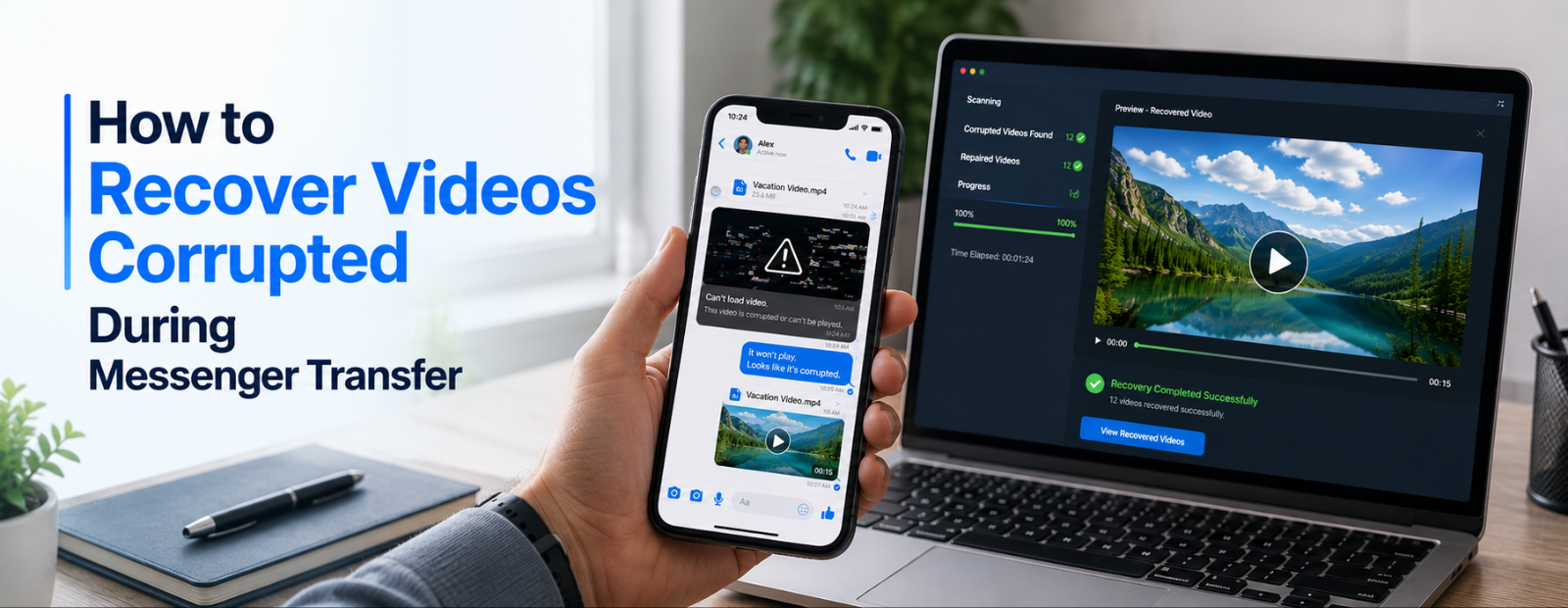
How to Recover Videos Corrupted During Messenger Transfer
Videos shared through Messenger are often used to exchange important memories, work files, tutorials, recordings, and other valuable content. However, transfer interruptions, unstable internet connections, incomplete downloads, app-related issues, or file processing errors can sometimes cause videos to become corrupted during the sharing process. When this happens, users may encounter playback failures, missing audio, frozen frames, distorted visuals, unsupported file format errors, or videos that refuse to open altogether.
Recovering a corrupted Messenger video can be challenging because the underlying cause is not always obvious. In some cases, the problem originates from an incomplete transfer, while in others it may be linked to damaged file metadata, cache-related issues, or corruption within the video structure itself. The recovery method that works best often depends on the severity of the corruption and the condition of the original file.
This guide explores the most common video corruption issues that occur during Messenger transfers and explains proven ways to recover corrupted video files. You'll learn how to identify the source of the problem, when a simple re-download may be enough, how cache-related issues can affect video playback, and which video repair tools can help restore damaged MP4, MOV, AVI, and other video formats.
Common Video Issues Caused by Corruption During Messenger Transfers
Corrupted Messenger videos can display a variety of playback and accessibility issues depending on the severity of the file damage. Some problems affect only certain parts of the video, while others can make the entire file unusable. Understanding these symptoms can help identify the cause of corruption and determine the most effective recovery method.
We suggest that you first familiarize yourself with the specific problems that arise from video corruption during Messenger transfers. Here are the typical issues you might encounter:
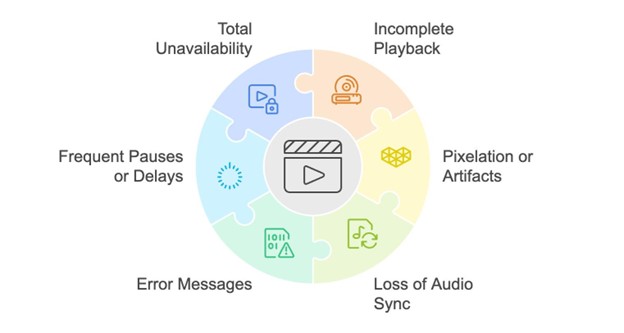
- Firstly, incomplete playback is a common problem in which the video stops abruptly. This often occurs when the file transfer is incomplete, leaving some of the video data missing.
- Secondly, pixelation or artifacts appear in the video. Such distortions typically happen due to errors in data encoding, which can result from hardware malfunctions or unstable transmission channels during the transfer process.
- Thirdly, loss of audio sync with video frames can occur. This issue generally results from interruptions during the transfer, which misalign the audio and video tracks and disrupt the viewing experience.
- Additionally, error messages such as “file format not supported” or “unable to play the file” might display when you try to open the corrupted video. These messages often indicate file system errors or format incompatibilities between the sending and receiving devices.
- Moreover, frequent pauses or delays during video playback can occur if the video file becomes corrupted due to incomplete compression or software conflicts. This problem usually appears as a video that continues to load without progressing.
- Lastly, total unavailability occurs when the video file does not open at all. This severe issue arises when video corruption affects the core file structure, which makes it entirely unreadable.
Proven Methods to Recover Corrupted Videos After Messenger Transfer
In this section, we demonstrate all the methods that reliably fix videos corrupted during messenger transfers. Some of these solutions might not seem obvious initially, but they have worked reliably in our tests. We primarily repair MP4 file errors from videos downloaded via Telegram. Still, these techniques are also applicable to other video formats, such as AVI, MOV, and MKV, and can be used with different messaging platforms like WhatsApp, Viber, or Facebook.
Note: Before you begin any recovery attempts, confirm that you have a stable internet connection. This step is important as it prevents further interruptions that could lead to additional corruption during recovery.
Method 1: Re-download the Corrupted Video
The easiest method to fix a video that is corrupted during messenger transfer is simply to re-download the file. This solution often resolves issues where corruption results from incomplete download processes or temporary network disruptions. Re-downloading the video can bypass errors that occurred during the initial transfer due to interruptions or fluctuations in the internet connection.
Cases suitable for re-downloading:
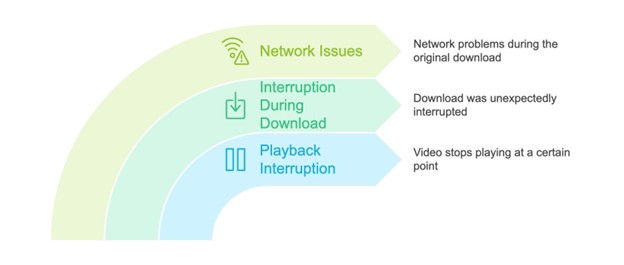
- When the video stops playing at a certain point, but it plays fine up to that moment.
- When the video download was interrupted unexpectedly.
- When network issues were evident during the original download.
How to re-download the corrupted video
1. Check the source from which you download the video to make sure it is still available and reliable.
2. Confirm your internet connection is stable and reliable enough to handle a re-download without interruptions.
3. Go to the source where the video resides and initiate a new download. Choose a different time when network traffic is lower.
4. When prompted, choose a new save location or overwrite the corrupted file.
Pro tip: If you save it as a new file, you can compare the newly downloaded version with the original corrupted one.
5. Play the video in full to check for any signs of corruption. If issues persist, consider alternative methods, which will be discussed later in this guide.
Method 2: Clear Cache and Re-Enter Your Messenger
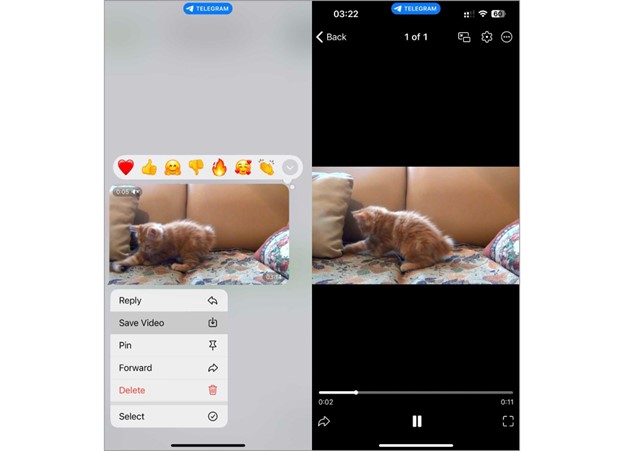
This method surprised us because we have never associated the messenger’s cache with video corruption. However, during our research, we discovered several instances where users cleared the application’s cache and re-entered the messenger, which resolved issues for them. When you clear the cache, it eliminates temporary data stored by the app, which may include potentially corrupted files or outdated information that might disrupt app performance and file integrity. Re-entering the app can also reestablish connection settings and refresh the app’s operational environment, which further increases the likelihood of resolving video corruption.
Suitable cases for this method:
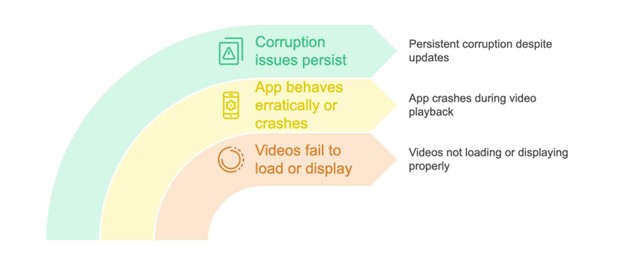
- Videos fail to load or display properly even after a successful download.
- The app behaves erratically or crashes when you attempt to play certain videos.
- Corruption issues persist even after you update the app or the operating system.
Pay attention: We want to note again that we used Telegram for the example, but the instructions for this method will be similar to those for other messengers, so you can easily adapt them.
How to clear cache and re-enter on Telegram:
1. Navigate to the ‘Settings’ menu within the Telegram app.
2. Select the ‘Data and Storage’ option, where cache settings are usually found.
3. Find the option to clear the cache and confirm the action.
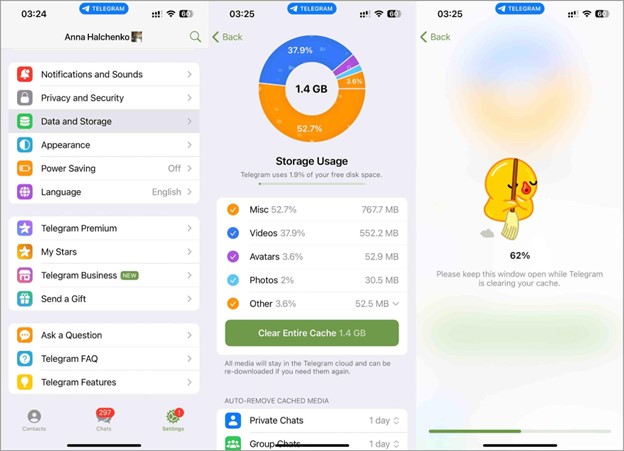
4. Exit your Telegram account from the settings menu.
5. Re-enter your login details and reaccess the account. This refreshes your app’s operational environment.
6. Try to download the corrupted video again to check if the issue has been resolved.
Method 3: Use Specialized Video Repair Tools
If the above methods do not fix the damaged video, it becomes necessary to work directly with the file. For this purpose, specialized video repair tools are needed. Among the available options, we recommend Clever Online Video Repair for its speed and convenience—it operates online, so no installation is necessary. Moreover, this tool is completely free and supports many popular video file types, including MP4, MOV, and AVI. This accessibility sets it apart from other tools that often require payment and have limited trial periods.
Suitable cases to use Clever Online Video Repair:
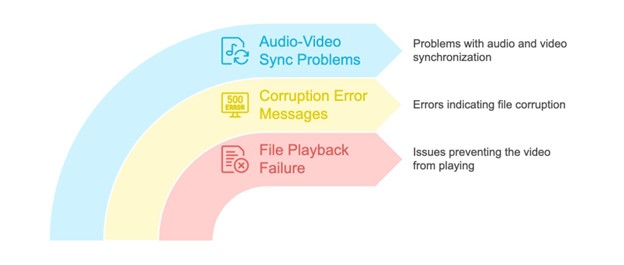
- When the video file fails to play.
- When the video displays an error message indicating corruption.
- When audio and video tracks are out of sync or missing sections.
Important! Clever Online Video Repair requires the corrupted video and a reference video. The reference should originate from the same device and share the same settings as the damaged video to confirm the tool assesses and corrects the file.
1. Open your web browser and navigate to the Clover Online Video Repair site.
2. In the website’s upload area, find the option to select your сorrupted video and upload it.
Pro tip: You may describe the problems encountered with the video and any conditions that may have led to its corruption. If you choose not to provide details, you can proceed directly to the next step.
3. From the site's dropdown menus, select the brand and model of the device used to record the video.
Pro tip: If you’re unsure, you can select ‘Unknown device.’
4. Upload a reference video recorded in the same environment as the corrupted file. This will help the repair tool understand the correct settings.
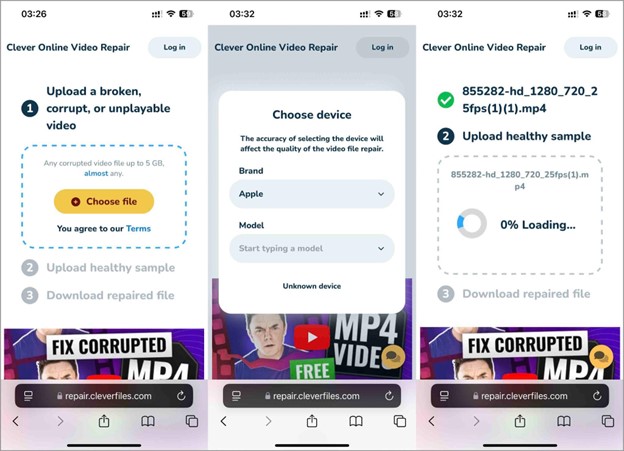
5. To initiate the repair process, you must complete your site registration. You can use your Google, Apple, or email account. Once you’ve registered, the repair process begins automatically.
6. Once the repair is complete, you can preview screenshots of the repaired video to assess the quality.
7. Click ‘Download’ to save the repaired video onto your device.
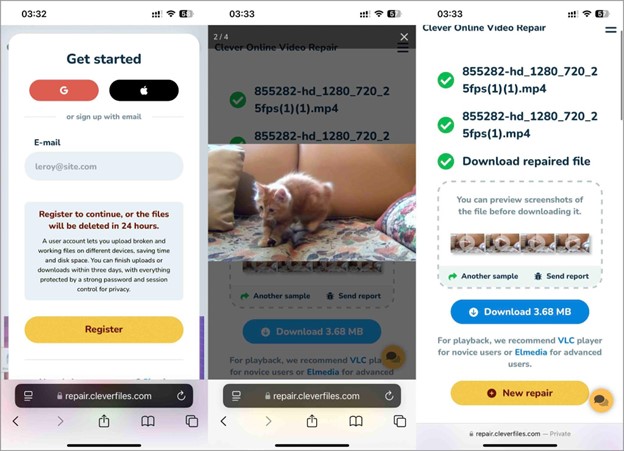
Note: The repaired video remains stored in your personal account for only three days after the repair is completed. It is automatically deleted afterward, so we advise you to download it promptly to avoid losing access.
Method 4: Use Command-Line Video Repair Tools
What do you do if you don’t have a reference video? During our analysis of video corruption during Messenger transfers, we could not find any additional convenient free software that could successfully repair the video without a reference file. Therefore, we decided to use FFmpeg so you do not have to purchase expensive software.
FFmpeg provides a complete, cross-platform solution to record, convert, and stream audio and video. It includes libavcodec, the leading audio/video codec library that many video repair and conversion tools use.
Applicable cases for FFmpeg:
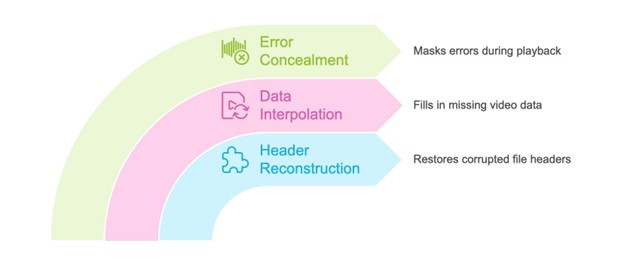
- Reconstruct headers for files where this information has become corrupted.
- It can interpolate missing data in video streams to make files playable.
- FFmpeg provides error concealment features that help mask corrupted data during video playback.
Pay attention: All the methods described above can be used directly from the phone; however, FFmpeg requires a computer.
Note: FFmpeg requires a thorough knowledge of the commands that will be used. Therefore, we advise you to familiarize yourself with the additional materials and documentation available on the FFmpeg website before you attempt any repairs.
On Windows:
1. Download the FFmpeg build from FFmpeg.org.
2. Extract the files to a folder, e.g., C:\FFmpeg.
3. Add C:\FFmpeg\bin to the system path to use FFmpeg from the command line.
On Mac:
1. Open the Terminal.
2. Install Homebrew by pasting the following command: /bin/bash -c "$(curl -fsSL https://raw.githubusercontent.com/Homebrew/install/HEAD/install.sh)".
3. Once Homebrew is installed, type brew install ffmpeg to install FFmpeg.
4. Open your command prompt (Windows) or terminal (Mac). Navigate to the directory which contains the video file.
5. Execute the command: ffmpeg -i corrupted_video.mp4 -c copy repaired_video.mp4. This command copies the video and audio streams into a new container, which might ignore minor corruptions.

6. Check the repaired video for any persisting issues. If problems remain, modify the FFmpeg commands or use additional parameters that might address specific corruption issues.
How to Prevent Video Corruption During Messenger Transfers
While recovering a corrupted video is often possible, preventing corruption in the first place is always the better approach. Video files can become damaged during transfers due to interrupted downloads, unstable network connections, insufficient device storage, or application-related issues. Following a few simple best practices can significantly reduce the risk of video corruption and improve the reliability of file transfers.
To prevent video corruption during Messenger transfers:
- Use a stable and high-speed internet connection when uploading or downloading videos.
- Avoid closing the Messenger application before the transfer is complete.
- Ensure your device has sufficient storage space to accommodate large video files.
- Keep Messenger and your device's operating system updated to the latest version.
- Verify that the original video plays correctly before sharing it with others.
- Avoid repeatedly converting, compressing, or editing videos before transferring them.
- Regularly clear unnecessary cache and temporary files to maintain smooth app performance.
By following these recommendations, users can minimize transfer-related errors, preserve video quality, and reduce the likelihood of encountering corrupted or unplayable video files in Messenger.
Conclusion
In this article, we addressed the issue of video corruption that occurs during messenger transfers. This problem affects access to content and complicates communication. We presented several methods to recover corrupted videos, from simple re-downloads to more advanced solutions that involve specialized software and command-line tools.
In conclusion, there are ways to fix video corruption. The techniques described in this guide can restore your videos to proper functionality. We recommend that you try all of these methods to find the one that suits your needs.
Frequently Asked Questions (FAQs)
1. How to fix corrupted MP4 video files on Android?
You can fix corrupted MP4 video files on Android by first re-downloading the video if the corruption occurred during transfer or download. If the issue persists, try clearing the messaging app cache, updating your media player, or opening the file in an alternative video player. For severely damaged files, specialized video repair tools can rebuild corrupted metadata and restore playback. The success of recovery depends on the extent of the damage, but many MP4 corruption issues caused by interrupted transfers or incomplete downloads can be repaired successfully.
2. Why does a video become corrupted during Messenger transfer?
Videos can become corrupted during Messenger transfers due to interrupted uploads or downloads, unstable internet connections, app crashes, insufficient device storage, or file processing errors. In some cases, the original video may already contain corruption before being shared. Messenger also compresses videos during transfer, and unexpected interruptions during this process can sometimes damage file data. Understanding the cause of corruption is important because it helps determine whether a simple re-download, cache reset, or advanced repair method is needed.
3. Can a corrupted Messenger video be recovered?
Yes, many corrupted Messenger videos can be recovered depending on the severity of the damage. Minor corruption caused by incomplete downloads, temporary cache issues, or interrupted transfers can often be resolved by downloading the file again or refreshing the application. If the video remains unplayable, video repair software may be able to reconstruct damaged metadata and restore playback functionality. Recovery is generally more successful when the core video stream remains intact and only supporting file structures have been affected.
4. Why is my downloaded Messenger video not playing?
A Messenger video may fail to play because of an incomplete download, corrupted cache data, unsupported file formats, damaged metadata, or transfer interruptions. In some situations, the receiving device may not support the video codec used in the file. Before assuming the video is permanently damaged, try downloading it again, updating the Messenger application, clearing the app cache, or testing the file in another media player. These steps often resolve playback issues without requiring advanced video repair tools.
5. What is the best way to repair a corrupted video file?
The best repair method depends on the cause and severity of the corruption. If the issue resulted from an interrupted transfer, re-downloading the file is usually the fastest solution. For damaged file structures, specialized video repair tools can rebuild missing metadata and restore video playback. Advanced users may also use FFmpeg to repair container-level corruption and recover accessible video streams. Combining multiple recovery methods often provides the highest chance of successfully restoring a corrupted video file.
6. Does clearing Messenger cache fix corrupted videos?
Clearing Messenger cache can help fix video playback issues when corruption is related to temporary app data rather than the video file itself. Cached files sometimes become outdated, incomplete, or damaged, causing videos to fail during playback or download. Removing cached data refreshes the application's storage environment and can resolve loading problems. While clearing cache will not repair a severely corrupted video file, it is a simple troubleshooting step that often helps eliminate app-related playback issues.
7. How can I prevent video corruption during Messenger transfers?
To reduce the risk of video corruption during Messenger transfers, use a stable internet connection, avoid interrupting uploads or downloads, maintain sufficient device storage, and keep Messenger updated to the latest version. It is also helpful to verify that the original video plays correctly before sharing it. Regularly clearing unnecessary cache files and avoiding repeated video conversions can further reduce corruption risks. Following these best practices helps maintain video quality and improves the reliability of file transfers.