Connect with us
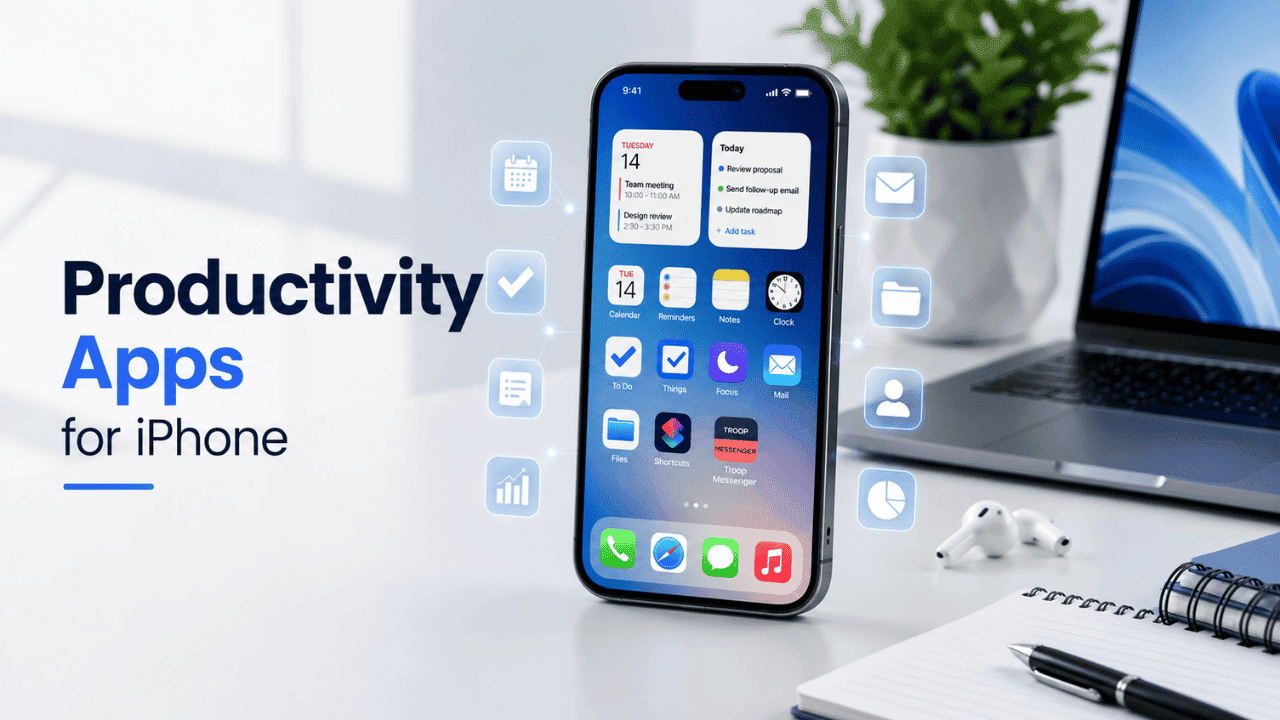
Best Productivity Apps for iPhone
The best productivity apps for iPhone help you manage tasks, organize notes, schedule meetings, reduce distractions, and make better use of your time. Whether you're a student, professional, freelancer, or business owner, choosing the right combination of task management, note-taking, calendar, email, and focus apps can transform your iPhone into a powerful productivity tool. This guide covers the best productivity apps for iPhone in 2026, including free and premium options, built-in iOS features that many users overlook, recommendations based on different use cases, and practical tips for organizing your iPhone to improve focus and efficiency.
Although many people think of the iPhone as a source of distractions, it can become an effective productivity device with the right setup. Features like Focus Modes, Screen Time, Siri Shortcuts, widgets, and App Library work alongside productivity apps to create a streamlined workflow. By choosing apps that match your daily routine and organizing them effectively, you can spend less time switching between apps and more time completing important tasks.
Why Your iPhone Is the Ultimate Productivity Tool
It's easy to see an iPhone as a distraction hub rather than a productivity tool, and it is for a lot of people indeed. The issue is not in hardware, an iPhone is designed to be a distraction hub. But it's very easy to reconfigure it to protect your focus, organize your daily tasks and capture notes and ideas instantly.
Here are the reasons why iPhone is actually great for productivity:
- It's always with you. Unlike your laptop, you don't need to "start working" somewhere. You can clear your inbox in the waiting room, log your tasks when walking, and check your schedule before entering a meeting.
- iOS was created for quick interactions. Widgets, Action Button, Siri Shortcuts and Live Activities will let you perform the action in seconds rather than navigate multiple screens.
- iPhone unites your entire digital life. Calendar, Mail, Reminders, Notes, and third-party productivity apps synchronize across iPhone, iPad, and Mac, so nothing you'll capture on your phone will remain there.
- There is automation layer in Apple products. Smart replies, notifications summary and writing tools will help you clean up your inbox and notes.
The key point here is intentionality. Having a bunch of unorganized apps and notifications will never make your iPhone useful in terms of productivity, no matter how good the apps are. Once you consider your Home Screen, Focus modes and apps arrangement as an organized system rather than just a bunch of stuff you have installed, your iPhone will become one of the most effective productivity tools in your hands.
Best Productivity Apps for iPhone in 2026
Here are the apps that consistently stand out with their iOS design and usability.
1. Todoist – Best All-Around Task Manager
Todoist remains one of the most reliable task managers on iPhone. It supports natural language input, meaning that when you type "submit report Friday 5pm", it automatically schedules the task. Project boards, labels, and filters help you to organize large to-do lists. And the free plan is actually usable for individuals.
Best for: people who want a flexible and reliable task list that will scale from daily checklist to managing large number of projects.
2. Things 3 – Best Designed Task Manager
Things 3 is a task manager that takes a different approach and is built around Getting Things Done (GTD) methodology. In exchange for the flexibility it sacrifices ease-of-use for an extremely polished interface that includes gesture-driven task creation and Focus mode integration. The product is a one-time purchase rather than subscription, which is appealing for people tired of recurring payments.
Best for: users who want a distraction-free task manager and don't want to pay recurrently.
3. Notion – Best All-in-One Workspace
Notion is your second brain – notes, databases, project boards and documents in one interconnected system. In iPhone context, it works great for capturing your notes and ideas quickly, just pull down the app from the home screen to make a note or voice memo, and then organize it properly on your computer screen. The free plan is generous enough to cover all personal uses and even unlimited pages for individual account.
Best for: people who want one app to handle their notes, planning and light project management.
4. Fantastical – Best Calendar App
Fantastical is a calendar app with natural language event creation ("lunch with Sam Thursday 1pm"), clean week and month views, and layered multiple calendars. It also provides weather forecast in your events and good widgets for quick check of your schedule.
Best for: everyone who juggles multiple calendars (personal, work-related, shared) and needs fast event creation compared to stock Calendar.
5. Forest – Best Focus & Screen Time App
Forest is a unique app that gamifies your time: you start a timer and a virtual tree grows. If you leave the app to check social media, the tree will die. Seems too simplistic? The visual element makes the process quite effective and goes well with iOS Focus modes.
Best for: people who often get distracted in the middle of their task and need some visual low-cost cue to help them focus.
6. Spark Mail – Best Email Client for Productivity
Spark Mail adds smart inbox categorization, snoozing, team-friendly shared drafts and email delegation on top of the polished interface compared to most native mail clients. "Smart Inbox" function automatically separates newsletters and notifications from the messages that actually need your response.
Best for: people who drown in email and need triaging tools that are not included in the native Mail app.
Best Free Productivity Apps for iPhone
You don't need a subscription to stay organized. Here are the free productivity apps for iPhone you could use:
- Apple Reminders – built-in, syncs across all your devices and includes tags, smart lists, and location-based reminders. Underused for the simplicity it brings.
- Google Keep – lightweight notetaking with color-coded notes, checklists and quick search. Ideal for groceries, quick notes and shared lists with your family members.
- Todoist (free tier) – supports up to five projects with reminders and recurrence, which is enough for personal use.
- Notion (free tier) – unlimited pages and blocks for individual account, making it one of the most generous free productivity apps.
- Forest (free tier) – basic focus sessions and tree growth are accessible for free, the premium plan gives you more varieties of tree and more history data.
- Apple Notes – often forgotten, but with folders, tags, scanned documents, handwriting and collaboration capabilities all without leaving Apple ecosystem.
Together, a combo like Todoist (task management) + Apple Notes (notes) + Forest (focus) should cover most of your personal productivity needs without spending money. Test free tier for at least a week to understand whether you need something more.
Best Productivity Apps for iPhone by Use Case
Everyone needs different productivity apps depending on the nature of their job or personal goals. How to choose the right productivity app for your case:
- For students: Notion or Apple Notes for class notes, Todoist or Apple Reminders for assignment deadlines and Forest during studying sessions to avoid distractions.
- For freelancers and solo-workers: Notion or Things 3 for managing projects, Fantastical for organizing client appointments and Spark Mail to sort client emails from newsletters.
- For remote and hybrid employees: Task manager app like Todoist and Fantastical for team calendar, and messaging app like Troop Messenger for quick communication without email threads.
- For habit building and personal organization: built-in Reminders of Apple with location triggers and a habit tracker and Screen Time reports to check whether your new habits are sticking.
- For writers and content creators: Drafts or Apple Notes for fast and frictionless capturing of your ideas in the middle of inspiration. The biggest problem for writers is losing their ideas.
If you're choosing between similar apps, go for the one which fits your actual workflow, not the ideal one you want. Minimalistic task manager you'll check daily is better than elaborate system you'll quit after week.
How to Organize iPhone Apps for Productivity
The best productivity apps for iPhone won't help you to stay productive if your Home Screen is chaotic. Here is what can be improved to boost your productivity:
- Use App Library instead of multiple Home Screens. Swipe past the last Home Screen page to see all your apps grouped into categories. This way you can keep only your most used apps on the Home Screen and hide the rest without uninstalling them.
- Create a "Productivity" folder. Put your task manager, calendar, notes app and email client into one folder so you can access them with one tap regardless of the Home Screen page you're currently at.
- Add widgets with the needed info. It could be a calendar widget with your current events or task widget with due tasks, it will allow you to reduce the number of times you need to open the app.
- Turn off notification badges for non-essential apps. Go to Settings > Notifications and disable them for apps that don't require your instant attention. Those red dots create a subtle urge to check your phone.
- Change your Home Screen wallpaper to something uncluttered. Seems minor, but the distracting wallpaper combined with distracting app layouts make your phone screen overwhelming each time you unlock it.
- Use Siri Shortcuts for repetitive multi-step actions. If you find yourself doing the same three or four taps every morning (check weather, open your calendar, start focus timer), you can create a shortcut and start those processes with one tap or even voice command.
Goal is not the perfect symmetry of your Home Screen, but reduction of the number of clicks to the needed task.
How to Block Apps on iPhone for Productivity
Blocking apps is a vital part of productivity, and Apple did its best to incorporate that functionality into iOS:
- Use Screen Time App Limits: go to Settings > Screen Time > App Limits and create daily time limit for distracting categories (Social Networking, Games, etc.). As soon as you reached the limit, the app will be blocked until the next day or until you request more time, adding one extra step before your habitual tapping.
- Create a Focus Mode for deep work: go to Settings > Focus and create a custom focus mode (for example, "Deep Work"). Define exactly which people and apps can send you notifications during this period, and block everything else. You can either set the mode to activate automatically for certain hours or by your location (so it will turn on as soon as you sit down on your desk).
- Use Downtime: it restricts the whole iPhone to only the apps you've explicitly whitelisted (Phone, Maps and your task manager, for instance), which is more effective than App Limits if you tend to ignore the soft limits.
- Try dedicated focus app: Forest or other app-blocker adds gamification and analytics on top of what you can do with Screen Time settings, and some people prefer that.
- Remove distracting apps from your Home Screen completely: long press an app, choose "Remove App", then select "Remove from Home Screen" (it will not be deleted, but removed from view).
Used together, these features will turn your iPhone from a constant source of interruptions into a device that respects your time and focus.
What Are the Best Productivity Apps for iPhone?
If you take away only one thing from this article: the best productivity app is the one you will open regularly. Feature rich app that you abandon after two weeks is worse than simple app you use consistently.
For most people, the minimum productivity stack will look like this:
- One task manager (Todoist or Things 3) to capture tasks
- One calendar app (Fantastical, or built-in Calendar) to organize your time
- One notes app (Notion or Apple Notes) to capture ideas and reference information
- One focus tool (Forest or iOS Focus modes) to protect your focus
No need to install another app before you got used to the previous ones.
Conclusion
The best productivity apps for iPhone are the ones that fit naturally into your daily workflow rather than offering the longest list of features. A simple combination of a task manager, notes app, calendar, and focus tool is enough for most users to stay organized and productive. Built-in iPhone features like Focus Modes, Screen Time, Siri Shortcuts, App Library, Apple Notes, and Reminders can further improve your workflow without requiring additional apps.
Start by identifying your biggest productivity challenge, whether it's managing tasks, organizing notes, planning your schedule, or reducing distractions and choose one app to solve that problem. Use it consistently for at least a week before adding another tool. With the right apps and a well-organized iPhone, you can build a productivity system that helps you work smarter, stay focused, and get more done every day.
Frequently Asked Questions
1. What are the best productivity apps for iPhone in 2026?
Top picks include Todoist and Things 3 for task management, Notion for an all-in-one workspace, Fantastical for calendar planning, Forest for focus sessions, and Spark Mail for email organization. The right combination depends on whether your biggest challenge is tasks, time, notes, or distraction, pick apps that solve your specific gap rather than installing every popular option at once.
2. Are there good free productivity apps for iPhone?
Yes. Apple Reminders, Apple Notes, Google Keep, and the free tiers of Todoist and Notion cover most everyday productivity needs without any cost. Many paid apps also offer generous free versions, so it's worth testing the free tier for a week or two before deciding whether the premium features are actually necessary for your workflow.
3. How do I organize my iPhone apps for better productivity?
Use the App Library to keep your Home Screen limited to frequently used apps, group remaining tools into clearly labeled folders, and add widgets for your calendar and task list so you can check them without opening the app. Turning off notification badges for non-essential apps also reduces the urge to constantly check your phone throughout the day.
4. How can I block distracting apps on my iPhone?
Go to Settings > Screen Time to set App Limits or use Downtime to restrict access to all but essential apps. Pairing this with a custom Focus Mode lets you silence non-essential notifications during work hours while still allowing calls or messages from key contacts to come through when truly necessary.
5. Do I need to pay for productivity apps, or are free versions enough?
Free versions are genuinely sufficient for most personal use cases, especially with apps like Notion, Todoist, and Apple's built-in tools. Consider upgrading only once you hit a specific limitation, such as needing more projects, advanced automation, or team collaboration features, rather than paying upfront for capabilities you may never use.
6. What's the best note-taking app for iPhone?
Apple Notes is a strong default since it's free, syncs automatically, and supports folders, tags, and scanned documents. For users who want databases, templates, and deeper organization across notes and projects, Notion is the stronger choice, particularly for anyone already using it on a Mac or iPad for larger projects.