Connect with us
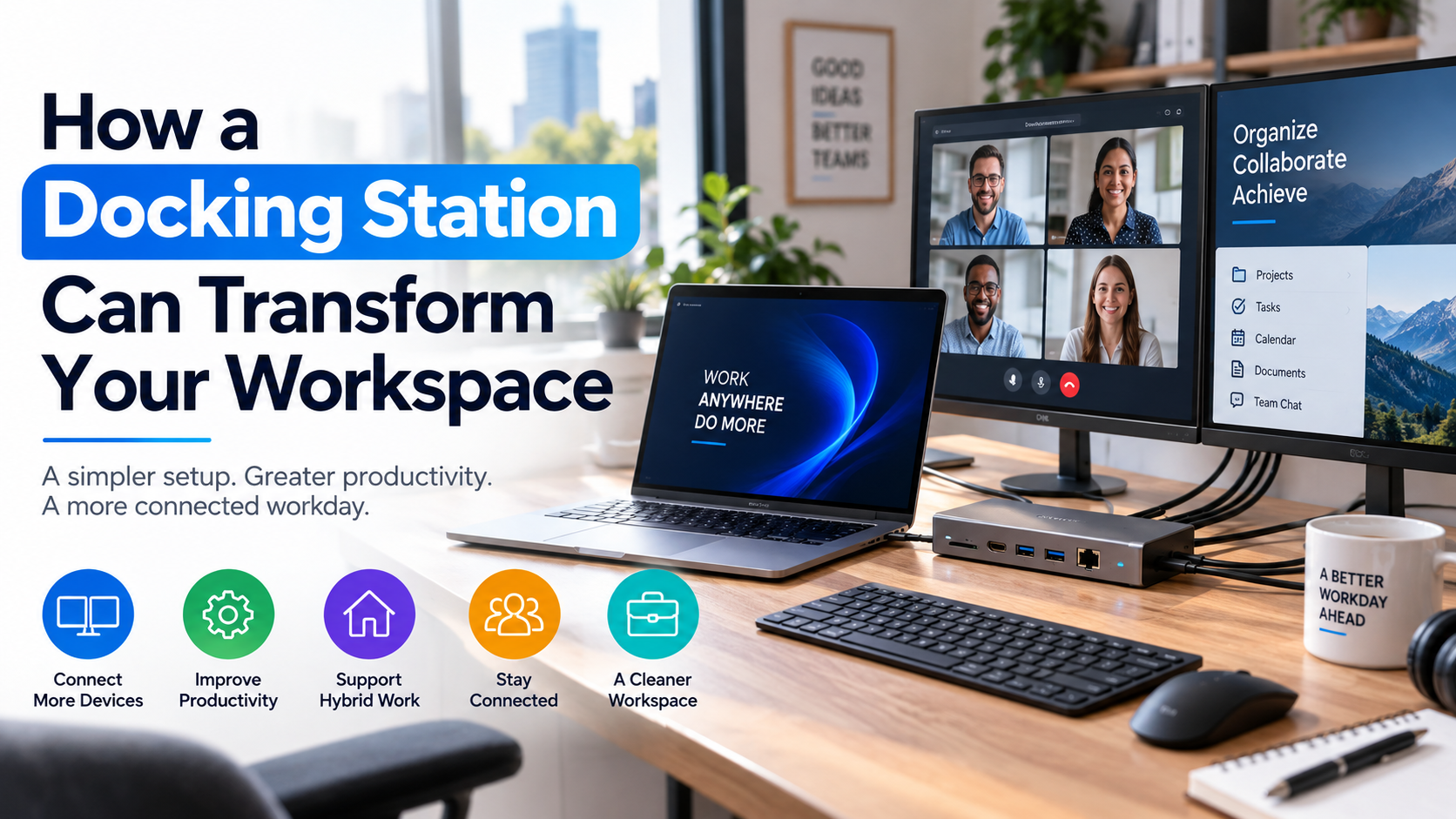
How a Docking Station Can Transform Your Laptop Workspace
Laptops have made it much easier to work wherever the day takes you. A computer can travel from the kitchen table to a conference room and then home again without much effort. But that flexibility comes with a trade-off. Once a laptop becomes the main computer at a desk, its small screen and limited ports can start to feel restrictive. Connecting all those devices directly to a laptop can quickly become a tangle of cables and adapters.
A docking station offers another way to approach the setup. Instead of treating the laptop as the connection point for every accessory, the dock becomes the central hub for the desk. People looking at the best laptop docking stations should start with their own equipment rather than choosing based on appearance or the number of advertised ports. With the right equipment, plugging in the laptop can bring several peripherals online at once. That simple change can make a workstation easier to use, particularly for people who divide their time between home and office environments.
For hybrid teams, a consistent workspace can also make the transition between locations easier. When employees have a reliable setup for their laptop, displays, peripherals, and communication tools, they can spend less time adjusting their environment and more time focusing on their work and staying connected with their teams.
Why a Laptop Setup Can Become Complicated
A laptop may have everything needed for basic computing built into one compact device. The problem appears when the same machine has to handle a full desktop-style workload.
Port limitations can add another layer of frustration. Some modern laptops have relatively few physical connections, meaning that a user may need separate adapters to connect older USB accessories, monitors, memory cards, or wired networking equipment.
Doing the same thing every morning and evening can become an unnecessary part of the routine. A docking station changes where those connections live. Rather than attaching every peripheral to the laptop itself, compatible accessories can stay connected to the dock.
A Docking Station Creates a Central Connection Point
Depending on the model, a dock can provide connections for:
- External monitors
- Keyboards and mice
- Webcams
- Headsets and other audio equipment
- External storage
- USB accessories
- Ethernet networks
- Memory cards
- Laptop charging
Not every docking station includes all of these connections, and that distinction matters. A person who only needs one monitor and a keyboard does not necessarily need a large dock filled with ports. Someone running a more elaborate workstation may need considerably more connectivity.
The goal is not to collect ports for the sake of having them. It is to create a connection setup that matches the way the computer is actually used.
One Cable Can Simplify the Workday
One of the most noticeable benefits of a docking station is the reduction in cable swapping. Imagine arriving at a home office with a laptop in your bag. Your monitor, keyboard, mouse, webcam, and other desk accessories are already connected to the dock. Instead of reaching behind the monitor to find individual cables, you connect the laptop to the dock and start working.
The same principle can work in an office. For someone who regularly moves between locations, the laptop remains the portable component while much of the workstation stays where it is. That can make the transition between working environments less disruptive.
Multiple Displays Give You More Room to Work
A laptop screen is perfectly adequate for many tasks. It becomes less convenient when several applications need to remain visible simultaneously. A second display can provide space for information that would otherwise be hidden behind another window. A writer might keep research material open on one screen while drafting on another. Someone working with spreadsheets could keep a reference document visible without constantly switching tabs.
More screens are not automatically better, though. The arrangement should suit the work rather than simply fill the desk with displays.
Before connecting multiple monitors, check the laptop's capabilities and the docking station's specifications. Resolution, refresh rate, number of supported displays, and video-output standards can all affect the final setup.
Not All Ports Do the Same Thing
The physical shape of a connector does not tell the whole story. USB-C is a good example. Two USB-C ports can look identical while offering different capabilities. Depending on the hardware, a USB-C connection may handle data, charging, video output, or a combination of these functions.
Someone planning to connect a high-resolution monitor needs to look beyond whether the dock has an HDMI or DisplayPort connection. The supported display specifications matter too.
USB ports also deserve some thought. A keyboard and mouse require very little data bandwidth, while an external storage device may have different requirements. If several accessories will be connected simultaneously, understanding what the dock supports can prevent unpleasant surprises. In other words, port count is only one part of the equation.
Power Delivery Can Reduce Desk Clutter
Charging is another reason docking stations can be useful in a permanent workspace. Some docks support power delivery to compatible laptops. Instead of having one cable for the dock and another charger cable running to the computer, a compatible setup can combine power and peripheral connectivity through the docking connection.
A computer designed for lightweight everyday work may have very different power needs from a higher-performance machine. The dock's power-delivery capacity therefore needs to be compared with the laptop's requirements.
This is also an area where assumptions can cause problems. A USB-C connection does not automatically mean a dock can supply enough power for every computer. Checking the specifications before buying is much easier than discovering after installation that the laptop still needs its original charger.
Docking Stations Fit Naturally Into Hybrid Work
As hybrid and remote work become more common, having a consistent workstation can make moving between locations easier. Someone who spends part of the week at home and the rest in an office may not want to carry a monitor, keyboard, mouse, webcam, and other accessories back and forth. Keeping those items at each location creates two established workspaces, while the laptop remains the piece of equipment that travels. A docking station can support that arrangement.
The exact arrangement will depend on the organization and the devices involved, but the principle is simple: keep the workstation equipment where it is and move the computer between them. This can be particularly useful for people whose workday changes from one location to another.
Choosing Between a Desktop and Travel Dock
Not every docking station is designed for the same environment. A permanent home-office setup may have enough space for a larger dock with numerous connections. Portability may not matter much because the accessory will spend most of its life on the desk.
Travel presents a different set of priorities. A person who works from hotels, coworking spaces, client offices, or temporary work areas may prefer a smaller accessory that fits easily into a laptop bag. There is little benefit in carrying a large collection of connections that will never be used.
For a permanent workstation, consider:
- Number of monitors required
- Available desk peripherals
- Wired networking needs
- Charging requirements
- Future equipment additions
For frequent travel, consider:
- Size and weight
- Essential ports
- Cable requirements
- Compatibility with the laptop
- Ease of packing and unpacking
What to Check Before Choosing a Dock
Once the workstation's requirements are clear, it becomes much easier to compare different options.
A quick checklist can help:
Check the Laptop
Identify the laptop model and the capabilities of its available ports. Pay particular attention to USB-C and Thunderbolt specifications if those connections will be used for the dock.
Check the Monitors
Write down how many displays you want to connect, along with their resolution and refresh-rate requirements. Then compare those details with the dock's supported display configuration.
Count Your Peripherals
Make a list of the equipment that needs to remain connected. Include the obvious items, such as a keyboard and mouse, but don't forget webcams, storage devices, headsets, card readers, and other accessories.
Check Power Requirements
If laptop charging through the dock is important, compare the computer's requirements with the dock's power-delivery specifications.
Think About Future Changes
A workstation rarely stays exactly the same forever. You may add another monitor, replace an older peripheral, or start using external storage. A little spare capacity can therefore be useful, provided you are not paying for features you have no realistic use for.
Common Mistakes to Avoid
Docking stations are generally straightforward once everything is compatible, but a few assumptions can create problems.
Buying based only on the number of ports: A dock with numerous connections is not necessarily appropriate for a particular workstation.
Assuming USB-C means universal compatibility: The connector's shape does not guarantee identical functionality across computers.
Ignoring the display specifications: Connecting a monitor physically is only part of the process. The computer and dock must also support the desired display configuration.
Overlooking power requirements: Charging support varies, as does the amount of power a laptop needs.
Conclusion
A docking station can make a laptop-based workspace much easier to manage. Instead of plugging several devices into the laptop every time you sit down, you can keep your monitor, keyboard, mouse, and other accessories connected in one place. The key is choosing a dock that works with the laptop and supports the equipment you actually use. A little planning can save you from ending up with a dock that has plenty of connections but does not work well with your setup.
Frequently Asked Questions
1. What is the main purpose of a laptop docking station?
A laptop docking station provides a central connection point between a laptop and several external devices. Depending on the model, it can connect monitors, keyboards, mice, webcams, storage devices, Ethernet cables, audio equipment, and other peripherals. Some models can also supply power to compatible laptops. Instead of connecting each accessory directly to the laptop, many peripherals can remain connected to the dock, allowing the workstation to stay set up while the laptop remains easy to remove and carry.
2. Can a docking station improve productivity?
A docking station does not directly increase productivity, but it can remove some of the small inconveniences that interrupt a work routine. A compatible setup can reduce the number of cables that need to be connected individually. Additional screen space may also help people keep several applications visible at once. The actual benefit depends on the type of work being performed. Someone who mainly uses a laptop for simple tasks may notice less difference than someone working with several peripherals and applications.
3. Can one docking station connect two monitors?
Some docking stations can connect two external monitors, although the exact configuration depends on the dock and laptop. Before setting up multiple displays, check the maximum number of supported monitors, available video outputs, supported resolutions, and refresh rates. Different connection standards can have different capabilities, so simply having two monitor ports does not guarantee that every two-screen combination will work. Checking both devices' specifications before purchasing or connecting the equipment can help avoid compatibility issues.
4. Does a docking station replace a laptop charger?
A docking station can replace a separate laptop charging connection in some setups, but only when the dock supports power delivery at a level compatible with the computer. Power-delivery specifications vary between docking stations, and laptops have different charging requirements. Anyone hoping to charge through the dock should therefore compare the laptop's requirements with the dock's stated power output. If the dock cannot provide sufficient power, the laptop may still need its original charger even when other peripherals are connected through the dock.
5. Is a docking station useful for remote and hybrid workers?
A docking station can be useful for people who regularly work from different locations because it allows much of the workstation equipment to remain in place. For example, a home office can have a monitor, keyboard, mouse, webcam, and other accessories connected to a dock, while the laptop remains the portable part of the setup. An office can use a similar arrangement. This can reduce the amount of equipment that needs to travel between locations. The usefulness of the arrangement depends on the person's work habits, laptop compatibility, and the equipment available at each workspace.