Connect with us
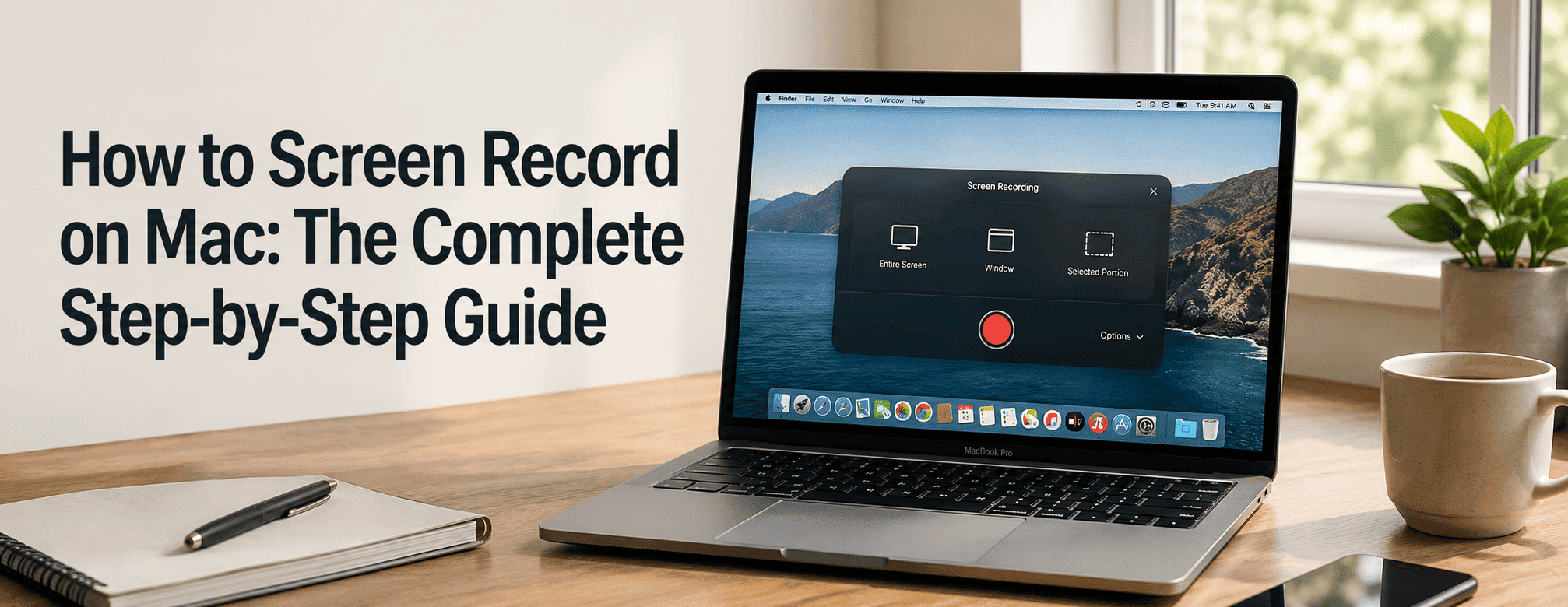
How to Screen Record on Mac: The Complete Step-by-Step Guide
If you have ever wondered how to screen record on Mac, you are in the right place. Whether you want to record a tutorial, save a video call, screen share and record a presentation, capture gameplay, or document a bug for your team, Mac comes with powerful built-in tools that make screen recording quick and easy, no third-party software required. In this complete guide, you will learn exactly how to record your screen on Mac using the built-in Screenshot Toolbar and QuickTime Player, how to screen record on Mac with audio, how to stop screen recording, and which third-party apps are worth considering for more advanced needs. By the end of this guide, you will be able to record your screen on Mac confidently in just a few clicks.
What Is Screen Recording and Why Does It Matter?
Screen recording is the process of capturing everything that happens on your display as a video file. Many professionals also use screen recording alongside screen sharing during virtual meetings, training sessions, and product demonstrations to improve collaboration and communication. It is widely used for creating how-to tutorials, recording online meetings, saving streaming content for offline viewing after a video download where permitted, reporting software bugs with visual proof, and building product demos for teams and clients.
Mac makes this process straightforward. With macOS Mojave and later versions, Apple introduced a native Screenshot Toolbar that handles both screenshots and screen recordings from a single shortcut. You do not need to download anything extra, it is already on your Mac waiting to be used.
How to Screen Record on Mac Using the Screenshot Toolbar
The Screenshot Toolbar is the fastest and most convenient way to screen record on Mac. It gives you full control over what you capture, whether that is your entire screen or just a selected portion.
Step 1: Open the Screenshot Toolbar
Press Shift + Command (⌘) + 5 on your keyboard simultaneously. A small toolbar will appear at the bottom of your screen with several icons. These icons let you choose between taking a screenshot or starting a screen recording.
Step 2: Choose Your Recording Area
On the toolbar, you will see two screen recording options:
Record Entire Screen — captures everything visible on your display, including all open windows and the desktop.
Record Selected Portion — lets you drag a box around a specific area of your screen, recording only that region. This is useful when you want to focus on a particular app or window without showing the rest of your screen.
Click whichever option fits your needs.
Step 3: Set Your Options (Important)
Before you click Record, click the Options button on the toolbar. Here you can:
- Choose where to save the recording (Desktop, Documents, Clipboard, or a custom folder)
- Set a timer delay (None, 5 seconds, or 10 seconds), useful if you need time to set up before the recording begins
- Select a microphone if you want to record audio along with your screen
Take a moment to configure these settings before you start.
Step 4: Start Your Recording
Click the Record button. If you chose a selected portion, draw the area you want to capture first, then click Record inside the selection box.
Your recording begins immediately (or after the delay timer if you set one). A small Stop button will appear in the menu bar at the top right of your screen, indicating the recording is active.
Step 5: How to Stop Screen Record on Mac
When you are done recording, click the Stop button (⏹) in the menu bar. Alternatively, press Command + Control + Esc to stop the recording instantly.
Once stopped, the video file will automatically save to the location you selected in Options. A thumbnail preview will briefly appear in the bottom-right corner of your screen. Click it to preview, trim, or share your recording right away.
Where Does the Screen Recording Save on Mac?
By default, screen recordings save to your Desktop as a .mov file with a timestamp in the filename. You can change the save location anytime through the Options menu before you start recording.
How to Screen Record on Mac With Audio
One of the most common requirements when recording a screen is capturing audio alongside it. Whether you are narrating a tutorial or recording a meeting, here is how to screen record on Mac with audio.
Recording With Your Microphone
The built-in screen recorder on Mac can capture audio from your microphone. Here is how to enable it:
Press Shift + Command + 5 to open the Screenshot Toolbar. Click Options, then under the Microphone section, select your microphone, either the built-in Mac microphone or an external one if connected.
Once selected, every word you speak during the recording will be captured in the video file. This is perfect for voiceover tutorials, walkthroughs, and explainer videos.
Pro Tip: For cleaner audio, use a headset or external USB microphone rather than the built-in mic, and record in a quiet room to avoid background noise.
How to Screen Record on Mac With System Audio (Internal Audio)
This is where things get slightly tricky. By default, macOS does not allow you to capture system audio, sounds coming from apps, music, videos, or notifications, using the built-in recorder alone.
To record internal system audio on Mac, you need a virtual audio driver. The two most popular free and reliable options are:
BlackHole (free, open-source), a virtual audio driver that routes internal audio through a virtual microphone, which you can then select as your audio source in the Screenshot Toolbar or QuickTime. Download it from existential.audio/blackhole.
Loopback (paid), a more advanced tool with a visual interface, ideal for users who regularly need to record system audio with multiple apps.
Once BlackHole is installed and configured, you can select it as the microphone in your Screenshot Toolbar Options and capture both your voice and system sounds in the same recording.
How to Record Screen on Mac Using QuickTime Player
QuickTime Player is another excellent built-in option to record your screen on Mac. It has been part of macOS for years and is especially useful if you want more control over audio input before you begin recording.
Step-by-Step: Record With QuickTime Player
Step 1: Open QuickTime Player. You can find it in your Applications folder or search for it using Spotlight (Command + Space, then type QuickTime).
Step 2: In the menu bar at the top, click File, then select New Screen Recording from the dropdown menu.
Step 3: A small recording window or toolbar will appear. Before clicking Record, click the small dropdown arrow next to the Record button. Here you can select your microphone source for audio capture.
Step 4: Click the Record button. You will then be prompted to either click anywhere to record the full screen, or drag to select a specific area and then click Record within that selection.
Step 5: When finished, click the Stop button in the menu bar or press Command + Control + Esc.
Step 6: QuickTime will open the recording automatically. Go to File → Save to save it as a .mov file to your preferred location.
How to Record Screen on Mac With Audio Using QuickTime
QuickTime makes it easy to record your screen with audio in one workflow.
When the recording toolbar appears after clicking File → New Screen Recording, click the arrow/dropdown beside the Record button. Under Microphone, select your preferred audio input, the built-in microphone, an external mic, or BlackHole if you want to capture system audio.
Once the microphone is selected, click Record and proceed as normal. QuickTime will capture your screen along with all audio from the selected source.
Tip: Always do a quick 10-second test recording first to confirm the audio is being captured properly before you start a long session.
Best Third-Party Screen Recording Apps for Mac
While the built-in tools cover most use cases, there are situations where you might need more features, like video editing, webcam overlay, annotations, or direct sharing. Here are the best third-party screen recording apps for Mac:
OBS Studio — the gold standard for advanced screen recording and live streaming. It is completely free, open-source, and supports multiple audio and video sources simultaneously. Ideal for gamers, content creators, and developers. Download from obsproject.com.
Loom — a freemium tool designed for quick screen recordings, screen sharing, and camera recordings that can be shared instantly with teammates and clients. Great for remote teams sharing updates, feedback, or walkthroughs without scheduling a call.
Camtasia — a powerful paid tool that combines screen recording with a full video editor. Perfect for creating polished training videos, product demos, and course content.
CleanShot X — a Mac-focused tool that handles screenshots and screen recordings with a beautiful interface and useful annotation features. Ideal for designers and developers.
ScreenFlow — One of the most popular screen recording tools built specifically for Mac. It combines high-quality screen capture with advanced video editing, motion graphics, audio editing, and export options, making it ideal for content creators, trainers, and marketers.
Each of these tools serves a different purpose. If you need a powerful free solution, OBS Studio is hard to beat. For quick sharing and collaboration, Loom is an excellent choice. Camtasia and ScreenFlow are ideal for creating polished, professional-quality videos, while CleanShot X offers a streamlined experience for everyday screen recording and documentation tasks on Mac.
Screen Recording on Mac — Troubleshooting and Tips
Even with a simple built-in tool, things can occasionally go wrong. Here are the most common issues and how to fix them.
Screen Recording Not Working on Mac
If you click Record and nothing happens, or you get a permissions error, the issue is almost always a privacy setting. Here is how to fix it:
Go to System Settings → Privacy & Security → Screen Recording. Find the app you are trying to use (Screenshot, QuickTime, or any third-party tool) and make sure the toggle is turned on. You may need to restart the app after granting permission.
No Audio in Screen Recording
If your recording has no sound, check that you selected a microphone in Options before you started recording. The microphone setting does not automatically carry over between sessions, so you need to verify it each time.
Also make sure your Mac's microphone is not muted in System Settings → Sound → Input.
Clear Cache if Screen Recording Tools Become Unresponsive
If the Screenshot Toolbar or QuickTime Player becomes slow or unresponsive, clearing temporary system files and application cache may help improve performance. While macOS does not offer a dedicated clear cache button for screen recording tools, restarting the application, removing temporary files, or clearing system cache can often resolve recording-related issues.
Screen Recording File Is Too Large
Screen recordings save as .mov files which can be large, especially for long recordings at full resolution. To reduce the file size:
- Use QuickTime's built-in Export option (File → Export As) and choose a lower resolution like 720p
- Use Handbrake (free) to compress the .mov file into a smaller H.264 or H.265 MP4 without significant quality loss
How to Record a Specific App Window Only
If you want to record just one application and not your entire screen, use the Record Selected Portion option in the Screenshot Toolbar and carefully drag the selection box around the app window. Some macOS versions also allow you to click on a window to capture it specifically.
Screen Recording Shortcut Not Working
If Shift + Command + 5 is not responding, check if another application has overridden that keyboard shortcut. Go to System Settings → Keyboard → Keyboard Shortcuts to review and resolve conflicts.
Quick Comparison: Built-in Tools vs Third-Party Apps
| Feature | Screenshot Toolbar | QuickTime Player | OBS Studio | Loom |
| Free | Yes | Yes | Yes | Freemium |
| System Audio | No (needs driver) | No (needs driver) | Yes | Yes |
| Webcam Overlay | No | No | Yes | Yes |
| Video Editing | Basic trim | Basic trim | No | Basic |
| Direct Sharing | No | No | No | Yes |
| Best For | Quick recordings | Simple recordings | Advanced users | Teams |
Conclusion
Now you know everything you need to record your screen on Mac like a pro. Whether you use the built-in Screenshot Toolbar for quick and simple captures, QuickTime Player for a slightly more hands-on approach, or a third-party tool like OBS Studio for advanced productions, Mac gives you excellent options at every level, most of them completely free.
The key takeaways: use Shift + Command + 5 to launch the built-in recorder, always check your audio settings before hitting Record, and install BlackHole if you need to capture internal system audio. For team workflows, tools like Troop Messenger make it easy to record and share your screen without ever leaving your communication app.
Start recording your screen on Mac today, whether it is your first tutorial, a team demo, a screen share presentation, or a quick bug report. If you encounter performance issues, remember that basic maintenance tasks such as clearing temporary files and cache data can help. Once your recording is complete, you can edit, save, and share it alongside your other video content and downloads.
Frequently Asked Questions
1. How do I screen record on a Mac?
To screen record on a Mac, press Shift + Command + 5 to open the built-in Screenshot Toolbar. Choose Record Entire Screen or Record Selected Portion, adjust your recording settings, and click Record. When finished, click the Stop button in the menu bar or press Command + Control + Esc. This built-in Mac screen recorder is available on macOS Mojave and later, making screen recording quick and easy without additional software.
2. How do I screen record on Mac with audio?
If you want to screen record on Mac with audio, open the Screenshot Toolbar using Shift + Command + 5, click Options, and select your preferred microphone. This allows you to capture your voice while recording your screen. For internal system audio, you may need a virtual audio driver such as BlackHole. Recording audio along with your screen is ideal for tutorials, presentations, walkthroughs, and online training videos.
3. How do I stop screen recording on Mac?
To stop a screen recording on Mac, click the Stop Recording button located in the top-right menu bar. Alternatively, use the keyboard shortcut Command + Control + Esc to end the recording instantly. Once stopped, the video is automatically saved to your selected location, usually the Desktop. Knowing how to stop screen recording on Mac helps ensure your recordings are saved properly and ready for editing or sharing.
4. Does Mac have a built-in screen recorder?
Yes, every Mac running macOS Mojave (10.14) or later includes a built-in screen recorder. You can access it using Shift + Command + 5, which opens the Screenshot Toolbar for screenshots and screen recordings. Mac users can record the entire screen or a selected area without downloading third-party software. This built-in screen recording feature makes it easy to create tutorials, presentations, product demos, and educational content.
5. How do I record internal audio on Mac?
By default, macOS does not support recording internal system audio through its native screen recording tools. To capture sounds from apps, videos, or your computer's speakers, install a virtual audio driver such as BlackHole. After setup, select it as your audio source before recording. This method allows you to record internal audio on Mac for video tutorials, online courses, software demonstrations, and media playback recordings.
6. How do I record my screen on Mac without any apps?
You can record your screen on Mac without downloading any apps by using the built-in Screenshot Toolbar or QuickTime Player. Press Shift + Command + 5 to launch the screen recorder, choose your recording area, and start recording. Alternatively, open QuickTime Player and select File → New Screen Recording. Both methods are free, easy to use, and included with macOS, making them ideal for beginners.
7. Where do screen recordings save on Mac?
Screen recordings on Mac are saved to the Desktop by default as MOV video files. However, you can choose a different save location before recording by opening the Screenshot Toolbar, clicking Options, and selecting a folder such as Documents or a custom directory. Knowing where screen recordings are stored on Mac makes it easier to locate, edit, organize, and share your videos after recording.