Connect with us
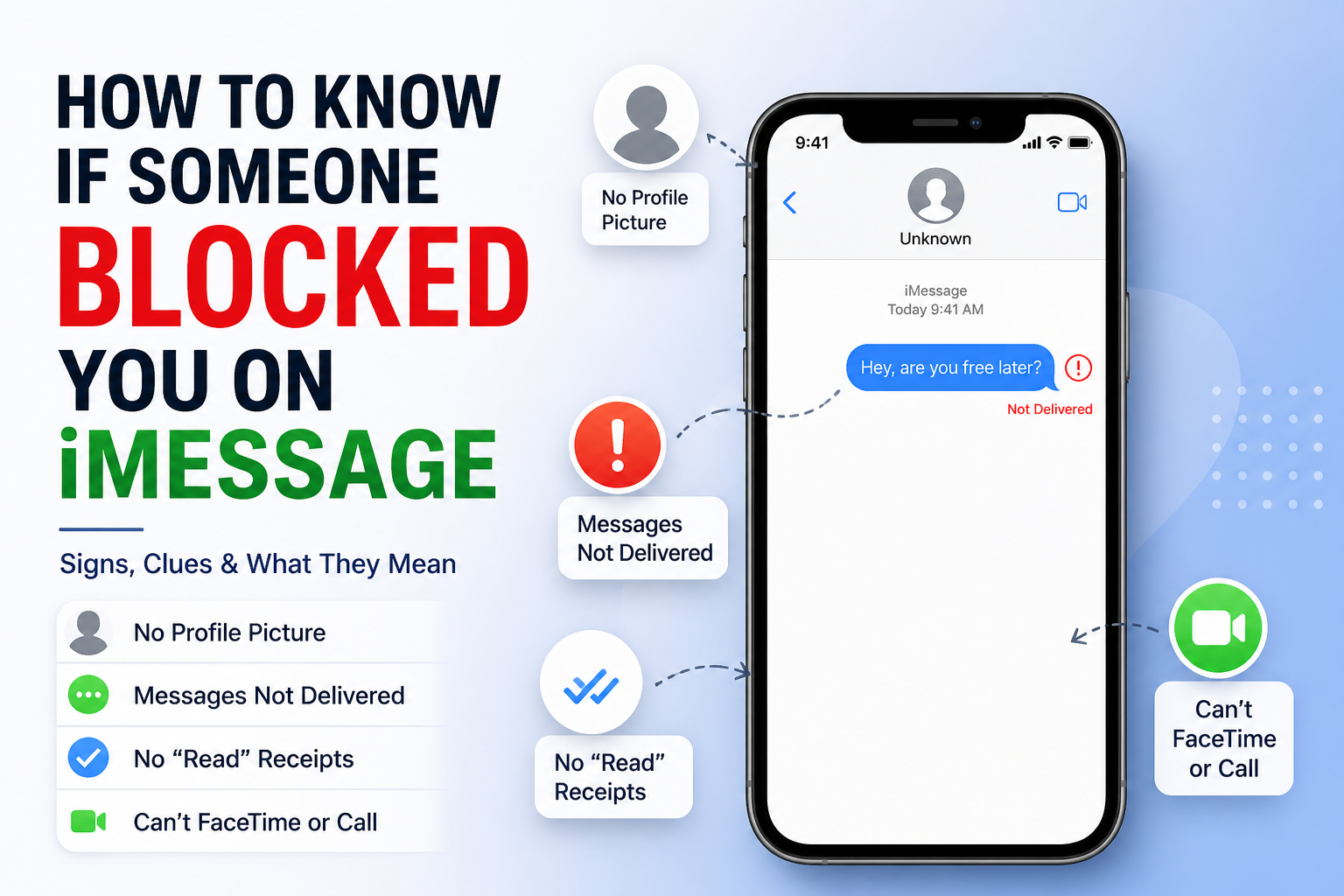
How to Know if Someone Blocked You on iMessage
You sent a message. You did not get a reply. You did not get a read receipt. You did not get a notice that the message was delivered. Now you are wondering if someone blocked you on iMessage?
Apple does not tell you when someone blocks your number on iMessage. You will not get a message or a warning.. There are things you can look for. If you see several of these things at the time it becomes clear what is going on.
This guide will tell you everything you need to know about iMessage and how to know if someone blocked you on iMessage. It will tell you the signs to look for. It will tell you how to test if someone blocked you on iMessage without sending them a message. It will answer the questions that people ask a lot about iMessage, all, in one place about iMessage.
What is iMessage and What Happens When Someone Blocks You
Before jumping into the signs, it helps to understand how iMessage works and what blocking actually does on an iPhone.
iMessage is Apple's messaging service that works over Wi-Fi or mobile data between Apple devices. Messages sent through iMessage appear as blue bubbles. When iMessage cannot complete delivery because the recipient's device refuses the connection or the service is blocked your iPhone quietly falls back to SMS, which appears as a green bubble.
When someone blocks your number on iPhone, blocking applies across everything simultaneously:
- Your iMessages do not deliver to their device
- Your phone calls go straight to voicemail
- Your FaceTime calls do not connect
- Your SMS messages appear to send but are never received
The person who blocked you receives no notification of your attempts. Everything appears invisible on their end. And critically Apple gives you no official confirmation that a block has happened. You have to read the signs.
How to Know if Someone Blocked You on iMessage — The Signs
No single sign confirms a block with absolute certainty. Network issues, dead batteries, Do Not Disturb mode, and switched devices can all produce similar behavior. The key is looking for a consistent pattern of multiple signs appearing together.
Sign 1 — Your Messages Stop Showing Delivered
When iMessage is working normally you see a Delivered label underneath your sent message once it reaches the recipient's device. This is the first and most noticeable sign to check.
What to look for:
- Open the conversation and scroll to your most recent messages
- Look underneath the last message you sent
- If you see Delivered — you have not been blocked
- If you see Read with a timestamp — you have definitely not been blocked
- If there is no status at all — this is a sign worth investigating further
Important context for iOS 16.5 and later: Apple updated how delivery notifications work in recent iOS versions. On iOS 16.5 and later you may still see a Delivered notification even if you have been blocked so the absence of Delivered is a stronger signal than its presence. If your messages consistently show no status across multiple attempts over several days, that pattern is significant.
Sign 2 — Messages Switch From Blue to Green Bubble
Blue bubbles are iMessage. Green bubbles are SMS sent through your mobile carrier. If a conversation that has always shown blue bubbles suddenly switches to green and stays green it is one of the strongest visual signals of a block.
Why this happens:
- When iMessage cannot deliver to the recipient's device it falls back to SMS automatically
- Blocking triggers exactly that refusal on the recipient's side
- Your iPhone sees the iMessage delivery failing and switches to SMS
- What else can cause green bubbles:
- The recipient switched from iPhone to Android
- The recipient turned iMessage off in their settings
- Poor internet connection on either device
- iMessage server outage check Apple's system status page to rule this out
If the conversation was always blue, has now turned green, and the person is not replying combined with other signs on this list a block is likely.
Sign 3 — Calls Go Straight to Voicemail After One Ring
This is one of the most reliable ways to test whether you have been blocked without sending a text message.
How to test:
- Call the person's number directly from your Phone app
- Count the rings before voicemail picks up
What the ring count means:
- 3 or more rings then voicemail — their phone rang on their end, they did not answer — not blocked
- 1 ring or less then voicemail — your call was not reaching their device possible block
- Goes to voicemail instantly with no ring — strongest call-based signal of a block
Important: A single test is not enough. People send calls to voicemail for many reasons — they are in a meeting, their phone is on silent, or Do Not Disturb is active. Call at different times of day across multiple days. If the result is consistently zero to one ring every single time, combined with other signs, blocking is the likely explanation.
Blocked voicemails: If you leave a voicemail after being blocked it is not deleted. It is placed in a separate Blocked Messages folder at the bottom of the person's voicemail list inside their Phone app under a section labeled Blocked Messages. They are not notified but can view it if they choose to look.
Sign 4 — FaceTime Calls Do Not Connect
FaceTime behaves differently from regular calls when someone blocks you.
What happens when you FaceTime someone who blocked you:
- It never actually rings through on their device
- It eventually times out or shows an unavailable message
- The recipient sees nothing no missed call, no notification, no banner
- What a normal FaceTime call looks like:
- Rings 10 to 12 times for approximately 30 seconds
- If blocked the call attempts to connect for a few seconds and then fails silently
- The FaceTime test:
- Open FaceTime and place a video call to the person
- Let it run for 30 full seconds
If it never connects and cuts off in under 5 seconds this combined with other signs points to a block
Sign 5 — No Profile Picture or Contact Details Visible
In some cases when someone blocks you their profile picture may no longer be visible in the conversation. This is not consistent across all iOS versions but it is worth checking.
What to look for:
- Open the conversation and tap their name at the top
- Check if their profile photo is visible
- If it has disappeared from a conversation where it was previously shown note it as an additional signal
- This sign alone is not conclusive but adds to the pattern when combined with the signs above.
- How to Tell if Someone Blocked You on iMessage Without Texting Them
- If you want to check whether you have been blocked without sending a message that might appear awkward, here are three methods that do not require texting.
Method 1 — The Phone Call Test Place a regular voice call to the person's number. Count the rings carefully. Zero to one ring before voicemail is the strongest call-based signal of a block. Repeat this test at different times across multiple days before drawing any conclusion.
Method 2 — The FaceTime Test Open FaceTime and start a video call. A normal call rings for 30 seconds. If the call attempt dissolves in a few seconds without connecting and does not show a missed call on their end this is a sign worth noting alongside others.
Method 3 — Try Reaching Them on Other Platforms Check whether you can find and contact the person on WhatsApp, Instagram, or any other platform where you are connected. If those channels also show signs of being blocked no profile picture visible on WhatsApp, messages showing only one tick the likelihood of an iMessage block increases significantly.
The three-signal test: Security researchers and Apple community experts consistently recommend combining all three signals in a single session. Send a short neutral iMessage and watch the bubble color and delivery status for an hour. Then place a voice call and count the rings. Then try FaceTime. If all three show the classic blocked pattern green bubble with no delivery, instant voicemail, failed FaceTime you have a strong picture.
- How to Know if You Are Blocked on iMessage — Confirming the Pattern
- Before concluding that you have been blocked, rule out these alternative explanations:
- Their phone is off or out of battery — temporary, resolves when they charge
- No internet connection — messages fail to deliver without Wi-Fi or mobile data
- Do Not Disturb or Focus mode — silences calls and notifications but does not block messages
- Airplane Mode — cuts all connections temporarily
- Switched to Android — explains green bubbles and failed iMessage delivery
- iMessage turned off — same effect as blocking for message delivery purposes
- Apple server issues — check Apple System Status to rule this out
The rule: If any single sign appears once — investigate but do not conclude. If multiple signs appear consistently over several days of testing the pattern strongly suggests a block.
Things Every iPhone User Should Know About iMessage
iMessage is one of the most used apps on iPhone — yet most people only scratch the surface of what it can actually do. Beyond the blocking question, there are several important things every iPhone user runs into at some point — from taking back a message you regret sending to setting up iMessage on a new device for the first time.
- Here is a complete practical guide covering the most important iMessage actions, explained clearly and step by step.
- Taking Back a Message — How Unsending Works on iMessage
- Everyone has experienced that moment of sending a message and immediately wishing they had not. iMessage gives you a way to take it back — but the window is short and the rules are specific.
When you unsend a message in iMessage the content disappears from both your device and the recipient's device at the same time. It does not get archived or stored anywhere — it is removed completely from the conversation on both ends.
How to unsend a message:
- Open the iMessage conversation with the message you want to remove
- Press and hold the message until the action menu appears on screen
- Tap Undo Send from the list of options
- The message vanishes from both devices immediately
- What you need to know before trying:
- you have exactly 2 minutes from sending — after that the option is gone permanently
- The recipient sees a note that a message was unsent — they do not see the content but they know something was removed
- Works only in blue bubble iMessage conversations — not SMS
- Both sender and recipient must be on iOS 16 or later
Missed the 2-minute window? Long press the message and tap Edit instead. You have up to 15 minutes to change what it says — though the recipient can view the edit history if they choose to look.
Setting Up iMessage for the First Time
To activate iMessage:
- Go to Settings → Messages
- Toggle iMessage on
- Make sure you have an active internet connection
Set up Send and Receive:
- Go to Settings → Messages → Send and Receive
- Check that both your phone number and Apple ID email are listed and ticked
- This ensures people can reach you on both
If iMessage does not activate:
- Check your SIM card is properly inserted
- Confirm iMessage is supported on your carrier plan
- Toggle iMessage off, wait 30 seconds, toggle back on
- Restart your iPhone and try again
- Allow up to 24 hours on a brand new device
- For persistent issues visit Apple iMessage support for advanced troubleshooting.
Managing Your iMessage Sticker Collection
Stickers can pile up quickly in iMessage. Here is how to stay in control of your collection.
Creating stickers from photos:
- Open Photos, press and hold the main subject of any image until it lifts from the background, then tap Add Sticker. It saves to your collection immediately.
- Using stickers in a conversation:
- Tap the + button in any conversation and select Stickers
- Tap any sticker to send it
- Long press a sticker and drag it onto a message bubble to use it as a reaction
Deleting custom stickers:
- Open the sticker drawer in any conversation
- Long press the sticker you want to remove
- Tap Delete and confirm
- Removing downloaded sticker packs:
- Tap + in any conversation then tap More → Edit
- Tap the red minus icon next to the pack to hide it
- To remove it completely — delete the app from your home screen
Hiding emoji stickers:
- Go to Settings → Messages → iMessage Apps
- Find Emoji and toggle it off
- Your regular emoji keyboard is not affected
- Reordering: Long press any sticker in the drawer and drag it to a new position. Frequently used stickers also move to the top automatically over time.
- When iMessage Stops Working Mid-Conversation
- If iMessage suddenly stops delivering or bubbles turn green mid-conversation here is how to diagnose it quickly.
Temporary causes — resolve on their own:
- Their battery died or they lost internet connection
- Apple server outage — check Apple System Status
- Their Focus or Do Not Disturb mode is active
Fix it yourself:
- Toggle iMessage off and on — Settings → Messages
- Sign out and back into your Apple ID — Settings → your name
- Check date and time — Settings → General → Date and Time → Set Automatically
- Install any pending iOS updates
Deeper issues:
- Your carrier changed your plan — contact them to confirm iMessage is still enabled
- Your number transferred to a new device — toggle iMessage off and on and wait up to 24 hours
- Quick test: Send an iMessage to a different contact. If it delivers normally — the issue is specific to one conversation. If all iMessages are failing — the problem is with your account or device settings.
Conclusion
Apple deliberately keeps its blocking system private and that means there is no single definitive way to confirm that someone has blocked you on iMessage. What you can do is look for a consistent pattern of signs across multiple tests.
If your messages consistently show no delivery status, your calls go to voicemail after one ring every time you call, your FaceTime requests never connect, and your conversation has switched from blue to green bubbles and this pattern holds across several days the picture is clear. A combination of all four signs in a single testing session is as close to confirmation as iMessage allows.
The most important thing to remember is to rule out temporary explanations first a dead battery, a network outage, Do Not Disturb mode, or a switched device can each produce one or two of these signs on their own. Only a consistent pattern across multiple signs and multiple days points reliably to a block.
For more tips on getting the most from iMessage including hidden features, privacy settings, and troubleshooting guides the full guide on iMessage tips and tricks covers everything in one place. And for teams looking to move beyond personal messaging to a professional secure communication platform, exploring best apps for productivity gives a complete picture of modern communication options built for business.
Frequently Asked Questions (FAQs)
Q1. How do I know if someone blocked me on iMessage?
Apple does not send any notification when someone blocks your number so you have to look for a pattern of signs. The clearest indicators are that your messages stop showing a Delivered status and the bubble switches from blue to green, your phone calls consistently go to voicemail after one ring or less, and FaceTime calls never connect and dissolve within seconds. No single sign confirms a block on its own network issues, Do Not Disturb mode, and device problems can all cause similar behavior. Look for all these signs occurring consistently across multiple tests over several days before drawing a conclusion.
Q2. How can I tell if someone blocked me on iMessage without texting them?
You can test for a block without sending a text in three ways. First, place a regular phone call and count the rings zero to one ring before voicemail is suspicious. Second, try a FaceTime video call if it fails to connect within a few seconds and never rings through on their end, that is a signal. Third, check whether you can still reach them on WhatsApp, Instagram, or other shared platforms. If those channels also show signs of being blocked, the likelihood of an iMessage block increases. Combining all three tests in one session gives you the clearest picture without needing to send a message.
Q3. Can you unsend an iMessage after sending it?
Yes you can unsend an iMessage but only within 2 minutes of sending it. Long press the message and tap Undo Send from the menu. After 2 minutes the option disappears permanently and the message cannot be recalled. The recipient sees a note that a message was unsent they are not shown the content but they know something was removed. If you miss the 2-minute window you can still use the Edit feature within 15 minutes to change what the message says — though the recipient can view the full edit history. Both features work only in blue bubble iMessage conversations and require iOS 16 or later on both devices.
Q4. How do I enable iMessage on my iPhone?
Go to Settings, tap Messages, and toggle iMessage to the on position. Make sure you are connected to Wi-Fi or mobile data. Then go to Send and Receive inside the iMessage settings and confirm that both your phone number and Apple ID email address are listed and checked. Activation usually completes within a few minutes but can take up to 24 hours on a new device. If you see an activation error make sure your SIM card is properly inserted, toggle iMessage off and on, restart your iPhone, and try again. Contact your carrier if the problem persists to confirm iMessage is supported on your plan.
Q5. Why did my iMessage turn from blue to green?
Blue bubbles are iMessage and green bubbles are SMS sent through your mobile carrier. Your messages turn green when iMessage cannot complete delivery to the recipient. This happens for several reasons the recipient switched from iPhone to Android, they turned iMessage off in their settings, there is no internet connection on either device, or in some cases you have been blocked. A sudden and permanent switch from blue to green in a conversation that was always blue combined with calls going to voicemail and FaceTime failing to connect is one of the strongest combined signals of a block. Check Apple's system status page to rule out an iMessage server issue before drawing any conclusions.