Connect with us
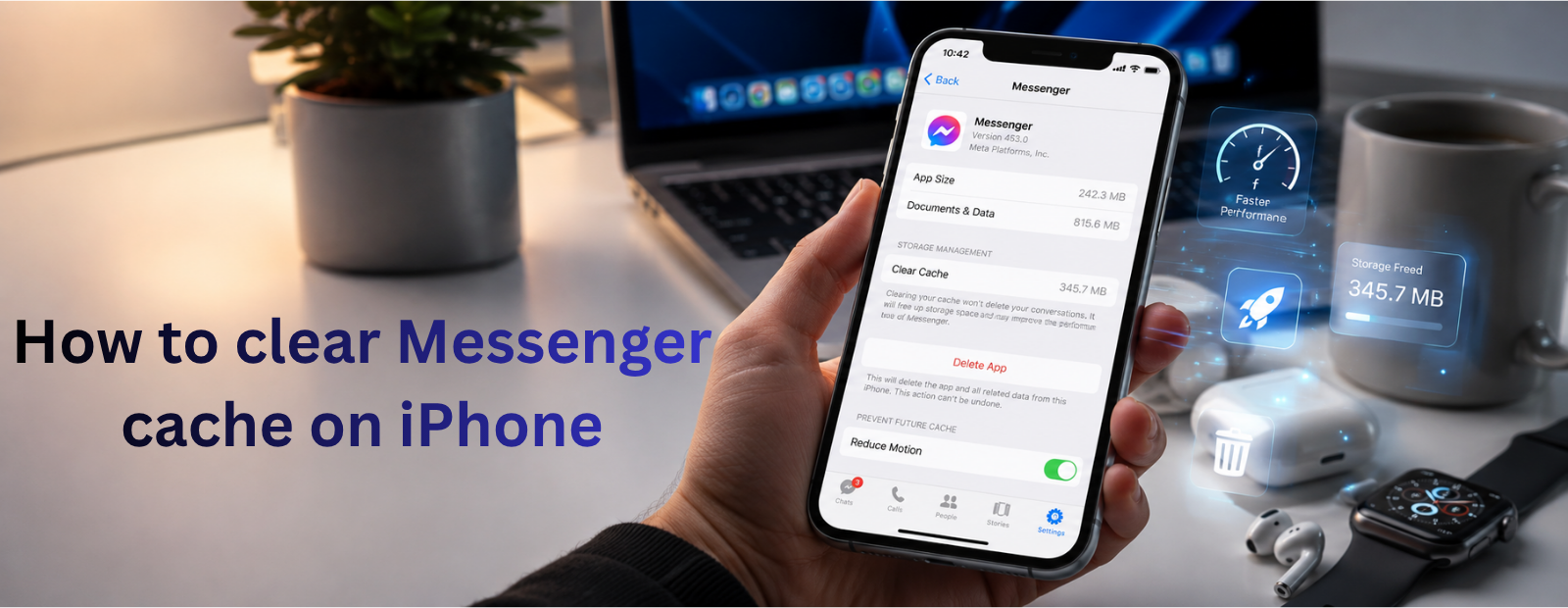
How to clear Messenger cache on iphone
Messenger cache on iPhone is temporary data stored by the Messenger app to help load conversations, media, and other content more quickly. Over time, this cached data can take up significant storage space and may contribute to app performance issues or unnecessary storage usage, especially for people who frequently exchange photos, videos, and other media through messaging apps. For users who rely on messaging for both personal and team communication, understanding how cached data is stored and managed can help maintain better device performance.
This guide explains how to clear Messenger cache on iPhone, why cache builds up, what types of data Messenger stores, and which methods can help free up storage. You’ll learn how to delete and reinstall Messenger or use the iPhone’s Offload App option, as well as whether third-party cleaner apps can actually remove Messenger cache.
What Is Messenger Cache on iPhone and How Does It Build Up?
Before we move on to clearing it, let’s break down what it actually is. Messenger cache on your iPhone (or any device) is basically temporary files and data the app saves locally so everything loads faster and runs more smoothly. Sounds helpful, right? The problem is that, over time, this cache can take up a ton of space and often includes data you don’t even need anymore.
And we’re not talking a few megabytes. On Reddit, some users report that Facebook’s 'Documents and Data' section, which includes the cache, can take up more than 4GB of space. Messenger can reach a similar size, too, even though the two apps serve different purposes. Want to see how much space it’s taking up on your device? Go to Settings > General > iPhone Storage > Messenger.

Here’s a breakdown of the kinds of files Messenger stores in its cache - they cover a lot more than you might expect:

- Messenger keeps some of your recent messages stored locally, especially for conversations you open often. These are just local copies, so chats load instantly.
- Any media you watch, listen to, or send, whether it’s photos, videos, or voice notes, gets saved locally so you can still access it offline. Messenger also caches profile pics, contact names, and chat themes to make everything load faster. And yep, any stickers or sticker packs you download are stored on your phone, too.
- It also caches icons, animations, and chat themes to help the app run faster.
- To keep you logged in, Messenger stores a temporary access token. This token acts like a pass that confirms your identity without making you log in every time - it’s a secure way to stay signed in without entering your password again and again.
At first, caching seems helpful - it makes the app load faster and run smoother. But when too much cache builds up, it can slow down Messenger and even your whole iPhone. Plus, cached data can go out of date. For example, if a friend changes their profile pic or bio but in your cache still saves the old version, you could run into slowdowns or weird glitches. So, if you’re noticing these issues or just want to avoid them altogether, it’s time to clear the Messenger cache on your iPhone. Next up, we’ll show you exactly how.
2 Ways to Clear Facebook Messenger Cache on iPhone
If you’ve ever tried clearing the Messenger cache on your iPhone, you probably noticed there’s no direct way to do it. And if this is your first time looking into it, you’ll quickly find out that the option just doesn’t exist. Unlike Android, iPhones don’t offer a built-in cache-clearing feature, and the app itself doesn’t include that option either, though the main Facebook app actually does, which can be frustrating if you manage multiple accounts or settings such as a custom phone number within connected services. So what are your options? You can either offload the app or delete and reinstall it. Both methods help you clear some or all of the cached data, which can improve app performance and a bit clean up your iPhone’s storage
Delete and Reinstall the Messenger
The most effective way to clear the Messenger cache on your iPhone is to delete the app and then reinstall it. This wipes out all cached data and anything else the app has stored locally. Just keep in mind - you’ll have to log back into your account afterward. So if you’re not sure of your login info, make sure you have it handy or be ready to go through the account recovery process.
Press and hold the Messenger icon on your home screen until the quick‑actions menu pops up, then tap 'Remove App' and confirm by hitting 'Delete.'

You can also delete Messenger through your iPhone’s settings. It does the same thing as removing it from the home screen - it just might be a little convenient depending on your preference.
1. Open ‘Settings’ on your iPhone, scroll down, and tap ‘General’.
2. Select ‘iPhone Storage’.

3. Scroll down to find Messenger, tap it, then choose 'Delete App' and confirm by tapping 'Delete App' again.

In both cases, the process for reinstalling the app is pretty simple. Just open the App Store on your iPhone, search for 'Messenger,' tap the cloud icon to download it, and once it’s installed, launch the app and sign in to your account to resume using Messenger.

Offload Messenger
Another option is to offload the app. This isn’t as effective as deleting it because it only removes the app itself while keeping most of its data and cache on your iPhone. So while it frees up some cache, it doesn’t clear everything out.
1. Open your iPhone’s Settings and tap General.
2. Go to iPhone Storage, then scroll down and tap on Messenger.
3. Tap Offload App - this removes the app itself but keeps its documents and data. Confirm by tapping Offload App again.

4. Once that’s done, tap Reinstall App to bring it back with your saved info still intact.

Or reinstall Messenger straight from the App Store. Open the App Store, type 'Messenger' in the search bar, then tap the cloud icon with the arrow to download it again.
Is It Possible to Automate the Clearing of Cache on Messenger?
Sometimes you might wonder if there’s a way to automatically clear the cache for Messenger and other apps using a cleaner app, instead of digging through settings or reinstalling everything manually. Unfortunately, the answer is no. iOS has strict rules that prevent third-party apps from accessing certain types of data, including app caches, so cleaner apps can’t touch that data.
You’ve probably seen iPhone cleaner apps in the App Store or mentioned online that claim they can clear app cache. Don’t fall for it - those claims aren’t true. At best, they’re just marketing hype to get more downloads. At worst, they’re straight-up scams. Cleaner apps on iOS can only access a limited number of data types, including your items in the Photos app, contacts, mail, notes, and calendar events. Some focus on one category, like Clever Cleaner for photos and videos or Easy Cleaner for contacts. Others, like Boost Cleaner, try to bundle a bit more. But that’s where their access ends - they can’t touch app caches or other system data.
Conclusion
As promised, we’ve covered everything you need to know about Facebook Messenger cache - what it is, how it builds up, and the best ways to clear it from your iPhone.
To wrap things up, just a quick reminder - your only real options for clearing the Messenger cache on iPhone are offloading the app or deleting and reinstalling it. Unfortunately, there’s no other workaround. If that feels like too much of a hassle, you might have to either live with the growing cache or consider switching to a different messaging app, like Telegram, which has a built-in cache-clearing feature. With apps like that, all it takes is a single tap - no uninstalling required.
Frequently Asked Questions (FAQs)
1. How do I clear Messenger cache on iPhone?
To clear Messenger cache on iPhone, Apple does not provide a direct “clear cache” button like Android. The most effective method is to either delete and reinstall the Messenger app or use the “Offload App” option in iPhone Storage settings. Offloading removes the app while preserving important user data, while reinstalling gives a completely fresh cache state. This process helps free up storage space, fix app lag issues, and improve performance without affecting your Messenger account or login credentials.
2. Does clearing Messenger cache delete messages or chats?
No, clearing Messenger cache does not delete your messages, chats, or conversation history. Messenger stores your chats on Meta’s cloud servers, not locally on your iPhone. Cache mainly includes temporary files like images, videos, thumbnails, and stickers used to improve app loading speed. When you clear cache or reinstall the app, only temporary data is removed. Your messages, media history, and contacts remain fully safe and accessible once you log back into your account.
3. Why is Messenger taking so much storage on iPhone?
Messenger can take up significant storage on iPhone because it continuously stores cached data such as images, videos, voice messages, stickers, and shared files. Over time, these temporary files accumulate and may consume several gigabytes of space, especially for active users. The app stores this data to improve performance and reduce loading time when reopening chats. However, without regular cleanup or offloading, this cached data can grow excessively and slow down overall device storage performance.
4. Can I clear Messenger cache on iPhone without deleting the app?
iOS does not offer a direct option to clear Messenger cache without removing the app. However, you can use the “Offload App” feature in iPhone settings, which deletes the app while keeping documents and login data intact. After reinstalling Messenger, a fresh cache is created automatically. This is currently the safest and closest method to clearing cache without losing important account information. It also helps resolve app glitches, improve speed, and free up storage space effectively.
5. Do iPhone cleaner apps remove Messenger cache?
No, most iPhone cleaner or booster apps cannot remove Messenger cache due to strict iOS privacy and sandbox restrictions. Apple does not allow third-party apps to access or delete system-level or app-specific cache data. These tools may only help identify large files or suggest storage cleanup but cannot directly clear Messenger’s cached data. The only reliable methods remain offloading the app or reinstalling it from the App Store to reset cached files safely.
6. Does Troop Messenger have cache management features?
Yes, Troop Messenger includes built-in data and storage management features that help users efficiently control chat data, media files, and shared content. Unlike traditional messaging apps, it is designed for business communication and allows better control over file storage and usage. Users can manage conversations, delete unnecessary media, and maintain optimized performance without relying on device-level cache clearing. This makes it more suitable for organizations that need structured communication and controlled data management.