Connect with us
web application developmentDiscord Browser Login: Step-by-Step Guide for Desktop & Mobile
Using the Discord browser version is one of the easiest ways to access your servers, direct messages, and voice channels without installing any software. Whether you're on a work computer, a shared device, or simply want to save storage space, Discord browser login lets you jump straight into conversations from Chrome, Edge, Firefox, Safari, and other supported browsers.
This guide explains everything you need to know about using Discord in a browser, including how to log in on desktop and mobile, sign in with a QR code, compare Discord Web with the desktop app, and troubleshoot common issues like RTC Connecting errors, loading screens, and microphone permissions. By the end, you'll understand the benefits, limitations, and best practices for using Discord browser as your primary or backup way to stay connected.
What Is Discord Web Browser?
Discord Web is just Discord running inside a browser tab instead of its own dedicated program. No install, no setup, nothing sitting on your hard drive. You go to the site, log in, and you're looking at the same servers and DMs you'd see anywhere else.
Most of it works the same way. Text chat, voice and video calls, screen sharing, server management, all there. The real difference is what it's built on top of. The desktop app is its own self-contained program tuned specifically for Discord's needs. The browser version has to borrow whatever your browser gives it, which is usually fine but occasionally shows its limits during voice calls.
So it's not a stripped-down version exactly. It's the same app wearing different shoes, and sometimes those shoes pinch a little during a long voice session.
Communication platforms accessed through a browser depend on thoughtful web application development to deliver reliable, responsive experiences. The process typically combines interface design, backend engineering, integrations, security, and performance optimization
How to Log Into Discord on a Browser
This part's quick.
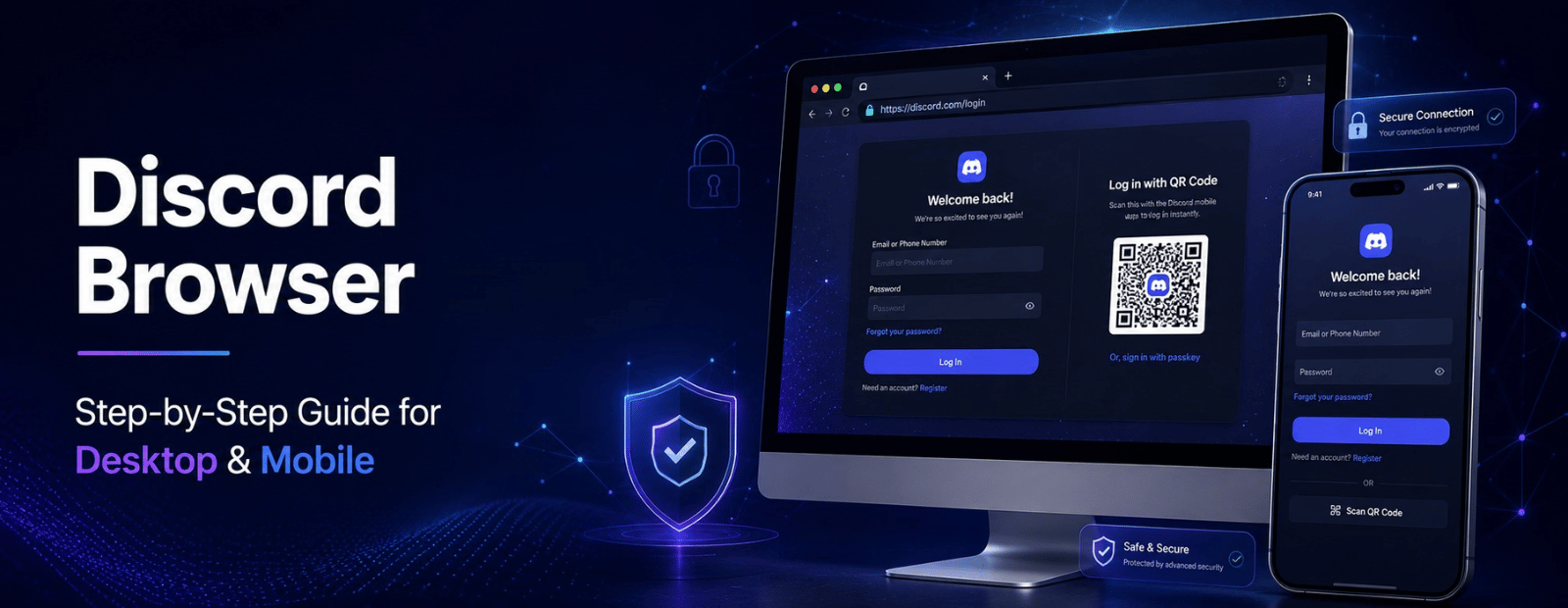
Step-by-Step Discord Browser Login
- Open Chrome, Edge, Firefox, Safari, or whatever you've got.
- Go to discord.com/login.
- Type in your email or phone number, then your password.
- Hit Log In.
- If two-factor is turned on, you'll need a code, authenticator app, SMS, or a backup code.
- You'll land on your Friends tab with the server list down the left side, same as the app.
Make sure cookies and JavaScript are switched on, or the page won't load right. And stick to one account per browser tab if you can. Running two accounts in the same tab tends to get confusing fast. If you're new to Discord altogether, our guide to using Discord covers the basics beyond just logging in.
Logging In with a QR Code
Typing a password on a computer that isn't yours is never a great feeling. The QR method skips that entirely.
- Look for the QR code next to the login fields on your browser screen.
- Open the Discord app on your phone, you'll need to already be signed in there.
- Tap your profile, then the gear icon.
- Select Scan QR Code and let it use your camera.
- Point the camera at the code on the browser.
- Approve the prompt that pops up on your phone.
That's it. Your browser session logs in on its own. One thing worth repeating: only scan a QR code from a login page you opened yourself. Not one someone sent you, not one posted in a server. Scanning the wrong one hands over your account, and people don't always realize that until it's too late.
Discord Web Browser on Mobile
The browser version isn't just for desktops. It runs on phones too, though it starts showing cracks sooner there.
How to Open Discord in Browser on Mobile (iOS & Android)
- Open your phone's browser, Chrome, Safari, whatever you use.
- Go to Discord's site and tap Login.
- Sign in with your credentials, or scan a QR code from a second device.
- The site loads a touch-friendly layout once you're in.
Useful in a pinch. Borrowed phone, low storage, a work device you can't put personal apps on, that kind of situation.
Discord Browser Mobile vs. the Discord App
It handles messaging and basic voice fine. Where it falls short:
Notifications barely work in a mobile browser tab, since background alerts really need a native app to function properly. Voice and video get shaky during longer group calls. And a chunk of the quick gestures the app gives you, swipe replies, that kind of thing, just aren't built into the browser version at all.
For occasional use, none of that matters much. If Discord's how you actually keep up with people day to day, you'll feel the gap pretty quickly.
Discord Browser vs. Discord App: Key Differences
| Feature | Discord Browser | Discord Desktop/Mobile App |
| Installation required | No | Yes |
| Storage used | None | A few hundred MB or more |
| Voice/RTC stability | Decent, browser-dependent | More consistent |
| Push-to-talk | Only while the tab's in focus | Works properly |
| Game/activity status shown to friends | Not shown | Shown automatically |
| Screen sharing | Supported | Supported, more options |
| Notifications | Limited | Full native alerts |
| Resource usage | Lighter | Heavier |
| Startup on boot | Not applicable | Can be set up |
If you're hopping between a dozen browser tabs already and just want to peek at a server now and then, the browser's enough. If you're gaming and actually need push-to-talk to behave, install the app. There's not much middle ground there. For anyone running a community rather than just lurking in one, it's worth skimming our piece on how Discord servers work too.
Best Browsers for Discord
Not all browsers treat Discord's voice features the same way.
Chrome handles voice and video the most reliably out of all of them, its WebRTC support is just better tuned for this kind of thing. Edge runs on the same engine, so performance tracks closely, and it tends to use less memory on Windows specifically. Firefox is fine for chat and basic calls, though screen sharing occasionally hiccups. Safari does the job on Mac and iOS, though a few newer features lag slightly behind what Chromium browsers get first. Brave works well too, but its built-in shields sometimes choke voice connections unless you loosen the site permissions a bit.
If something's broken and you can't tell why, switching browsers for a minute is the fastest way to find out whether it's Discord or just your setup.
Common Discord Browser Problems & Fixes
Cache, network interference, outdated browsers. That's behind most of this.
Fixing "RTC Connecting" Errors on Discord Browser
This message means Discord's trying to open a voice connection and it hasn't gone through yet. A quick flash of it is normal. Past ten or fifteen seconds, something's actually blocking it.
Work through these in order:
- Refresh the page. Sounds too simple, fixes more than it should.
- Clear cache and cookies for Discord's domain.
- Turn off extensions for a minute, ad blockers and VPN extensions interfere with WebRTC more than people expect.
- Disconnect any VPN or proxy. They reroute traffic in ways that break the voice handshake.
- Try a different browser entirely.
- Check Discord's status page before assuming it's something you did.
If you're on a school or office network, the network itself might just be blocking the voice ports. No browser fix touches that. Switching to mobile data is sometimes the only workaround until you can talk to whoever runs the network.
Discord Browser Stuck on Loading Screen
Spinning forever, never reaching login. Usually cache, an extension, or a shaky connection.
Hard-refresh first, Ctrl+Shift+R on Windows, Cmd+Shift+R on Mac. Try a private window to rule out extensions. Update your browser if it's been a while. And just check that your connection's actually stable by loading something else in another tab.
Microphone/Camera Not Working in Browser
Almost always a permissions thing, not a Discord thing.
Check your browser's site settings and confirm Discord can access your mic and camera. Make sure nothing else, a video call app running in the background, say, already has the mic locked. Double-check the right input device is picked inside Discord's own settings. And restart the browser after changing any of this, since some browsers won't apply it until you do.
How to Call on Discord Mobile Browser
It works. Tap into a voice channel or open a DM, hit the call icon, grant whatever permissions it asks for. The catch: switch apps or lock your screen and the call usually drops, because mobile browsers generally don't keep a connection alive in the background the way an actual app does. Fine for a quick check-in. Not great for anything longer.
Should You Use Discord on Browser or Download the App?
Depends entirely on how you actually use it.
Browser makes sense if you can't install software where you are, you only check in occasionally, you're on a shared or public machine, or storage's tight. The app makes more sense if Discord's part of your daily routine, you need notifications that actually fire, you want friends to see what you're playing, or voice chat runs long and often.
Plenty of people just use both, app at home, browser as the backup when they're somewhere else. The official app's available at discord.com/download whenever you're ready for it.
Conclusion
The browser version holds up better than people expect. Messaging, voice, video, server management, it's all there, and for anyone who isn't living inside Discord all day, that's plenty. Where it struggles is voice stability, notifications, and anything running in the background, and that's exactly where the real app still wins. Most of the common issues, the RTC freeze, the stuck loading screen, clear up with the fixes above. Past that, it's really just about which version fits how you actually use the thing.
FAQs
Q1. How do I log into Discord through a browser?
To log into Discord through a browser, open Chrome, Edge, Firefox, Safari, or another supported browser and visit the Discord login page. Enter your email address or phone number and password, then click Log In. If you have two-factor authentication enabled, you'll also need to enter a verification code. Once authenticated, you'll gain access to your servers, direct messages, voice channels, and account settings directly from the browser without installing the Discord app.
Q2. Can I use Discord without downloading the app?
Yes, Discord can be used entirely through a web browser without downloading the desktop or mobile app. The browser version supports most core features, including messaging, voice channels, video calls, screen sharing, server management, and direct messages. It's a convenient option for users on shared computers, work devices, or systems with limited storage. However, the desktop app generally provides better notification support, voice stability, and background functionality.
Q3. Is Discord browser safe to use?
Yes, Discord browser is safe when accessed through the official Discord website. It uses secure encrypted connections to protect login information and communications. For additional security, users should enable two-factor authentication, use strong passwords, avoid suspicious login links, and never scan unknown QR codes. If you're using a public or shared computer, always log out after your session and avoid saving login credentials in the browser.
Q4. What is the difference between Discord browser and the Discord app?
The biggest difference is that Discord browser runs inside a web browser, while the Discord app is a dedicated application installed on your device. Both versions support messaging, voice chat, video calls, and server management. However, the app typically offers better voice performance, improved notifications, richer integrations, game activity detection, and more reliable background functionality. The browser version is ideal for convenience, while the app is better for frequent daily use.
Q5. Why is Discord browser stuck on "RTC Connecting"?
The "RTC Connecting" error usually occurs when Discord cannot establish a voice connection. Common causes include browser extensions, VPNs, firewall restrictions, outdated browsers, network issues, or blocked WebRTC traffic. To fix the problem, refresh the page, clear browser cache and cookies, disable extensions temporarily, disconnect any VPN service, or try a different browser. If the issue persists, check whether your network administrator is restricting voice communication services.
Q6. Can I use Discord browser on my phone?
Yes, Discord browser works on both Android and iPhone devices through mobile browsers such as Chrome and Safari. You can sign in, send messages, join servers, and participate in voice channels without installing the app. However, browser-based Discord on mobile devices may have limited notification support and less reliable background voice connectivity compared to the official mobile application, making it better suited for occasional use rather than everyday communication.
Q7. Which browser works best for Discord?
Google Chrome and Microsoft Edge generally provide the best Discord browser experience because of their strong support for WebRTC, the technology that powers voice and video communication. Firefox also performs well for most users, while Safari supports the majority of Discord features on Apple devices. If you encounter connection, microphone, or screen-sharing issues, switching to Chrome or Edge is often the quickest and most effective troubleshooting step.