Connect with us
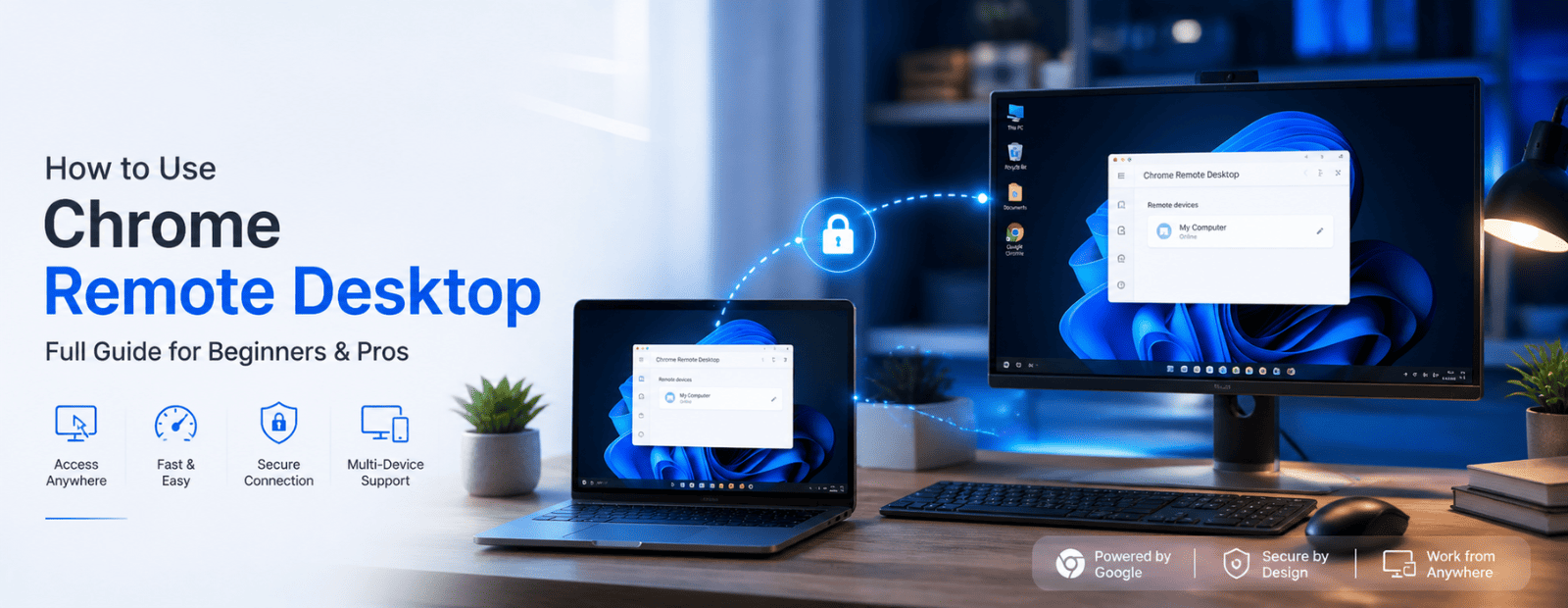
How to Use Chrome Remote Desktop: Full Guide for Beginners & Pros
Chrome Remote Desktop is a free remote access tool from Google that allows users to securely access and control another computer from anywhere using a web browser. It is widely used for remote work, IT support, team collaboration, and accessing office computers from home.
In this guide, you'll learn how to set up Chrome Remote Desktop, connect to another device, use its key features, troubleshoot common issues, and follow best practices to keep remote sessions secure.
What Is Chrome Remote Desktop?
Google Chrome Remote Desktop is a completely free remote access application developed by Google itself. This application allows you to access any other computer through the internet as long as both the computers have an internet connection and are logged into a Google account.
In contrast with most other remote desktop applications which require paid subscriptions and elaborate IT setups, Google Chrome Remote Desktop requires no subscription fees and can be installed directly within the browser.
People use it for all kinds of reasons:
- Personal use — accessing your home computer while travelling or at work
- Remote IT support — helping a colleague or family member fix an issue without being there physically
- Team collaboration — working on shared systems without needing to be in the same room
- Work from home — staying connected to your office machine throughout the day
How Does Chrome Remote Desktop Work?
While using Chrome Remote Desktop software, there will be two computers: the host computer and the client computer. Your Google account login details will be the first level of security, which will be followed by another security feature, pin code. Data transfer from one computer to the other will remain completely encrypted.
System Requirements for Chrome Remote Desktop
Before setting up Chrome Remote Desktop, ensure that:
- Google Chrome is installed on both devices
- Both devices have an active internet connection
- You have a Google account
- The host computer remains powered on during remote access sessions
- Chrome Remote Desktop extension and host software are installed
Chrome Remote Desktop Setup: Step-by-Step Guide
Setting up Chrome Remote Desktop takes less than five minutes. Here is exactly how to do it.
Quick Setup Summary
- Install Chrome Remote Desktop.
- Sign in with your Google Account.
- Enable Remote Access.
- Create a secure PIN.
- Access the host computer from another device.
- Enter the PIN to start the session.
Step 1 — Install the Extension from the Chrome Web Store
Open Google Chrome and go to remotedesktop.google.com. Click on the remote access section and add the Chrome Remote Desktop extension to your browser. You will also be prompted to install a small host app on your computer, go ahead and install that too.
Step 2 — Set Up Remote Access on the Host Computer
Once installed, open the app and go to the Remote Access tab. Click Turn on. You will be asked to create a PIN of at least six digits, this is your second layer of security on top of your Google account. Pick something you will remember but others cannot guess.
Step 3 — Connect from Another Device
On the computer that you want to connect from, access the remotedesktop.google.com website and login with the same Google account that you used before. You will observe that you get a list of computers which have been set up to be accessed remotely. Pick the computer that you need, type in your PIN, and there you have it!
Setting Up for Remote Support (One-Time Access)
In case your requirement is to give remote access to your machine once, then use the Remote Support link instead. It will generate a code which you will have to provide to the user that is trying to gain access to your machine. The moment your session is over, the access code will become invalid.
How to Use Chrome Remote Desktop on Mobile
There is a mobile app available for Chrome Remote Desktop, which is accessible from both Android and iOS platforms. After installation and login to the Google account, you will immediately see all computers available for remote access.
From your mobile phone, you can control mouse activities, switch into touchpad mode, do zoom-in/zoom-out activity, use virtual keyboards, and much more. Although it is not a good idea to use this app for intense work, still it performs perfectly well.
Is Chrome Remote Desktop Safe?
Yes, and here is why.
- Your Google account is the first authentication layer before anyone can connect
- A personal PIN adds a second layer of protection
- All sessions are encrypted end to end
- One-time access codes expire automatically when the session ends
- Access can be withdrawn at any moment using the app
In order to stay safer, never reveal your pin number to people that cannot be trusted. It is important always to revoke access after completing the remote assistance session. Ensure that you create a strong password on your Google account and use two-factor authentication.
Chrome Remote Desktop vs TeamViewer vs AnyDesk
Wondering how Chrome Remote Desktop compares to other popular tools? Here is a straightforward breakdown:
| Feature | Chrome Remote Desktop | TeamViewer | AnyDesk |
| Price | Free | Free / Paid | Free / Paid |
| Setup Difficulty | Very Easy | Moderate | Easy |
| Chat Feature | No (use with Troop Messenger) | Yes | Yes |
| Mobile Support | Yes | Yes | Yes |
| Best For | Personal & remote support | Business IT | Speed & performance |
Chrome Remote Desktop scores with its affordability and ease-of-use. Organizations that may require chat or session management capabilities can complement Chrome Remote Desktop's functionality with other team collaboration software such as Troop Messenger.
Does Chrome Remote Desktop Have a Chat Feature?
There is no chat function in Chrome Remote Desktop itself. While being a useful app for remote support or collaborating with a remote team, you will have to come up with an additional way of communication since one device is controlled from the other.
The easiest solution is to use a secure messaging platform alongside your session. Many teams prefer tools like Troop Messenger, which support real-time chat, file sharing, and calls. You can simply open the messenger through a web login in your browser while using Chrome Remote Desktop, making communication seamless during remote sessions.
Common Chrome Remote Desktop Problems and Fixes
Even the simplest programs sometimes don’t work properly. Below are some of the problems with Chrome Remote Desktop and their solutions.
Chrome Remote Desktop Not Connecting
Make sure that the Host Computer is turned on and also connected to the Internet. The background operation of the Chrome Remote Desktop host app must also be ensured. It can be seen that both the machines need to be logged into the same Google account.
Black Screen After Connecting
This happens most often on Windows machines. Press Ctrl + Alt + F5 to refresh the remote display. If that does not help, restart the Chrome Remote Desktop host service from the system tray.
Slow or Laggy Performance
Reduce the display quality in the session settings, look for the toolbar while connected and lower the resolution or colour quality. Using a wired internet connection on the host machine also makes a noticeable improvement.
Cannot Install the Extension
Make sure you are using Google Chrome and not another browser. Chrome Remote Desktop only works as a Chrome extension. Also check that your version of Chrome is up to date before trying again.
Tips to Get More Out of Chrome Remote Desktop
When you know how to use the software, these are some ways to optimize your use of the program:
- Use Ctrl + Alt + F5 to switch into full screen during any session
- Share your clipboard by copying text on your computer and pasting the text directly onto the remote computer
- Adjust your display settings to change the size of your text, in case the text appears to be too tiny on the remote computer screen
- You can use the program even if you own several monitors, as Chrome Remote Desktop is compatible with multi-monitor usage
- Turn off the sleep mode on the computer that is hosting the remote desktop application
Limitations of Chrome Remote Desktop
While Chrome Remote Desktop is highly useful, it does have some limitations:
- No built-in chat feature
- No remote session recording
- Limited enterprise management tools
- Requires a Google account
- Fewer advanced IT administration features compared to enterprise remote access platforms
Final Thoughts
There are some technologies out there that just make things easier without needing to take too much in exchange. Chrome Remote Desktop is one such technology – free, robust, simple to install, and available on all platforms. If you need to help someone set up their laptop, connect remotely to a work computer from home, or provide support for your team members, Chrome Remote Desktop does the trick without all the hassle.
Visit http://remotedesktop.google.com and experience just how easy remote assistance can be. For a team in need of chat functionality as well, pair Chrome Remote Desktop with an efficient collaboration service and you’ve got a fully functional remote assistance system for free.
Frequently Asked Questions
1. What are the benefits of using Chrome Remote Desktop?
Chrome Remote Desktop is a free remote access tool that allows users to securely connect to another computer from anywhere using an internet connection. One of its biggest advantages is its simplicity, as it requires only a Google account and a Chrome browser to get started. It works across Windows, Mac, Linux, Android, and iOS devices, making it highly versatile. All remote sessions are encrypted for security, and there are no subscription fees. It is ideal for remote work, personal access, IT support, and troubleshooting. Teams can also pair it with Troop Messenger for secure communication and file sharing during remote sessions.
2. Is Chrome Remote Desktop better than AnyDesk?
Whether Chrome Remote Desktop is better than AnyDesk depends on your needs. Chrome Remote Desktop is completely free, easy to configure, and ideal for personal remote access and basic remote support. It requires only a Google account and works directly through a browser. AnyDesk, on the other hand, offers advanced features such as session recording, remote printing, address books, and enterprise administration tools. For individuals and small businesses looking for a simple remote desktop solution, Chrome Remote Desktop is often sufficient. Organizations requiring advanced management capabilities may prefer AnyDesk or combine Chrome Remote Desktop with collaboration tools like Troop Messenger.
3. What app replaced Chrome Remote Desktop?
No application has replaced Chrome Remote Desktop because Google continues to actively support and update the platform. What changed is that Google retired the older Chrome App version and migrated the service to a web-based experience accessible through a browser. This update actually made the platform easier to use because it no longer depends on legacy Chrome applications. Today, users can access Chrome Remote Desktop directly through the official website and enjoy secure remote access from almost any device. As long as you use an updated browser and Google account, the service remains fully functional and reliable.
4. What is the difference between Chrome Remote Desktop and RDP?
Chrome Remote Desktop and Remote Desktop Protocol (RDP) both allow remote computer access, but they are designed for different use cases. RDP is Microsoft's remote access technology, primarily intended for Windows-based business environments. It often requires firewall configuration, network setup, and administrative permissions. Chrome Remote Desktop, by contrast, works through a web browser and is much easier to set up. It supports multiple operating systems and requires minimal technical knowledge. RDP provides more advanced enterprise features, while Chrome Remote Desktop is a better option for personal use, remote work, and quick remote support sessions.
5. What is the latest version of Chrome Remote Desktop?
Chrome Remote Desktop does not use traditional version numbers that users need to manually track or install. Instead, it updates automatically through the Chrome browser and Google's web-based infrastructure. This means users always have access to the latest security patches, performance improvements, and compatibility updates without downloading additional software. To ensure you are running the latest version, simply keep Google Chrome updated on your device. Automatic updates help maintain security and reliability, making Chrome Remote Desktop one of the easiest remote desktop tools to manage for both individuals and businesses.
6. Can I use Chrome Remote Desktop for team collaboration and remote support together?
Yes, Chrome Remote Desktop can be used effectively for both team collaboration and remote support. It allows users to view and control another computer remotely, making troubleshooting and technical assistance much easier. However, it does not include built-in messaging, file sharing, or voice communication features. Many businesses combine Chrome Remote Desktop with collaboration platforms such as Troop Messenger to create a complete remote support environment. This combination enables technicians and team members to communicate in real time, share files securely, and resolve issues faster while maintaining productivity and workflow continuity.
7. Does Chrome Remote Desktop work if the host computer is locked or in sleep mode?
Chrome Remote Desktop can connect to a locked computer, provided the device remains powered on and connected to the internet. A locked screen does not prevent remote access because the system is still running in the background. However, the service will not work if the host computer enters sleep mode, hibernation mode, or is completely powered off. To avoid connection issues, users should configure their power settings to prevent sleep during working hours. This is especially important for remote employees, IT administrators, and businesses that rely on uninterrupted remote desktop access throughout the day.