Connect with us
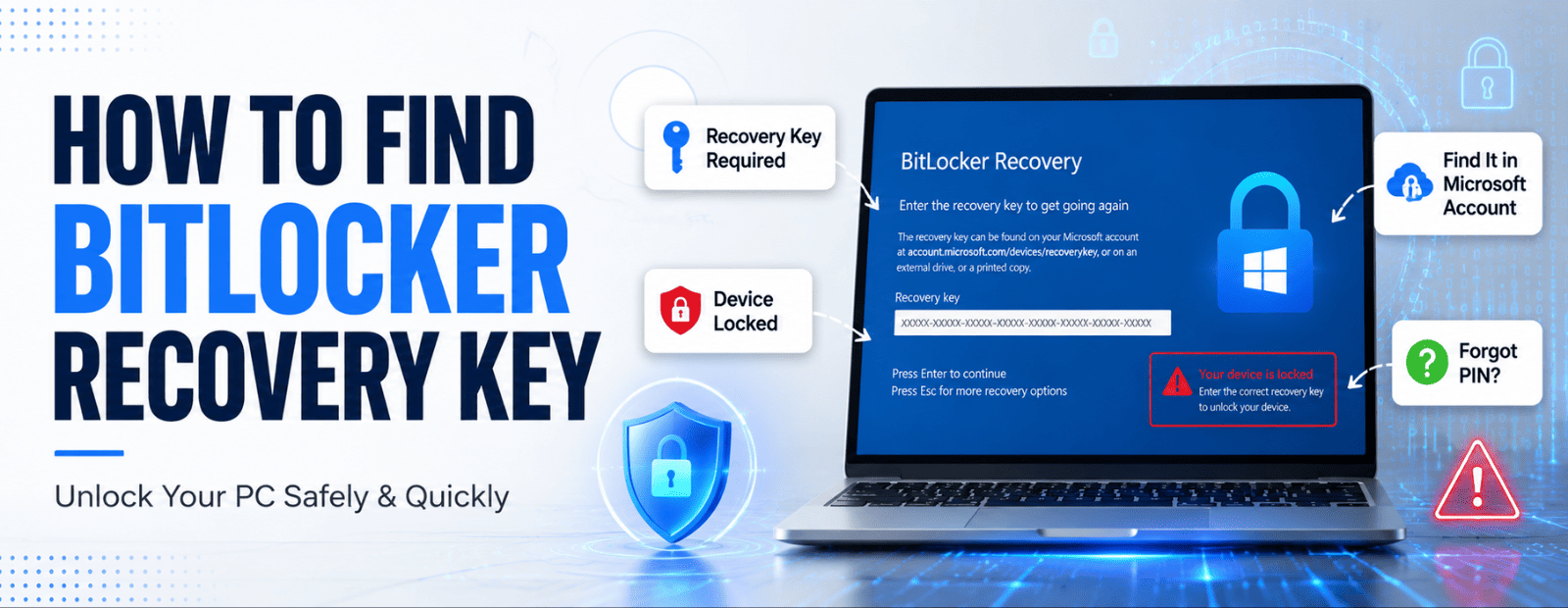
BitLocker Recovery Key: What It Is, Why You Need It, and How to Find It
A BitLocker Recovery Key is a 48-digit recovery password generated by Microsoft when BitLocker Drive Encryption is enabled on a Windows device. It is used to unlock an encrypted drive when Windows detects a security change, such as a BIOS update, TPM issue, hardware replacement, or failed login attempt.
If you're locked out of your device, you can usually find your BitLocker Recovery Key by visiting Microsoft's recovery portal and signing in with the Microsoft account linked to your PC.
In this guide, you'll learn:
- What a BitLocker Recovery Key is
- Why Windows asks for it
- How to find your BitLocker Recovery Key
- Common BitLocker recovery scenarios
- Best practices for backing up and protecting recovery keys
This guide covers both personal and enterprise Windows devices.
BitLocker Recovery Key at a Glance
| Feature | Details |
| Recovery Key Length | 48 Digits |
| Purpose | Unlocks BitLocker-encrypted drives |
| Generated When | BitLocker is enabled |
| Stored In | Microsoft Account, Azure AD, Active Directory, USB, Printout |
| Required When | Hardware changes, TPM issues, BIOS updates, recovery mode |
| Recovery Portal | aka.ms/myrecoverykey |
How to Find Your BitLocker Recovery Key Quickly
If you're locked out of your PC, try these locations first:
- Microsoft Recovery Portal (aka.ms/myrecoverykey)
- Azure AD / Microsoft Entra Account
- Active Directory (for work devices)
- Microsoft Intune
- USB Drive Backup
- Printed Recovery Key
- Command Prompt or PowerShell (if Windows is still accessible)
What Is BitLocker and Why Did Microsoft Build It?
Imagine a hospital employee leaves a laptop in a taxi. Or a government contractor's bag gets stolen at an airport. The device is gone, but is the data?
Without encryption, the answer is yes. Anyone with basic technical access can pull the drive and read everything on it. Patient records, classified documents, financial files, all of it, sitting there readable on a $40 USB adapter.
Microsoft built BitLocker to make that scenario irrelevant. When BitLocker is active on a Windows device, the entire drive is encrypted using AES-128 or AES-256 cryptography, as outlined in Microsoft's own technical documentation. Even if someone physically removes the drive and connects it to another machine, they get unreadable data. Nothing usable.
BitLocker has been part of Windows since Vista, but it became truly widespread with Windows 10 Pro and Windows 11. And here is the part that catches most people off guard: on Windows 11 devices with TPM 2.0 hardware, which is basically every modern laptop sold in the last few years, BitLocker Device Encryption switches on automatically during setup. No prompt. No warning. Just quietly running in the background.
So when the recovery screen appears out of nowhere, most people are not dealing with a system they knowingly secured. They are dealing with encryption that activated without them ever choosing it.
Enterprises, schools, healthcare organizations, and government agencies use BitLocker by policy. They have IT teams managing keys centrally. Individual users, on the other hand, are often discovering BitLocker for the first time at the worst possible moment.
That is what this guide is for.
Section 1: What Is a BitLocker Recovery Key, Exactly?
A BitLocker recovery key is a 48-digit numerical code, split into eight groups of six digits. It looks like this:
123456-234567-345678-456789-567890-678901-789012-890123
Windows generates it automatically the first time BitLocker activates on a device. It does not change unless you explicitly turn BitLocker off and back on from scratch. Think of it as the master override, the one credential that bypasses the normal login process when everything else fails.
The key is generated once and saved somewhere. Where it gets saved depends entirely on how the device was set up. A device linked to a Microsoft account will upload the key to that account automatically. A work device joined to Azure Active Directory sends the key to the organization's directory. A device configured offline with no accounts attached either saves to USB, prints it, or in many cases saves nowhere at all, which is where real problems start.
There is also something called the Recovery Key ID. When the BitLocker recovery screen appears, it shows two things: a prompt for the 48-digit key, and a shorter reference code above it. That shorter code is the Key ID. It is not the key itself. It exists to help you match the right key when multiple devices and multiple keys are stored in the same place. The process is simple: match the ID shown on your locked screen to the ID listed in your storage location, then use the full 48-digit number beside it.
One important thing to understand. The key is not recoverable if it was never saved. That is not a flaw. It is the point. Encryption that has a universal override defeats the purpose of encryption. The National Institute of Standards and Technology (NIST) covers this in their guidelines on full-disk encryption, the security model assumes the recovery key is either stored securely or lost permanently. There is no middle ground.
Section 2: Why You Need It — Common Scenarios
BitLocker does not ask for the recovery key on a whim. It monitors the hardware and software environment of your device constantly. The moment something looks different from what it recorded at the time of setup, it assumes something may have changed without authorization and locks the drive until the recovery key is provided.
This feels arbitrary when it happens to you. It is not.
The most common scenarios that trigger it:
You forgot your PIN or entered it wrong too many times. BitLocker treats repeated failed attempts as a potential brute-force attack. The drive locks and the recovery key becomes the only way in.
Hardware changed. A new RAM stick, a replaced SSD, or a motherboard swap all change the hardware fingerprint that BitLocker recorded at setup. The device no longer matches the profile it expects, so it locks down and asks you to verify through the recovery key.
BIOS or firmware updated. This one gets people constantly. A routine firmware update from your laptop manufacturer, the kind that installs silently and asks you to restart, changes the system's security profile. BitLocker sees a different environment on the next boot and demands the recovery key before proceeding.
TPM chip issue. BitLocker on Windows 11 is heavily integrated with the Trusted Platform Module chip. If it gets cleared, disabled, or fails to respond as expected, BitLocker goes into recovery mode. The TPM chip is what allows BitLocker to unlock automatically at startup without asking for a PIN every time, when the TPM cannot be verified, manual key entry takes over.
Major Windows update. Feature updates on Windows 10 and Windows 11 occasionally reset security parameters in ways that trigger recovery mode. Not every update. Not predictably. But enough that IT teams treat it as a known risk and schedule key verification before and after major updates.
Boot order changed in BIOS. Moving USB to the top of the boot sequence, something people do when trying to reinstall Windows or run a diagnostic tool, looks to BitLocker like an attempt to boot from unauthorized external media. The drive locks immediately.
In every single one of these cases, the system is working correctly. Recovery mode is not an error message. It is a security response. The only failure is when the recovery key was never saved anywhere accessible before the trigger happened.
Section 3: How to Find Your BitLocker Recovery Key
Where the key is stored depends on how the device was set up and by whom. Work through these methods in order.
Microsoft Account — aka.ms/myrecoverykey
For personal devices running Windows 10 or Windows 11, start here. Open any browser on a working device and go to aka.ms/myrecoverykey. Sign in with the Microsoft account linked to the locked device. Your recovery keys will be listed by device name and Key ID. Match the ID on your locked screen to the one listed in your account, copy the 48-digit key, and enter it on the recovery screen.
This only works if a Microsoft account was active and linked when BitLocker first switched on. If the device was set up with a local account, no key will appear here. Try every Microsoft account you own before moving on.
Azure Active Directory / Microsoft Entra ID
For company-issued or school-issued devices joined to Azure AD, go to entra.microsoft.com on a working device. Sign in with work or school credentials. Navigate to Devices, then All Devices, find the locked device by name, and look for the BitLocker Keys option. The key and its ID are listed there.
If you do not have admin access, your IT department does. Give them the Recovery Key ID shown on your locked screen and they can pull the right key in under a minute.
Active Directory — On-Premises Enterprise
For organizations running traditional on-premises Active Directory, an IT administrator can open Active Directory Users and Computers, enable Advanced Features under the View menu, locate the computer object for the locked device, right-click it, go to Properties, and check the BitLocker Recovery tab.
This only works if Group Policy was configured beforehand to back up BitLocker keys to AD DS. If that policy was never set up, the key will not be there, and that is an IT configuration gap that needs fixing before it causes bigger problems.
Microsoft Intune / Endpoint Manager
For enterprise devices managed through Intune, go to endpoint.microsoft.com with admin credentials. Navigate to Devices, select the locked device, and click Recovery Keys in the left panel. Employees can also retrieve their own key through the Company Portal at portal.manage.microsoft.com by selecting their device and choosing Get Recovery Key.
USB Drive or Printed Copy
During BitLocker setup, Windows offers the option to save the key to a USB drive or print it. If that happened, plug the USB into any working Windows device and look for a text file named BitLocker Recovery Key followed by a long ID number. Open it and read the 48-digit key. For a printout, go through the physical documentation stored with the device, purchase paperwork, IT provisioning sheets, anything filed when the device was first set up.
Command Prompt or PowerShell
If you can access any working Windows session on the same device, a second user account, or by connecting the encrypted drive to another PC as a secondary drive, open Command Prompt as Administrator and run:
manage-bde -protectors -get C:
Replace C: with the drive letter of the encrypted volume. Look for the Numerical Password section in the output. The 48-digit recovery key will be listed there.
In PowerShell as Administrator, run:
(Get-BitLockerVolume -MountPoint "C:").KeyProtector | Where-Object {$_.KeyProtectorType -eq "RecoveryPassword"} | Select-Object -ExpandProperty RecoveryPassword
This cannot be run from the BitLocker recovery screen itself. You need to already be inside a working Windows session on the affected machine or access the drive externally.
If No Microsoft Account Was Ever Linked
Search all available drives and common folders, Documents, Desktop, Downloads, for a text file named BitLocker Recovery Key. Some devices get silently enrolled into Azure AD during setup through processes like Windows Autopilot, so check with your IT department or school even if you think the device is purely personal. Run the manage-bde command above if you have any working access to the device at all.
If none of those options surface the key, the remaining path is resetting the device through Windows recovery options, which wipes everything on the encrypted drive. Microsoft Support cannot help and cannot bypass the encryption. That is by design.
Section 4: BitLocker Secures Your Device — But What About Your Communications?
BitLocker does something specific and does it well. It protects data at rest. The files, documents, credentials, and databases sitting on your encrypted drive are genuinely secure while the device is locked or powered off. Nobody gets to that data without the key.
But the moment that data starts moving, BitLocker is no longer in the picture.
A recovery key shared over WhatsApp. Sensitive files sent through a personal Gmail account. A confidential update dropped into a Slack channel that half the organization can read. The encryption protecting the drive does nothing for data once it leaves the device. That is a separate problem. And most organizations are handling it with tools that were never designed for the sensitivity of what they are carrying.
This is where I think a lot of security conversations go sideways. IT teams invest seriously in device-level encryption, BitLocker policies, TPM requirements, Group Policy enforcement, and then the IT admin shares the recovery key for that encrypted device over an unencrypted consumer messaging app. The protected thing and the communication about that protected thing live in completely different security realities.
The data-in-transit layer needs its own answer.
Enterprise communication platforms built specifically for this gap operate on a different model than consumer tools. Troop Messenger is one of them. It runs on your own infrastructure through on-premise deployment, which means your messages, files, and recovery credentials never touch a third-party server you do not control. Every conversation is end-to-end encrypted. A feature called Burnout Chat lets sensitive information, a recovery key, a credential, an internal security update, be shared in a conversation that self-expires after a set period. The key gets shared, used, and the message is gone. No chat history sitting around for months. No screenshot getting forwarded into the wrong thread.
For regulated industries, healthcare under HIPAA, finance under SOX, defense contractors under CMMC, this is not optional infrastructure. It is what the compliance frameworks are pointing toward when they talk about data sovereignty and controlled communication environments.
BitLocker at the device level and genuinely secure enterprise messaging at the communication level are solving different parts of the same problem. Most organizations have one without thinking much about the other. And the gap between them is usually where the actual exposure happens, not on the encrypted drive, but in the thread where someone shared the key to open it.
Best Practices: Storing and Backing Up Your Recovery Key
The right time to secure your recovery key is the moment BitLocker switches on, not after the recovery screen appears.
Back it up to your Microsoft account. Go to Settings, then System, then Storage, then Advanced Storage Settings, then Disks and Volumes. Select the encrypted drive and choose Back up your recovery key. Select Save to your Microsoft account. Verify it appears at aka.ms/myrecoverykey before closing anything.
Save it to a USB drive kept in a separate location from the device. Not in the laptop bag. A different place entirely.
Print it and store it somewhere you will actually find it. A locked drawer, a filing cabinet with device records, somewhere that is not also at risk if the device goes missing.
For organizations, enforce key escrow through Group Policy so no device goes into use without its key already saved to Active Directory or Azure AD. Log every key against its device in your asset management system at provisioning time. Chasing keys during an active lockout, while an employee is sitting idle, is an expensive way to discover the policy was never enforced.
Conclusion
BitLocker recovery mode is not the problem. The problem is finding out your key was never saved at a moment when you genuinely needed everything to work.
Go to aka.ms/myrecoverykey right now, before anything goes wrong, and confirm your key is sitting there. If it is not, back it up today. The process takes under five minutes and the alternative is considerably worse.
For organizations, the recovery key storage question is only part of it. Think about what happens after the key is retrieved. Who communicates it to the locked-out employee, through which channel, and whether that channel is actually secure enough to carry something that unlocks an encrypted drive. Most teams have not thought that far through it, and most teams are using tools for that communication that were built for completely different purposes.
BitLocker handles the drive. What handles the conversation around the drive is still an open question for a lot of organizations.
Frequently Asked Questions
Q1. What happens if I lose my BitLocker recovery key?
If you lose your BitLocker recovery key and cannot locate it through your Microsoft account, organization directory, USB backup, printed copy, or command-line tools, the encrypted data becomes permanently inaccessible. BitLocker is designed to protect data by ensuring that only authorized users can access it, and there is no universal bypass or master key available. In most cases, the only option is to reset the device through Windows recovery tools, which erases all data on the drive. This is why Microsoft strongly recommends backing up the recovery key as soon as BitLocker is enabled.
Q2. Can IT administrators retrieve BitLocker recovery keys centrally?
Yes. In enterprise environments, BitLocker recovery keys can often be retrieved centrally through Microsoft Entra ID (formerly Azure Active Directory), Active Directory Domain Services (AD DS), or Microsoft Intune. These platforms allow IT administrators to securely store and manage recovery keys for company-owned devices. However, the key must have been backed up to one of these systems before the device became locked. If no backup policy was configured when BitLocker was enabled, administrators may not be able to recover the key. Proper key escrow and management policies are essential for avoiding data loss.
Q3. Is BitLocker enough for enterprise security?
BitLocker is an excellent tool for protecting data stored on laptops, desktops, and other Windows devices, but it is only one part of a complete security strategy. BitLocker encrypts data at rest, meaning files remain protected if a device is lost or stolen. However, it does not secure data being shared through emails, messaging platforms, cloud services, or collaboration tools. Organizations also need secure communication systems, access controls, identity management, endpoint protection, and monitoring solutions. A layered security approach ensures that sensitive information remains protected throughout its entire lifecycle, not just while stored on a device.
Q4. What is the difference between the BitLocker recovery key and the recovery key ID?
The BitLocker recovery key and recovery key ID serve two different purposes. The recovery key ID is a short reference code displayed on the BitLocker recovery screen to help identify the correct key when multiple recovery keys are stored in one location. The recovery key itself is a unique 48-digit numerical password used to unlock the encrypted drive. Think of the key ID as a label and the recovery key as the actual solution. When BitLocker requests recovery, you first match the displayed ID with a stored key, then enter the corresponding 48-digit recovery key.
Q5. Does BitLocker activate automatically on Windows 11?
Yes, on many modern Windows 11 devices, BitLocker Device Encryption can activate automatically during the setup process. Devices equipped with TPM 2.0 hardware and linked to a Microsoft account often enable encryption without requiring users to manually turn it on. This improves security by protecting data from the moment the device is configured. However, many users are unaware that encryption is active until they encounter a recovery screen. Because of this, it is important to verify where your BitLocker recovery key is stored and ensure it is backed up properly before any hardware or system changes occur.
Q6. Why does BitLocker keep asking for a recovery key?
BitLocker may repeatedly request a recovery key when it detects changes to the device's security environment. Common triggers include BIOS or firmware updates, TPM resets, motherboard replacements, storage upgrades, changes to boot settings, or multiple incorrect PIN attempts. These events can make BitLocker believe the device may have been modified without authorization, causing it to enter recovery mode as a precaution. In most situations, BitLocker is working as intended and protecting your data. If recovery prompts occur frequently, review recent system changes, TPM settings, and firmware updates to identify the cause.
Q7. Can I bypass BitLocker without the recovery key?
No. BitLocker uses strong AES encryption standards, including AES-128 and AES-256, to secure data stored on a drive. Without the correct recovery key, there is no legitimate method to bypass BitLocker and access the encrypted files. Microsoft does not maintain a master unlock key, and even IT administrators cannot decrypt the drive without an authorized recovery key. This design is intentional and is what makes BitLocker effective against theft and unauthorized access. If the recovery key cannot be located, the encrypted data is generally considered unrecoverable and the device must be reset.
Q8. How do I check if BitLocker is currently active on my device?
You can quickly verify BitLocker status through Windows settings or the command line. On Windows 11, go to Settings → Privacy & Security → Device Encryption to see whether encryption is enabled. For more detailed information, open Command Prompt as Administrator and run manage-bde -status. The command displays each drive's encryption status, protection status, encryption method, and percentage encrypted. This information helps confirm whether BitLocker is active and functioning correctly. Checking your BitLocker status periodically is a good practice, especially before updating firmware, replacing hardware, or making major system changes.